
1. Kirish
The SteelSeries Kana Optical Gaming Mouse is engineered for precision and versatility, designed to accommodate all three primary grip styles: palm, claw, and fingertip. This ambidextrous mouse features an ergonomic button layout and size, developed in collaboration with professional gaming teams to ensure consistent performance and accuracy in competitive environments. This manual provides comprehensive instructions for setup, operation, maintenance, and troubleshooting to help you maximize your gaming experience.
2. Paket tarkibi
- SteelSeries Kana Optical Gaming Mouse (White)
- Quick Start Guide (integrated into this manual)
3. Mahsulot tugadiview
Familiarize yourself with the key components of your SteelSeries Kana mouse:
- Chap tugmasini bosish tugmasi: Asosiy harakat tugmasi.
- O'ng tugmasini bosing: Ikkilamchi harakat tugmasi.
- O'tkazish g'ildiragi: For scrolling and a clickable middle button. The scroll wheel is illuminated.
- CPI Toggle Button: Located centrally, allows quick switching between sensitivity settings.
- Yon tugmalar (x2): One on each side, large and easily accessible for rapid-fire actions. These can be customized or disabled via software.
- Optik sensor: Located on the underside, provides precise tracking.
- USB ulagichi: For connecting the mouse to your computer.
- Braided Cable: Durable, tangle-free nylon cord.
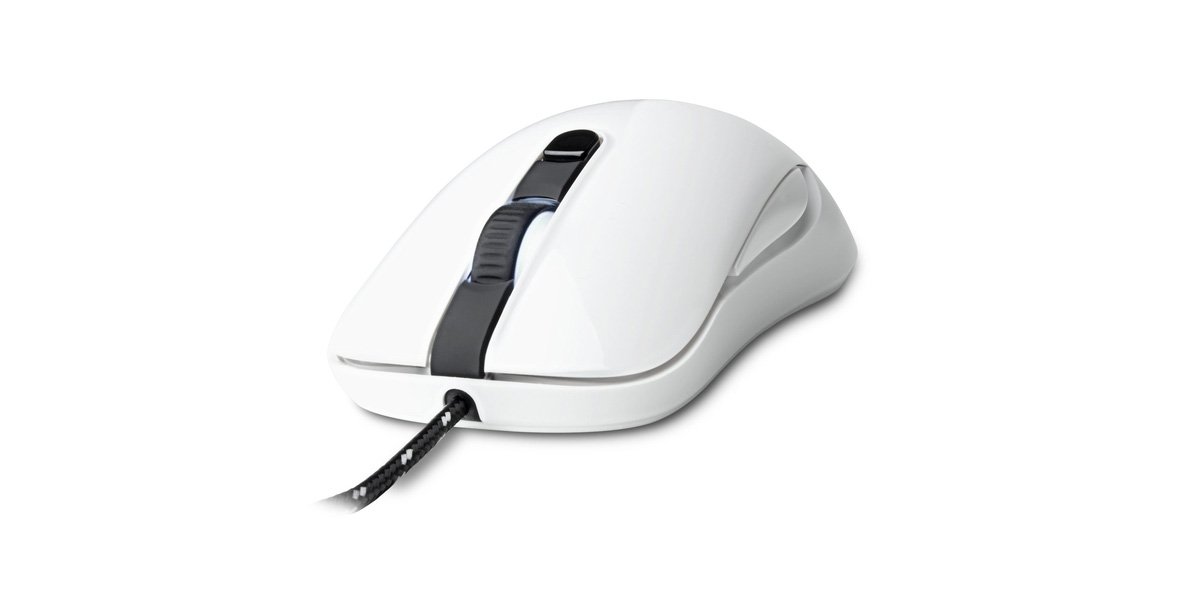
Image of the SteelSeries Kana Optical Gaming Mouse in white, showcasing its ambidextrous design, illuminated scroll wheel, and side buttons.
4. Sozlash
4.1 Uskuna ulanishi
- Kompyuteringizda mavjud USB portini toping.
- Plug the USB connector of the SteelSeries Kana mouse into the USB port.
- Your operating system should automatically detect and install basic drivers for the mouse.
4.2 Software Installation (SteelSeries Engine)
To unlock the full customization potential of your SteelSeries Kana mouse, including CPI settings, button programming, macros, and LED intensity, install the SteelSeries Engine software.
- Visit the official SteelSeries websayt: steelseries.com/engine
- Download the SteelSeries Engine software compatible with your operating system (Windows or macOS).
- O'rnatishni yakunlash uchun ekrandagi ko'rsatmalarga amal qiling.
- Once installed, launch the SteelSeries Engine to configure your mouse settings.
Mac foydalanuvchilari uchun eslatma: Compatibility with macOS versions 10.9 and later for SteelSeries Engine 2.0 (required for Kana) has historically been inconsistent. Please check the official SteelSeries website for the latest software updates and compatibility information before installation.
5. Foydalanish bo'yicha ko'rsatmalar
5.1 Asosiy funksiyalar
- Harakat: Ekrandagi kursorni boshqarish uchun sichqonchani sirt bo'ylab harakatlantiring.
- Bosish: Use the left and right buttons for primary and secondary actions.
- Oʻtkazish: Rotate the scroll wheel to navigate documents and web pages. Press the scroll wheel for its assigned middle-click function.
5.2 Adjusting CPI (Counts Per Inch)
The centrally located CPI toggle button allows you to switch between two pre-defined sensitivity settings instantly. The default CPI settings are optimized for gaming, but can be customized using the SteelSeries Engine software. The maximum CPI supported is 3200.
- Press the CPI toggle button once to switch to the alternate CPI setting.
- Press it again to revert to the previous setting.
5.3 Customizing with SteelSeries Engine
The SteelSeries Engine software provides extensive customization options:
- CPI Settings: Fine-tune or set custom CPI values beyond the pre-defined options.
- Tugmalarni dasturlash: Assign custom functions, keyboard shortcuts, or macros to any of the 6 programmable buttons (including side buttons and scroll wheel click).
- Makroslar: Create and assign complex sequences of commands with precise timing control.
- LED Intensity: Adjust the brightness of the illuminated scroll wheel.
- Profiles: Bir nechta professionalni yarating va saqlangfiles for different games or applications, with automatic switching based on game triggers.
6. Xizmat ko'rsatish
6.1 Cleaning Your Mouse
To ensure optimal performance and longevity, keep your mouse clean.
- Tashqi: Bir oz yumshoq, tuklarsiz matodan foydalaning dampened with water or a mild cleaning solution to wipe the surface of the mouse. Avoid harsh chemicals or abrasive materials.
- Optik sensor: Gently clean the optical sensor lens on the underside of the mouse with a dry cotton swab or compressed air to remove dust or debris.
- Sichqoncha oyoqlari: Ensure the mouse feet are clean and free of obstructions for smooth gliding.
Ogohlantirish: Do not immerse the mouse in water or any cleaning solution. Avoid spraying liquids directly onto the mouse.
7. Muammolarni bartaraf qilish; nosozliklarni TUZATISH
| Muammo | Mumkin yechim |
|---|---|
| Mouse not detected / Not responding |
|
| Inaccurate or erratic tracking |
|
| Buttons not responding or performing incorrectly |
|
| SteelSeries Engine software not recognizing mouse (Mac OS) |
|
8. Texnik shartlar
| Brend | SteelSeries |
| Model raqami | 62029 |
| Rang | Oq |
| Harakatni aniqlash texnologiyasi | Optik |
| Tugmalar soni | 6 (Dasturlash mumkin) |
| Qo'lni yo'naltirish | Ambidextrous (Left, Right) |
| Uskuna platformasi | PC |
| Kabel turi | To'qilgan neylon |
| Element og'irligi | 0.16 kilogramm |
| Maxsus xususiyat | Ergonomic Design, Illuminated Scroll Wheel |
9. Kafolat va qo'llab-quvvatlash
9.1 Kafolat haqida ma'lumot
The SteelSeries Kana Optical Gaming Mouse comes with a 1 yillik cheklangan kafolat sotib olingan kundan boshlab. Ushbu kafolat normal foydalanish paytida ishlab chiqarishdagi nuqsonlar va mahoratni qamrab oladi. Noto'g'ri foydalanish, baxtsiz hodisalar, ruxsatsiz o'zgartirishlar yoki normal aşınma natijasida kelib chiqqan zararni qoplamaydi. Kafolat da'volari uchun sotib olish hujjatingizni saqlang.
9.2 Mijozlarni qo‘llab-quvvatlash
For technical assistance, warranty claims, or further information, please visit the official SteelSeries support websayt:
You can find FAQs, driver downloads, and contact information for customer service on their websayt.