
Kirish
This manual provides essential information for the proper setup, operation, and maintenance of your Philips 346B1C Curved Monitor. This 34-inch WQHD (3440 x 1440) display features a 100 Hz refresh rate, 5ms response time, and a curved VA panel for an immersive viewing experience. Key features include USB-C docking, MultiView functionality, FreeSync technology, LowBlue Mode, and FlickerFree technology for enhanced user comfort and productivity.

Rasm: old view of the Philips 346B1C curved monitor, showcasing its ultrawide display and key features like WQHD, USB-C Docking, and MultiView.
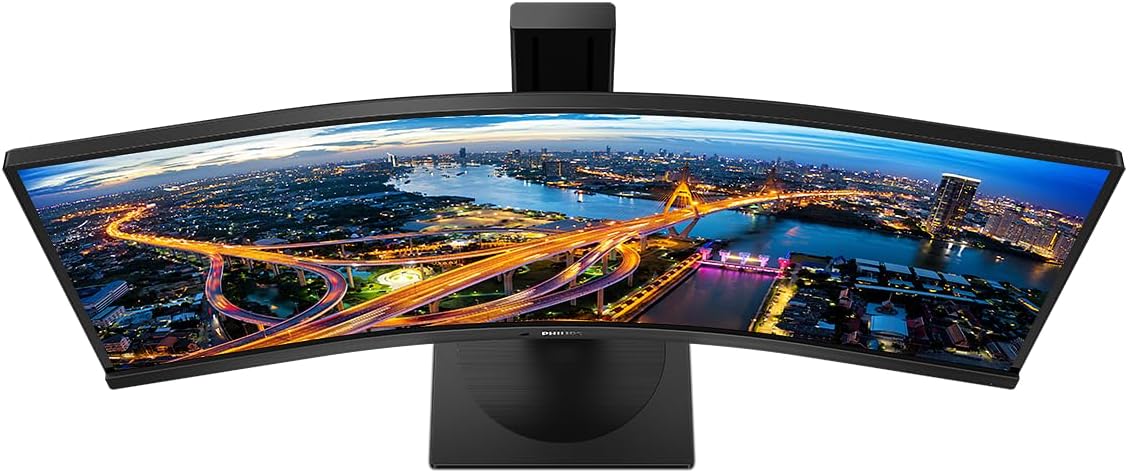
Rasm: yuqoridan pastga view of the Philips 346B1C curved monitor, emphasizing the curvature of the screen.
Qutida nima bor
O'rnatishni davom ettirishdan oldin barcha komponentlar mavjudligiga ishonch hosil qiling.
- Philips 346B1C Curved Monitor
- Monitor stend (taglik va bo'yin)
- Quvvat kabeli
- HDMI kabeli
- DisplayPort kabeli
- USB-C dan USB-C kabeliga
- USB-A to USB-B Cable (Upstream)
- Documentation (Quick Start Guide, User Manual CD)
O'rnatish bo'yicha ko'rsatmalar
1. Stendni yig'ish
- Chizmalarning oldini olish uchun monitorni yuzini pastga qaratib yumshoq va toza yuzaga qo'ying.
- Stend bo'ynini monitor paneliga ulang. Uning joyiga mahkam chertganiga yoki mavjud bo'lsa vintlar bilan mahkamlanganligiga ishonch hosil qiling.
- Attach the stand base to the stand neck. Tighten the thumb screw or screws from the bottom of the base.

Rasm: orqa view of the Philips 346B1C monitor, showing the stand attachment point and VESA mounting holes.
2. Kompyuteringizga ulanish
Connect the monitor to your computer using one of the following methods:
- HDMI ulanishi: HDMI kabelining bir uchini monitorning HDMI portiga, ikkinchi uchini esa kompyuteringizning HDMI chiqishiga ulang.
- DisplayPort ulanishi: Connect one end of the DisplayPort cable to the monitor's DisplayPort and the other end to your computer's DisplayPort output.
- USB-C ulanishi: Connect one end of the USB-C cable to the monitor's USB-C port and the other end to your computer's USB-C port. This connection supports video, data, and power delivery (up to 90W) to your laptop.
For USB hub functionality, connect the USB-A to USB-B upstream cable from your computer to the monitor's USB-B upstream port.
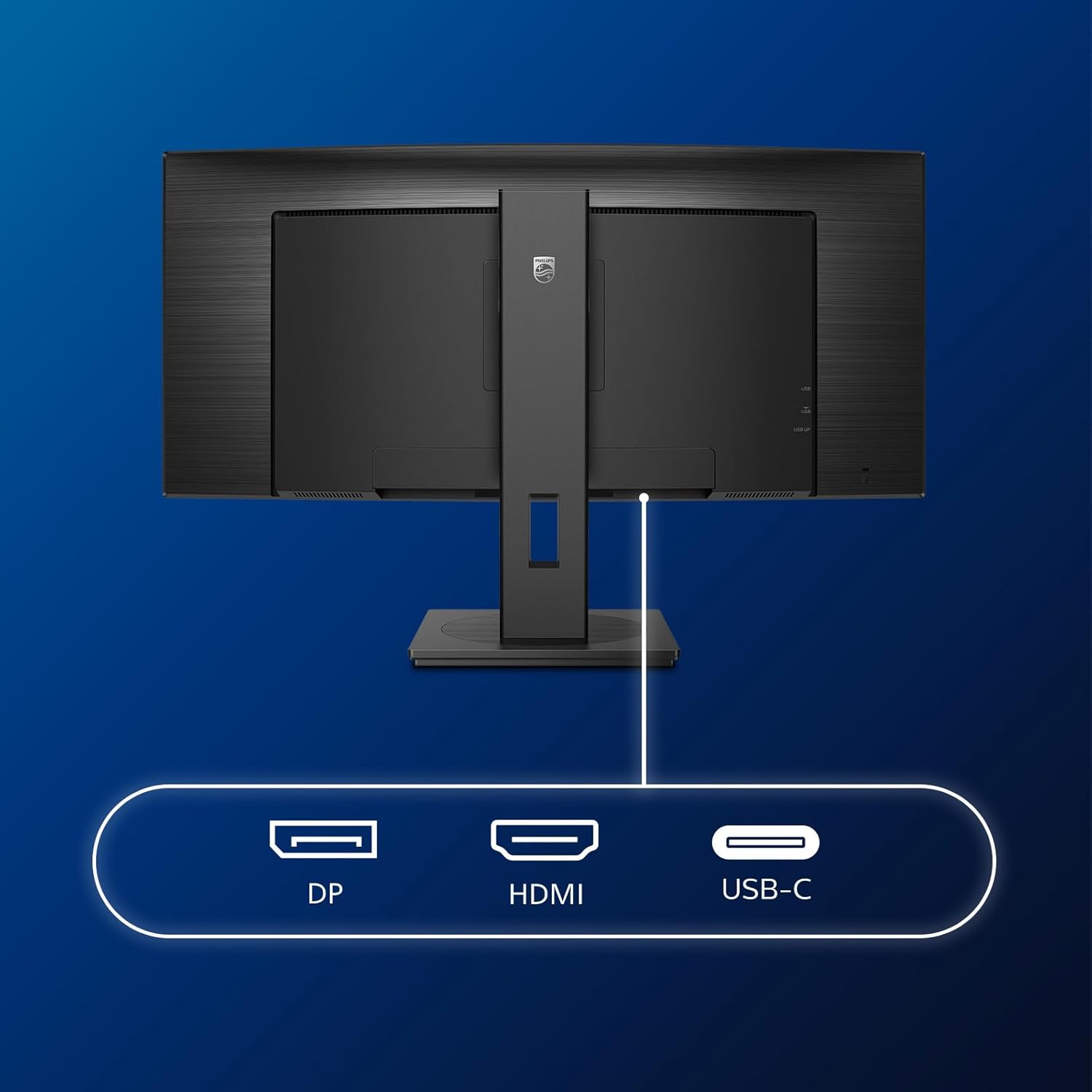
Rasm: batafsil view of the monitor's input ports, including DisplayPort (DP), HDMI, and USB-C, for connecting to various devices.
3. Quvvatga ulanish
Connect the power cable to the monitor's power input and then to a grounded electrical outlet.
4. Dastlabki yoqish
Press the power button located on the monitor to turn it on. The monitor should automatically detect the input signal. If not, use the On-Screen Display (OSD) menu to select the correct input source.
Foydalanish bo'yicha ko'rsatmalar
Ekrandagi displey (OSD) menyusi
The OSD menu allows you to adjust various monitor settings. Use the joystick control located on the back or bottom of the monitor to navigate the menu.
- Yorqinlik/kontrast: Displeyning umumiy yorqinligi va kontrastini sozlang.
- Rang sozlamalari: Rang harorati, gamma va rang maydonini aniq sozlang.
- Kirish tanlash: Manually switch between HDMI, DisplayPort, and USB-C inputs.
- Audio: Adjust volume or mute the built-in speakers.
- Rasm rejimi: Select from preset picture modes (e.g., Standard, Gaming, Text).
KoʻpView Funktsionallik
MultiView feature allows you to connect and view content from two different sources simultaneously on the screen. Access this feature through the OSD menu to select Picture-by-Picture (PbP) or Picture-in-Picture (PiP) modes and configure input sources.
USB-C ulash
When connected via USB-C, the monitor acts as a docking station, providing video, data transfer through its integrated USB hub, and power delivery to charge your connected laptop (up to 90W).
SmartErgoBase and Adjustability
The monitor's SmartErgoBase allows for ergonomic adjustments including height, swivel, and tilt to optimize your viewqulaylik.

Image: Illustrations demonstrating the monitor's adjustable features, including height adjustment, tilt, and swivel capabilities for ergonomic positioning.
Ko'z qulayligi xususiyatlari
- LowBlue rejimi: Reduces harmful shortwave blue light emissions to prevent eye strain. Activate this mode via the OSD menu.
- FlickerFree Technology: Yorqinlikni boshqaradi va qulayroq qilish uchun miltillashni kamaytiradi viewing. This feature is always active.
- PowerSensor & LightSensor: These sensors automatically adjust monitor brightness based on ambient light conditions and user presence, saving energy and reducing eye strain.
Xizmat
Monitorni tozalash
- Tozalashdan oldin har doim monitorni elektr tarmog'idan uzing.
- Yumshoq, tuklarsiz matodan engil foydalaning dampsuv yoki yumshoq, abraziv bo'lmagan ekran tozalagich bilan qoplangan.
- Spirtli ichimliklar, erituvchilar yoki ammiak asosidagi tozalagichlardan foydalanmang, chunki ular ekran yuzasiga zarar etkazishi mumkin.
- Chang va dog'larni olib tashlash uchun ekranni muloyimlik bilan arting.
- Monitorni tozalang casing yumshoq, quruq mato bilan.
Umumiy parvarish
- Monitor yoki uning kabellariga og'ir narsalarni qo'ymang.
- Monitorni to'g'ridan-to'g'ri quyosh nuri, haddan tashqari issiqlik yoki qattiq sovuqqa qo'ymang.
- Monitor atrofida to'g'ri shamollatilishini ta'minlang.
Muammolarni bartaraf qilish; nosozliklarni TUZATISH
Agar siz monitor bilan bog'liq muammolarga duch kelsangiz, quyidagi umumiy muammolarni bartaraf etish bosqichlariga qarang:
| Muammo | Mumkin sabab | Yechim |
|---|---|---|
| Ekranda rasm yo'q | Elektr kabeli uzilgan; Video kabeli uzilgan; Noto'g'ri kirish manbai tanlangan. | Ensure power cable is securely connected; Check video cable connections (HDMI, DP, USB-C); Select correct input source via OSD menu. |
| Tasvir loyqa yoki buzilgan | Noto'g'ri rezolyutsiya; Grafik drayveri muammosi. | Set display resolution to 3440 x 1440; Update graphics card drivers. |
| Karnaylardan ovoz yo'q | Volume muted or too low; Incorrect audio output selected on computer. | Adjust monitor volume via OSD; Check computer's audio output settings. |
| USB portlari ishlamayapti | Yuqori oqim USB kabeli ulanmagan. | Ensure the USB-A to USB-B upstream cable is connected from the monitor to your computer. |
For further assistance, please refer to the support section or contact Philips customer service.
Texnik xususiyatlari
| Xususiyat | Tafsilot |
|---|---|
| Brend | Philips |
| Model raqami | 346B1C |
| Ekran o'lchami | 34 dyuym (86 sm) |
| Rezolyutsiya | 3440 x 1440 (WQHD) |
| Aspekt nisbati | 21:9 |
| Ekran yuzasi | Curved VA Panel |
| Yangilanish tezligi | 100 Gts |
| Javob vaqti | 5 Milliseconds (GtG) |
| Kontrast nisbati | 3000:1 (odatiy) |
| Yorqinlik | 300 cd/m² |
| Viewburchak | 178° (H) / 178° (V) |
| Ulanish | 1x HDMI 2.0, 1x DisplayPort 1.2, 1x USB-C 3.2 Gen 1 (upstream, power up to 90W), 1x USB-B (upstream), 4x USB 3.2 (downstream), RJ45 (Ethernet) |
| Moslashuvchan sinxronlash | FreeSync |
| O'rnatilgan dinamiklar | 2x 5 Vt |
| Quvvat iste'moli | 5 Watts (Eco mode) |
| Og'irligi | 7.8 Kilograms (with stand) |
Kafolat va qo'llab-quvvatlash
Kafolat haqida ma'lumot
This Philips monitor comes with a 2 yillik ishlab chiqaruvchi kafolati. The specific terms and conditions of the warranty can be found in the detailed documentation provided with your product or on the official Philips support website. Your statutory rights as a consumer are not affected by this warranty.
Mijozlarni qo‘llab-quvvatlash
For technical assistance, product inquiries, or warranty claims, please visit the official Philips support website or contact their customer service department. You may need your monitor's model number (346B1C) and serial number (found on the back of the monitor) when contacting support.
Philips qo'llab-quvvatlash Websayt: www.philips.com/support