
1. Kirish
This manual provides detailed instructions for the setup, operation, maintenance, and troubleshooting of your Sharkoon Light² 200 Gaming Mouse. Please read this manual thoroughly before using the device to ensure optimal performance and longevity.
2. Paket tarkibi
Paketda barcha elementlar mavjudligiga ishonch hosil qiling:
- Sharkoon Light² 200 Gaming Mouse
- Interchangeable Solid Top Cover (7g)
- Set of Replacement PTFE Glide Feet
- Qo'llanma
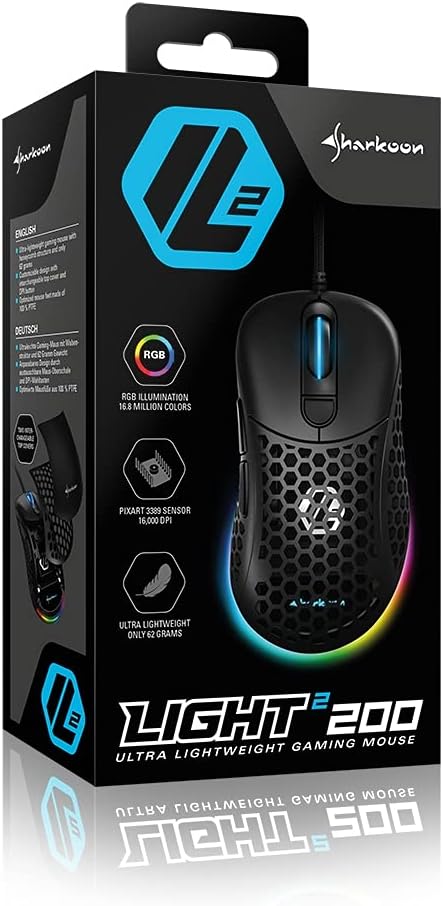
Image: The retail packaging for the Sharkoon Light² 200 Gaming Mouse, showing the mouse and its key features.
3. Sozlash
3.1 Sichqonchani ulash
- Unpack the Sharkoon Light² 200 Gaming Mouse from its packaging.
- Sichqoncha kabelining USB ulagichini kompyuteringizdagi mavjud USB portiga ulang.
- The operating system will automatically detect and install the necessary drivers.

Image: The Sharkoon Light² 200 Gaming Mouse with its USB cable, ready for connection to a computer.
3.2 Dasturiy ta'minotni o'rnatish
For full customization and access to all features, download and install the Sharkoon gaming software from the official Sharkoon website. The software allows for DPI adjustments, button programming, and RGB lighting control.
- Visit the official Sharkoon websayt.
- Navigate to the support or downloads section for the Light² 200 Gaming Mouse.
- Download the latest version of the gaming software.
- O'rnatishni yakunlash uchun ekrandagi ko'rsatmalarga amal qiling.
4. Sichqoncha bilan ishlash
4.1 Asosiy funksiyalar
The Light² 200 features standard mouse buttons and a scroll wheel:
- Chap tugmasini bosing: Asosiy harakat tugmasi.
- O'ng tugmasini bosing: Ikkilamchi harakat tugmasi, odatda kontekst menyulari uchun.
- O'tkazish g'ildiragi: For vertical scrolling. Can also be pressed for a middle-click function.
- Yon tugmalar: Two buttons located on the left side, typically for 'forward' and 'back' navigation.
- DPI tugmasi: O'tkazish g'ildiragi orqasida joylashgan, DPI sozlamalari bo'ylab harakatlanish uchun ishlatiladi.

Rasm: yon view of the Sharkoon Light² 200 Gaming Mouse, highlighting the two programmable side buttons and the honeycomb structure.
4.2 DPI sozlash
The optical PixArt sensor supports up to 16,000 DPI. You can adjust the DPI sensitivity using the dedicated DPI button behind the scroll wheel or through the Sharkoon gaming software. The RGB lighting on the scroll wheel and rear of the mouse indicates the current DPI profile.
4.3 ta dasturlashtiriladigan tugmalar
The Light² 200 features six programmable buttons. Use the Sharkoon gaming software to assign custom functions, macros, or key bindings to these buttons for an optimized gaming experience.
4.4 RGB yoritishni sozlash
The mouse features adjustable RGB illumination on the scroll wheel and the back end. The gaming software allows you to customize colors, effects, and brightness to match your preferences or gaming setup.
4.5 Modular Design: Changing the Top Cover
The Light² 200 has a modular design, allowing you to change the top surface. The default honeycomb top cover can be replaced with a closed 7-gram alternative for a different feel or aesthetic.
- Gently lift the rear edge of the honeycomb top cover to detach it. It is held by magnets.
- Align the replacement solid top cover with the mouse body and gently press it down until the magnets secure it in place.

Image: The Sharkoon Light² 200 Gaming Mouse with its honeycomb top cover removed, revealing the internal structure and magnetic attachment points.
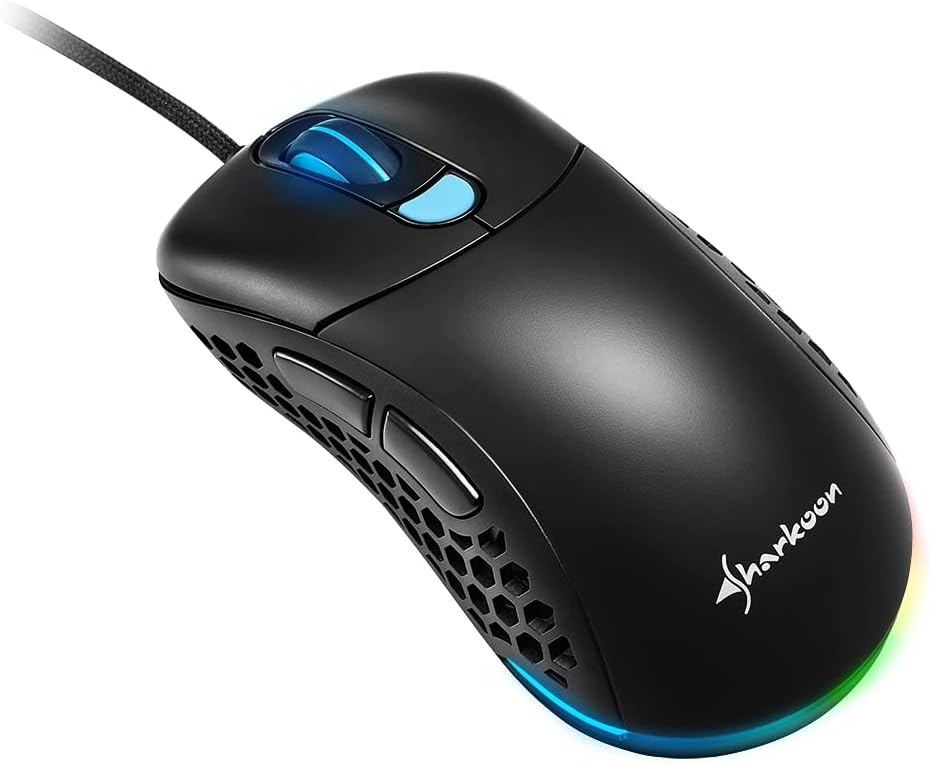
Image: The Sharkoon Light² 200 Gaming Mouse with the alternative solid top cover installed, providing a different aesthetic and feel.
5. Xizmat ko'rsatish
5.1 Sichqonchani tozalash
Optimal ishlashni ta'minlash uchun sichqonchani muntazam tozalang:
- Sichqonchani kompyuteringizdan ajratib oling.
- Sichqonchaning sirtini tozalash uchun yumshoq, quruq matodan foydalaning.
- O'jar axloqsizlik uchun, bir oz dampmatoga suv yoki yumshoq tozalash eritmasi soling. Qattiq kimyoviy moddalardan saqlaning.
- Use compressed air to clear dust from the honeycomb structure and around buttons.
- Clean the optical sensor area with a cotton swab lightly dampizopropil spirti bilan to'ldirilgan.
5.2 Replacing PTFE Glide Feet
The PTFE glide feet ensure smooth movement. If they become worn, replace them using the included spare set:
- Yupqa, abraziv bo'lmagan asbob yordamida eski PTFE oyoqlarini ehtiyotkorlik bilan olib tashlang.
- Clean the surface where the feet were attached to ensure no residue remains.
- Peel the new PTFE feet from their backing and carefully apply them to the corresponding areas on the mouse's underside.
- To'g'ri yopishish uchun mahkam bosing.

Image: The underside of the Sharkoon Light² 200 Gaming Mouse, showing the optical sensor, the DPI switch, and the four white PTFE glide feet.
6. Muammolarni bartaraf qilish; nosozliklarni TUZATISH
- Sichqoncha javob bermayapti:
- Ensure the USB cable is securely connected to a working USB port.
- Try connecting the mouse to a different USB port or another computer to rule out port or system issues.
- Kompyuteringizni qayta ishga tushiring. - DPI sozlamalari o'zgarmaydi:
- Ensure the Sharkoon gaming software is installed and running.
- Check if the DPI button is functioning correctly. - RGB yoritgichi ishlamayapti yoki noto'g'ri:
- Verify that the Sharkoon gaming software is installed and that lighting settings are configured correctly.
- Ensure the mouse is properly connected. - Mouse movement is erratic or imprecise:
- Sichqonchaning pastki qismidagi optik sensorni tozalang.
- Ensure you are using the mouse on a suitable surface (e.g., a mouse pad).
- Check for any physical obstructions around the sensor. - Tugmalar javob bermayapti:
- Check button assignments in the Sharkoon gaming software.
- Ensure no physical debris is obstructing the button mechanism.
7. Texnik shartlar
| Xususiyat | Tafsilot |
|---|---|
| Model nomi | Yorug'lik² 200 |
| Model raqami | 4044951029013 |
| Mahsulot o'lchamlari | 4.72 x 2.6 x 1.65 dyuym (120 x 66 x 42 mm) |
| Element og'irligi | 2.19 untsiya (62 gramm) |
| Harakatni aniqlash texnologiyasi | Optical (PixArt Sensor) |
| Maksimal DPI | 16,000 dpi |
| Dasturlashtiriladigan tugmalar | 6 |
| Ulanish texnologiyasi | USB |
| Maxsus xususiyat | RGB LED Lights, Modular Design |
| Ishlab chiqaruvchi | Sharkoon Technologies |
8. Kafolat va qo'llab-quvvatlash
8.1 Kafolat haqida ma'lumot
Sharkoon products are covered by a manufacturer's warranty against defects in materials and workmanship. The specific warranty period and terms may vary by region. Please retain your proof of purchase for warranty claims.
8.2 Texnik yordam
For technical assistance, driver downloads, or further information, please visit the official Sharkoon websayt:
- Websayt: www.sharkoon.com
You may also find FAQs and troubleshooting guides on their support pages.