
1. Mahsulot tugadiview
The SIIG JU-DK0L11-S1 is a versatile USB 3.0 Dual Monitor Docking Station designed to expand your laptop or desktop's connectivity and display capabilities. It supports up to two 1080p@60Hz Full HD video displays via two HDMI ports, along with multiple USB ports, Gigabit Ethernet, and a 3.5mm audio jack. This docking station is compatible with both Windows and macOS operating systems, including Mac M1/M2/M3 Pro&Max.
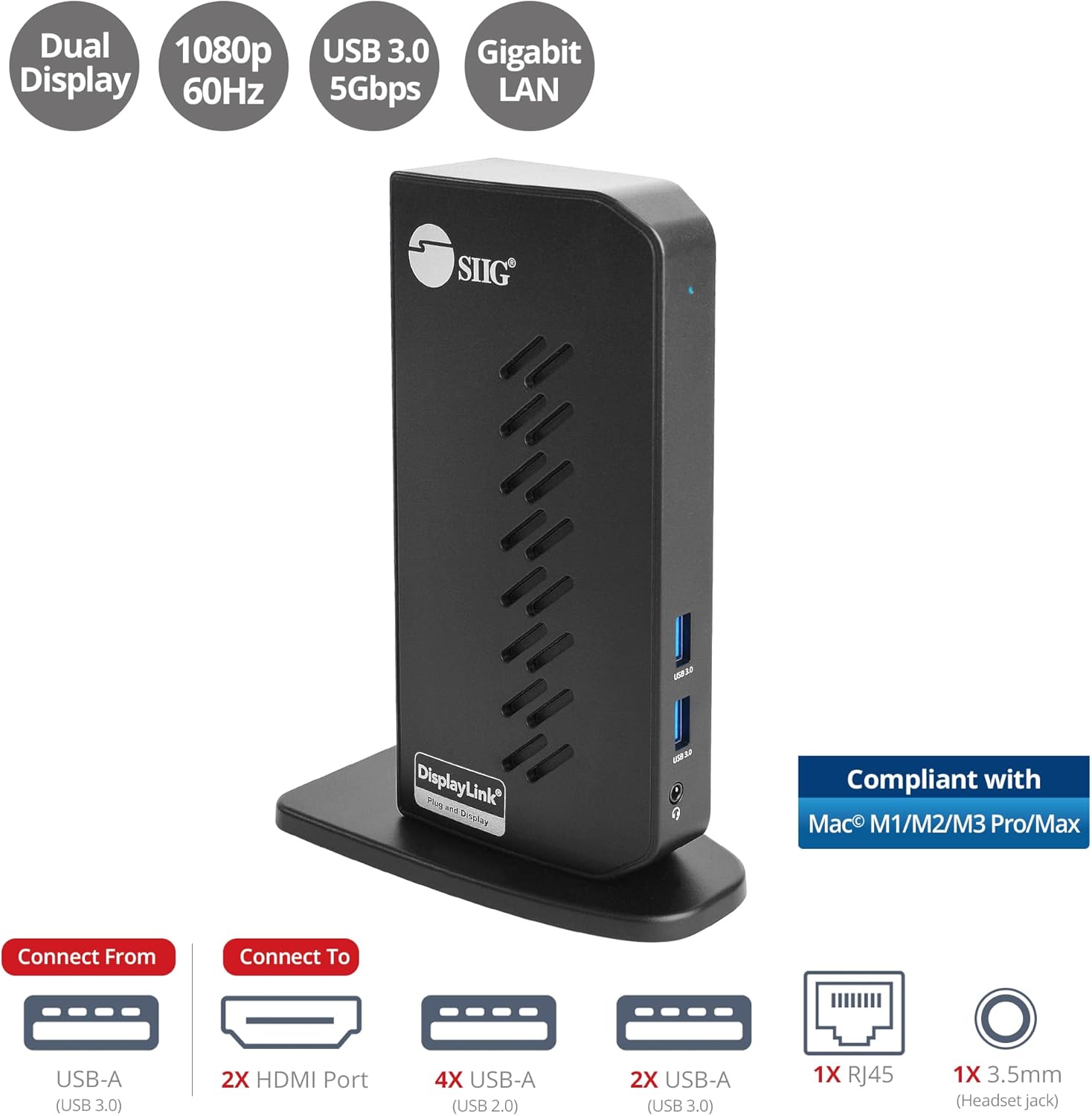
Image 1.1: The SIIG JU-DK0L11-S1 Dual Monitor Docking Station, showcasing its compact vertical design and various connectivity options.
2. Paket tarkibi
O'rnatishni davom ettirishdan oldin, paketda barcha elementlar mavjudligiga ishonch hosil qiling.
- SIIG JU-DK0L11-S1 Dual Head Full HD HDMI Video Docking Station
- Quvvat adapteri (12V/2A)
- USB 3.0 A-toifadan B-toifagacha bo'lgan kabel
- Driver CD (Drivers can also be downloaded from the official SIIG websayt)
- Foydalanuvchi uchun qo'llanma

Image 2.1: All components included in the SIIG JU-DK0L11-S1 docking station package, including the docking station, power adapter, USB cable, driver CD, and user manual.
3. Uskunaning joylashuvi
Familiarize yourself with the ports and indicators on the docking station.
Old panel
- Quvvat LED: Quvvat holatini ko'rsatadi.
- 2 ta USB 3.0 portlari: For connecting high-speed USB devices (5Gbps, 4.5W/900mA).
- 3.5 mm eshitish vositasi uyasi: For connecting headphones or stereo speakers with microphone input.
Orqa panel
- 4 ta USB 2.0 portlari: For connecting standard USB devices (480Mbps, 5V/900mA).
- RJ45 Gigabit Ethernet Port: Simli tarmoq ulanishi uchun (10/100/1000Mbps).
- 2x HDMI Outputs: For connecting external displays (up to 1080p@60Hz).
- USB 3.0 Type-B Port: For connecting the docking station to your host computer.
- Elektr quvvati: For connecting the 12V/2A power adapter.

Rasm 3.1: Batafsil view of the front and rear panels of the docking station, highlighting all available ports and their functions.
4. O'rnatish bo'yicha ko'rsatmalar
Docking stansiyangizni sozlash uchun quyidagi amallarni bajaring:
- DisplayLink drayverlarini o'rnating: Before connecting the docking station, install the necessary DisplayLink drivers on your computer. You can use the included driver CD or download the latest drivers from the official DisplayLink websayt (www.displaylink.com/downloads) or SIIG's support page.
- Quvvatni ulash: Plug the provided 12V/2A power adapter into the docking station's power jack and then into a wall outlet. The Power LED on the front panel should illuminate.
- Xost kompyuteriga ulanish: Use the supplied USB 3.0 Type-A to Type-B cable to connect the docking station's USB 3.0 Type-B port to an available USB 3.0 Type-A port on your laptop or desktop computer.
- Displeylarni ulash: Connect your external monitors to the two HDMI output ports on the rear of the docking station using HDMI cables.
- Periferik qurilmalarni ulang: Connect your USB devices (keyboard, mouse, printer, flash drives, etc.) to the available USB 3.0 and USB 2.0 ports. Connect an Ethernet cable to the RJ45 port for a wired network connection. Plug your headset or speakers into the 3.5mm audio jack.
Video 4.1: An official video demonstrating the setup and connectivity of the SIIG JU-DK0L11-S1 Dual Head Full HD HDMI Docking Station, showing how to connect monitors and peripherals.
5. Foydalanish bo'yicha ko'rsatmalar
Once the docking station is set up, you can configure your display settings and utilize the connected peripherals.
Ko'rsatish rejimlari
The docking station supports three primary display modes:
- Ko'zgu rejimi: Asosiy displeyingizni tashqi monitorlarga nusxalaydi.
- Kengaytirish rejimi: Extends your desktop across multiple screens, allowing for increased workspace.
- Asosiy rejim: Designates one of the connected displays as the main display.
You can configure these settings through your operating system's display settings (e.g., Windows Display Settings or macOS System Settings > Displays).

Image 5.1: A typical dual 1080p monitor setup utilizing the SIIG docking station, demonstrating an extended display configuration for enhanced productivity.
USB ulanishi
The docking station provides two USB 3.0 ports for high-speed data transfer (e.g., external hard drives, SSDs) and four USB 2.0 ports for standard peripherals (e.g., keyboard, mouse, printer). Simply plug your devices into the corresponding ports.
Gigabit Ethernet
For a stable and fast internet connection, connect an Ethernet cable from your router or modem to the RJ45 port on the docking station. This provides a more reliable connection than Wi-Fi, supporting 10/100/1000 BASE-T wired networks.

5.2-rasm: yaqindan view of the Gigabit RJ45 Ethernet port and USB ports, illustrating their use for network and high-speed data transmission.
Audio ulanish
The 3.5mm headset jack allows you to connect headphones, speakers, or a microphone. Ensure your operating system's audio settings are configured to use the docking station's audio output/input.
6. Specifications (Model: JU-DK0L11-S1)
| Brend | SIIG |
| Model raqami | JU-DK0L11-S1 |
| Uskuna interfeysi | 3.5mm Audio, Ethernet, HDMI, USB 1.1, USB 2.0, USB 3.0 |
| Mos qurilmalar | Desktop or laptop computer with an available USB 3.0 Type-A port. Compatible with Windows® 11/10/8.1/8/7 and macOS® 11 / 10.15 to 10.10. |
| Jami USB portlari | 6 (2x USB 3.0, 4x USB 2.0) |
| Jami HDMI portlari | 2 |
| Maksimal o'lchamlari | 1080p@60Hz (per display) |
| Ethernet tezligi | Gigabit (10/100/1000Mbps) |
| Kirish hajmitage | 100 volt (AC) |
| Mahsulot o'lchamlari (U x G x Y) | 5.31" x 2.87" x 7.36" |
| Element og'irligi | 0.75 funt |

Image 6.1: Physical dimensions of the SIIG JU-DK0L11-S1 docking station, illustrating its compact and space-saving design.
7. Muammolarni bartaraf qilish; nosozliklarni TUZATISH
- Displey chiqishi yo'q:
- Ensure the docking station is powered on and the Power LED is lit.
- Verify that the USB 3.0 cable is securely connected between the docking station and your computer.
- Check that HDMI cables are firmly connected to both the docking station and your monitors.
- Confirm that DisplayLink drivers are correctly installed and up to date.
- Kompyuteringizni qayta ishga tushirishga harakat qiling.
- USB qurilmalari tanib olinmagan:
- Ensure the docking station is powered and connected to your computer.
- USB qurilmasini dok-stansiyadagi boshqa portga ulab ko'ring.
- Connect the USB device directly to your computer to rule out device issues.
- Tarmoqqa ulanish yo'q:
- Verify the Ethernet cable is securely connected to the RJ45 port on the docking station and your network source.
- Check your computer's network settings to ensure the Ethernet adapter is enabled.
- Confirm that your router/modem is functioning correctly.
- Audio bilan bog'liq muammolar:
- Ensure your headset/speakers are properly plugged into the 3.5mm jack.
- Check your computer's sound settings to select the docking station as the default audio output/input device.
8. Xizmat ko'rsatish
To ensure the longevity and optimal performance of your SIIG docking station, follow these maintenance guidelines:
- Qurilmani yumshoq va quruq mato bilan artib, toza tuting. Suyuq tozalagichlar yoki aerozollardan foydalanishdan saqlaning.
- Ensure proper ventilation around the docking station to prevent overheating. The vertical design with heat dissipation features aids in this.
- Qurilmani haddan tashqari harorat, namlik yoki to'g'ridan-to'g'ri quyosh nuriga ta'sir qilishdan saqlaning.
- Shikastlanishning oldini olish uchun kabellar va ulagichlarni ehtiyotkorlik bilan tuting.
9. Kafolat va qo'llab-quvvatlash
For warranty information and technical support, please refer to the documentation included with your product or visit the official SIIG website. SIIG is committed to providing reliable products and customer assistance.
For further assistance, you may contact SIIG customer support directly through their websayt yoki mahsulotingiz qadog'ida ko'rsatilgan aloqa ma'lumotlari.