
Kirish
Thank you for choosing the Tera Pro Series L0013B-OG 1D Wireless Barcode Scanner. This manual provides detailed instructions for setting up, operating, and maintaining your device. Please read this manual thoroughly before use to ensure optimal performance and longevity of your scanner.
Sozlash; o'rnatish
1. Ulanish imkoniyatlari
The Tera L0013B-OG scanner offers two primary connection methods: Bluetooth and Wired USB.
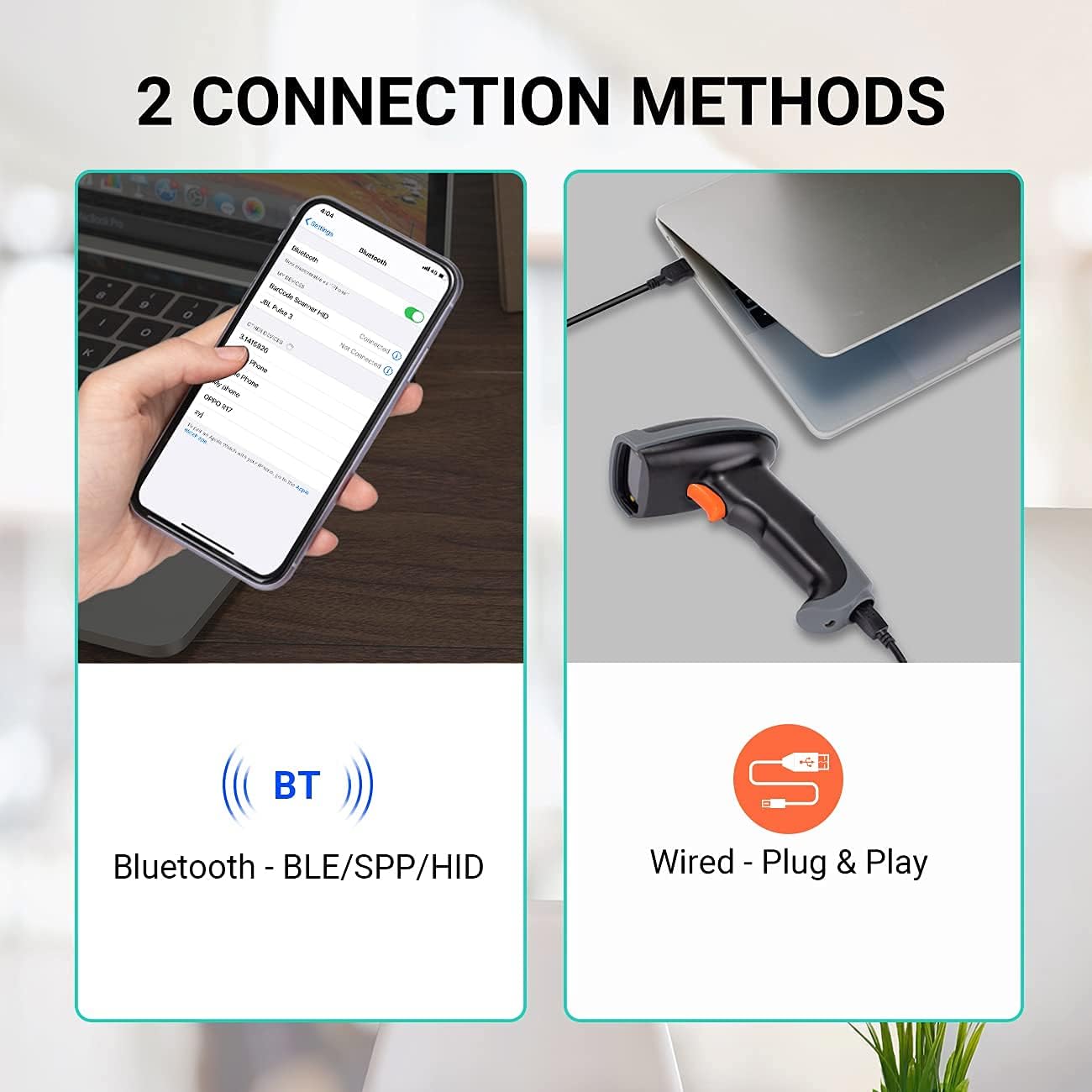
This image illustrates the two connection methods: Bluetooth for wireless pairing with devices like smartphones, and wired USB for direct connection to computers. The scanner supports both for versatile use.
Bluetooth ulanishi:
- Ensure the scanner is charged.
- Skanerni yoqing.
- Scan the Bluetooth pairing barcode (refer to the quick start guide or the scanner's internal settings for this barcode).
- On your host device (e.g., smartphone, tablet, laptop), enable Bluetooth and search for available devices.
- Select "Tera L0013B" or a similar device name from the list to pair.
- The scanner will indicate successful pairing (e.g., a beep or LED change).
- Bluetooth transmission range is up to 50 meters in an accessible environment.
Simli USB ulanishi:
- Connect the USB cable to the scanner and to an available USB port on your computer.
- The scanner is plug-and-play; no driver installation is required.
- The scanner will be recognized as a keyboard input device.
2. Skanerlash rejimlari
The scanner supports three operational scan modes:
- Doimiy skanerlash rejimi: The scanner continuously emits a laser beam, scanning barcodes automatically as they are presented.
- Qo'lda ishga tushirish rejimi: The scanner only scans when the trigger button is pressed.
- Sensor Scan Mode: The scanner activates the laser beam and scans when it detects a barcode in its field of view.

This image illustrates the scanner in operation, emphasizing the availability of three distinct scan modes: Continuous, Manual Trigger, and Sensor Scan Mode, allowing users to choose the most suitable method for their workflow.
3. Ma'lumotlarni yuklash rejimlari
Skaner ikkita ma'lumot yuklash rejimini taklif qiladi:
- Real-Time Upload Mode: Barcodes are transmitted to the host device immediately after scanning.
- Memory (Storage) Upload Mode: Scanned barcodes are saved in the scanner's internal memory. Data can be uploaded to the host device later when connectivity is established or restored. This mode is useful when the scanner is out of Bluetooth range.

This image demonstrates the two data upload modes: Real Time Mode, where data is uploaded instantly, and Storage Mode, where barcodes are saved internally for later upload, particularly useful when out of range.
4. Keyboard Language Support
The scanner supports multiple keyboard languages to ensure compatibility with various regional setups. You can configure the scanner to match your system's keyboard layout (e.g., English, Spanish, German, Japanese, French, Italian).

This image highlights the scanner's support for multiple keyboard languages, including English, Spanish, German, Japanese, French, and Italian, ensuring broad compatibility with international systems.
5. Device and System Compatibility
The Tera L0013B-OG barcode scanner is designed for wide compatibility with various devices and operating systems.
- Mos qurilmalar: Computers, Laptops, Mobile Phones, Tablets.
- Mos keladigan operatsion tizimlar: iOS, Android, Windows, Mac OS, POS, Linux, Raspberry Pi.

This image illustrates the broad compatibility of the scanner with various devices such as PCs, laptops, iPads, and iPhones, and operating systems including Windows, iOS, Linux, Android, and Mac OS.
Foydalanish bo'yicha ko'rsatmalar
Shtrix-kodlarni skanerlash
The Tera L0013B-OG scanner provides superior 1D decoding capabilities, handling various barcode conditions efficiently.
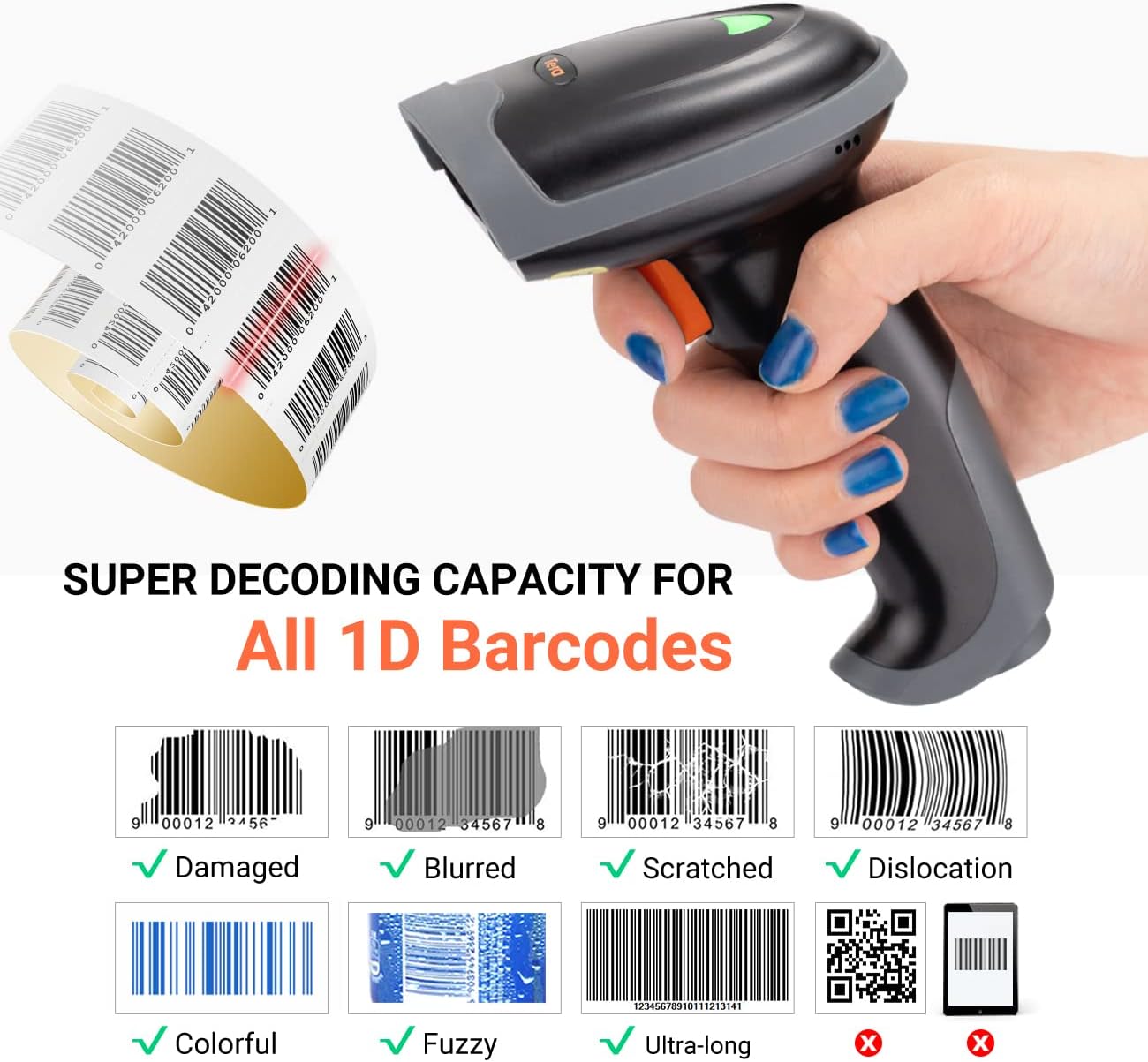
This image demonstrates the scanner's advanced 1D decoding capability, showing its ability to read damaged, blurred, scratched, dislocated, colorful, fuzzy, and ultra-long 1D barcodes. Please note that 2D/QR codes are not supported by this model.
- Ensure the scanner is powered on and connected to your host device via Bluetooth or USB.
- Skanerning yorug'lik nurini skanerlamoqchi bo'lgan shtrix-kodga yo'naltiring.
- Depending on your selected scan mode (Continuous, Manual Trigger, or Sensor), either wait for the automatic scan or press the trigger button.
- A successful scan will typically be indicated by a beep and/or an LED indicator change.
- The scanned data will appear in the active application on your host device (e.g., a text editor, spreadsheet, or POS system).
Supported 1D Barcode Types:
The scanner supports most common 1D barcodes, including:
- CODE39, CODE39 Full ASCII, CODE128, CODE 32, CODEBAR, CODE93, EAN13, CODE11, EAN-128, EAN-8, EAN-13, UPC-A, UPC-E, MSI, ISBN, ISBN 13, Industrial 2/5, ITF14, Interleaved 2/5, Standard 2/5, Matrix 2/5, GS1.
NOTE: This scanner does NOT support 2D or QR codes.
Xizmat
Proper maintenance ensures the longevity and optimal performance of your barcode scanner.
- Tozalash: Skanerning tashqi qismini tozalash uchun yumshoq, quruq matodan foydalaning. Skanerlash oynasi uchun tuksiz matodan yengil foydalaning.ampYumshoq, abraziv bo'lmagan tozalagich bilan artib oling. Qattiq kimyoviy moddalar yoki abraziv materiallardan saqlaning.
- Saqlash: Skanerni salqin, quruq joyda, to'g'ridan-to'g'ri quyosh nuri va haddan tashqari haroratdan uzoqroq joyda saqlang.
- Batareya parvarishi: For models with rechargeable batteries, avoid fully discharging the battery frequently. Charge the device regularly, even if not in constant use, to maintain battery health.
- Kabelni parvarish qilish: Inspect USB cables for any signs of wear or damage. Replace damaged cables immediately to prevent connectivity issues.
Muammolarni bartaraf qilish; nosozliklarni TUZATISH
If you encounter issues with your Tera L0013B-OG scanner, refer to the following common troubleshooting steps:
Skaner javob bermayapti:
- Quvvatni tekshiring: Skanerning zaryadlangan va yoqilganligiga ishonch hosil qiling.
- Ulanishni tekshiring:
- USB: Verify the USB cable is securely connected to both the scanner and the computer. Try a different USB port or cable.
- Bluetooth: Ensure Bluetooth is enabled on your host device and the scanner is paired. If already paired, try unpairing and re-pairing the device. Make sure the scanner is within the 50-meter Bluetooth range.
- Reset Scanner: Refer to the quick start guide for instructions on how to perform a factory reset, if available.
Shtrix-kodlarni skanerlab bo'lmadi:
- Shtrix-kod turi: Confirm that you are scanning a 1D barcode. This scanner does not support 2D or QR codes.
- Barcode Condition: Ensure the barcode is not severely damaged, blurred, or too small/large for the scanner's read range.
- Yoritish: Adjust ambient lighting if necessary. Avoid direct glare on the barcode.
- Skanerlash rejimi: Verify the scanner is in the correct scan mode (e.g., Manual Trigger requires pressing the button).
Scanned Data Appears Incorrectly:
- Klaviatura tili: Ensure the scanner's configured keyboard language matches your host device's keyboard layout. Refer to the quick start guide for instructions on changing the keyboard language.
- Ilova yo'nalishi: Make sure the target application (e.g., text editor) is active and has focus to receive input.
Texnik xususiyatlari
| Xususiyat | Tafsilot |
|---|---|
| Brend | Tera |
| Model raqami | L0013B |
| Rang | Apelsin |
| Ulanish texnologiyasi | Bluetooth, USB (Wired) |
| Mos qurilmalar | Laptop, Tablet, Desktop Computer, Mobile Phones |
| Mos keladigan operatsion tizimlar | iOS, Android, Windows, Mac OS, POS, Linux, Raspberry Pi |
| Skanerlash tezligi | soniyada 100 kadr |
| Quvvat manbai | Elektr kabeli |
| Kod hal qilish qobiliyati | 1D Barcodes (CODE39, CODE128, EAN13, UPC-A, etc.) |
| 2D/QR Code Support | Yo'q |
| Bluetooth uzatish diapazoni | Up to 50 meters (accessible environment) |
| Data Upload Modes | Real-Time, Memory (Storage) |
| Ishlab chiqaruvchi mamlakat; ta'minotchi mamlakat | Xitoy |
| Ehtiyot qismlar mavjudligi | Ma'lumot mavjud emas |
| Kafolatlangan dasturiy ta'minot yangilanishlari | Ma'lumot mavjud emas |
Kafolat va qo'llab-quvvatlash
For warranty information, please refer to the documentation included with your purchase or contact your retailer. For technical support or further assistance, please reach out to Tera customer service.

This image depicts customer service representatives ready to assist with any inquiries or support needs regarding the product.
While specific details on spare parts availability and guaranteed software updates are not provided, Tera is committed to providing quality products and support.