
1. Kirish
Thank you for choosing the Pantum BP5100DN Monochrome Laser Printer. This manual provides essential information for the safe and efficient use of your printer. Please read it thoroughly before operating the device and keep it for future reference.
The Pantum BP5100DN is designed for high-speed, high-quality monochrome printing, featuring automatic two-sided printing and versatile connectivity options including USB and Ethernet.
2. Xavfsizlik ma'lumotlari
- Printerni har doim barqaror, tekis yuzaga qo'ying.
- Haddan tashqari qizib ketishining oldini olish uchun printer atrofida to'g'ri shamollatishni ta'minlang.
- Printerni suvga yoki haddan tashqari namlikka duchor qilmang.
- Use only the specified power supply and connect to a grounded outlet.
- Ish paytida qo'llarni va bo'sh kiyimlarni harakatlanuvchi qismlardan uzoqroq tuting.
- Isitgich blokiga tegmaslikka harakat qiling, chunki u juda issiq bo'lishi mumkin.
- Do not attempt to service the printer yourself. Refer to qualified service personnel.
3. Qutida nima bor
Quyida sanab o'tilgan barcha narsalar paketingizga kiritilganligini tekshiring:
- Pantum BP5100DN Monochrome Laser Printer
- Quvvat simi
- USB interfeys kabeli
- Tez sozlash qo'llanma
- Starter cartridge (3000 pages)
- Starter drum (30000 pages)

Figure 3.1: Package Contents. This image displays the Pantum BP5100DN printer along with its accessories: power cord, USB interface cable, quick setup guide, starter toner cartridge, and starter drum unit.
4. Mahsulot tugadiview
4.1. Printer Components
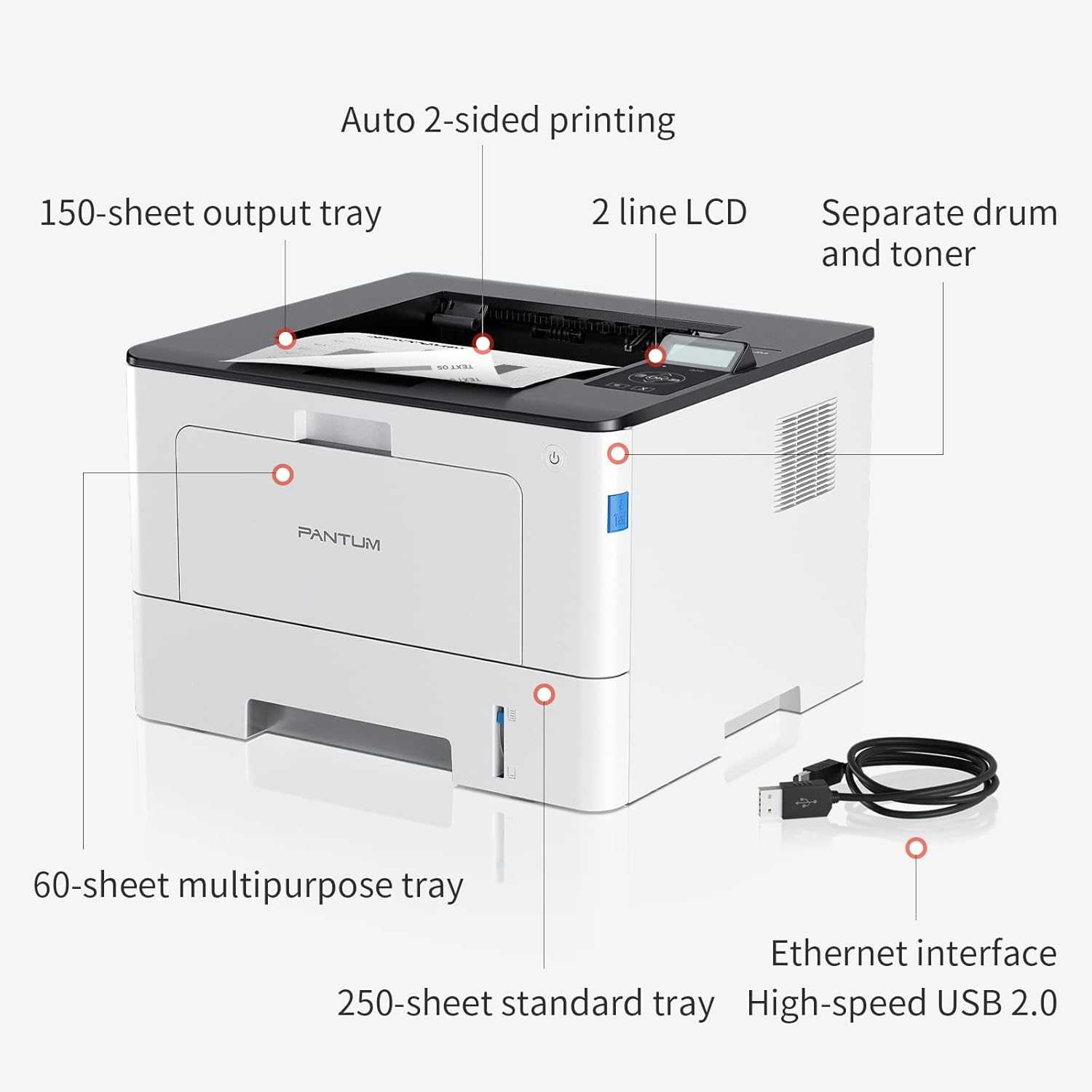
Figure 4.1: Printer Components. Key features include a 150-sheet output tray, a 2-line LCD display, separate drum and toner units, a 60-sheet multipurpose tray, a 250-sheet standard tray, an Ethernet interface, and a High-speed USB 2.0 port.
4.2. Olchamlari

Figure 4.2: Printer Dimensions. The printer measures approximately 14.33 inches (W) x 10.12 inches (H) x 13.54 inches (D).
4.3. Boshqaruv paneli

Figure 4.3: Control Panel. The control panel includes a 2-line LCD display for status messages and menu navigation, along with buttons for OK, arrow controls, and cancel functions.
5. Sozlash
5.1. Paketni ochish va joylashtirish
- Printerni o'ramidan ehtiyotkorlik bilan olib tashlang.
- Printerdan barcha himoya lentalari va qadoqlash materiallarini olib tashlang.
- Place the printer on a firm, level surface with adequate space for ventilation.
5.2. Toner and Drum Installation
- Printerning old qopqog'ini oching.
- Unpack the drum unit and toner cartridge.
- Insert the toner cartridge into the drum unit until it clicks into place.
- Insert the combined drum and toner unit into the printer.
- Old qopqoqni yoping.
5.3. Qog'oz yuklash
- Pull out the standard paper tray or open the multipurpose tray.
- Qog'oz qo'llanmalarini qog'ozingiz o'lchamiga moslang.
- Load paper into the tray, ensuring it is flat and not exceeding the maximum capacity (250 sheets for standard tray, 60 sheets for multipurpose tray).
- Qog'oz tepsisini yoping.
5.4. Quvvat va ulanish
- Elektr shnurini printerga, keyin esa yerga ulangan elektr rozetkaga ulang.
- For USB connection: Connect the provided USB 2.0 cable from the printer to your computer.
- For Ethernet connection: Connect an Ethernet cable from the printer to your network router or switch.
- Printerni yoqish uchun quvvat tugmasini bosing.
6. Foydalanish bo'yicha ko'rsatmalar
6.1. Drayv o'rnatish
For optimal performance, install the printer drivers from the official Pantum website or the provided installation media. The printer supports easy one-step installation for quick setup.
6.2. Hujjatni chop etish
- Kompyuteringizda yoki mobil qurilmangizda chop qilmoqchi bo'lgan hujjatni oching.
- Ilovangizdan chop etish variantini tanlang.
- Choose the Pantum BP5100DN from the list of available printers.
- Adjust print settings as needed (e.g., number of copies, paper size, duplex printing).
- "Chop etish" tugmasini bosing.
The printer offers fast printing speeds of up to 40 pages per minute (A4) / 42 pages per minute (Letter) in black and white. It also supports automatic two-sided printing to save paper.
6.3. Mobile Printing
The Pantum BP5100DN supports direct printing of office documents from mobile devices. Ensure your mobile device and printer are connected to the same network or via USB OTG (if supported by your device and printer).
7. Xizmat ko'rsatish
7.1. Replacing Toner Cartridge and Drum Unit
When the toner is low or the drum unit reaches its end of life, the printer's display will show a message. Refer to the instructions provided with the replacement consumables for proper installation. The starter toner cartridge yields approximately 3000 pages, and the starter drum unit yields approximately 30000 pages.
7.2. Printerni tozalash
- Tozalashdan oldin printerni o'chiring va quvvat simini rozetkadan uzing.
- Wipe the exterior of the printer with a soft, lint-free cloth.
- Use a dry cloth to clean the paper path and rollers if paper jams occur frequently.
- Abraziv tozalash vositalarini yoki erituvchilarni ishlatmang.
8. Muammolarni bartaraf qilish; nosozliklarni TUZATISH
Agar siz printer bilan bog'liq muammolarga duch kelsangiz, quyidagi umumiy echimlarga murojaat qiling:
- Printer javob bermayapti: Quvvat ulanishlarini, USB/Ethernet kabeli ulanishlarini tekshiring va printer yoqilganligiga ishonch hosil qiling. Printerni ham, kompyuteringizni ham qayta ishga tushiring.
- Qog'oz murabbolari: Open all covers and carefully remove any jammed paper. Ensure paper is loaded correctly and not creased or damaged.
- Bosib chiqarish sifati past: Check toner levels. If print quality is faded, especially with cut and paste text, ensure you are using the correct print settings and consider replacing the toner cartridge or drum unit if they are near end-of-life.
- Ulanish muammolari: For Ethernet, verify network cable connection and IP address settings. For USB, try a different USB port or cable.
- Xato xabarlari: Consult the printer's display for specific error codes and refer to the quick setup guide or online support for detailed solutions.
For persistent issues, please contact customer service for support.
9. Texnik shartlar
| Xususiyat | Spetsifikatsiya |
|---|---|
| Model nomi | BP5100DN |
| Chop etish texnologiyasi | Lazer |
| Printer chiqishi | Monoxrom |
| Maksimal chop etish tezligi (monoxrom) | 40 ppm (A4) / 42 ppm (Letter) |
| Maksimal chop etish ruxsati | 1200 x 1200 dpi |
| Ikki tomonlama chop etish | Ha (Avtomatik) |
| Ulanish texnologiyasi | Ethernet, USB 2.0 |
| Maksimal kirish varaq sig'imi | 250 sheets (Standard Tray), 60 sheets (Multipurpose Tray) |
| Chop etish vositalari | Qog'oz (tekis) |
| Varaq hajmi | A4, Letter, etc. |
| Mos qurilmalar | Smartphones, PCs |
| Wattage | 650 vatt |
| Element og'irligi | 9.07 kg (taxminan 9 kg 70 g) |
| Ishlab chiqaruvchi | Pantum |
10. Kafolat va qo'llab-quvvatlash
The Pantum BP5100DN Monochrome Laser Printer comes with a 1-year warranty from the date of purchase. For warranty claims, technical support, or any inquiries, please refer to the contact information provided in your quick setup guide or visit the official Pantum websayt.
For a better experience, please kindly refer to the user manual or contact customer service for support.