
1. Kirish
This manual provides instructions for the proper setup, operation, and maintenance of your Tera 3106-2 1D USB Wired Barcode Scanner. Please read this manual thoroughly before using the device to ensure optimal performance and longevity.
2. Mahsulot tugadiview
The Tera 3106-2 is a high-speed, accurate 1D barcode scanner designed for various applications including retail, small businesses, libraries, and warehouses. It features a plug-and-play USB connection and supports multiple customization options.

2.1-rasm: The Tera 3106-2 scanner is designed to be eye-safe, operating without a visible laser.
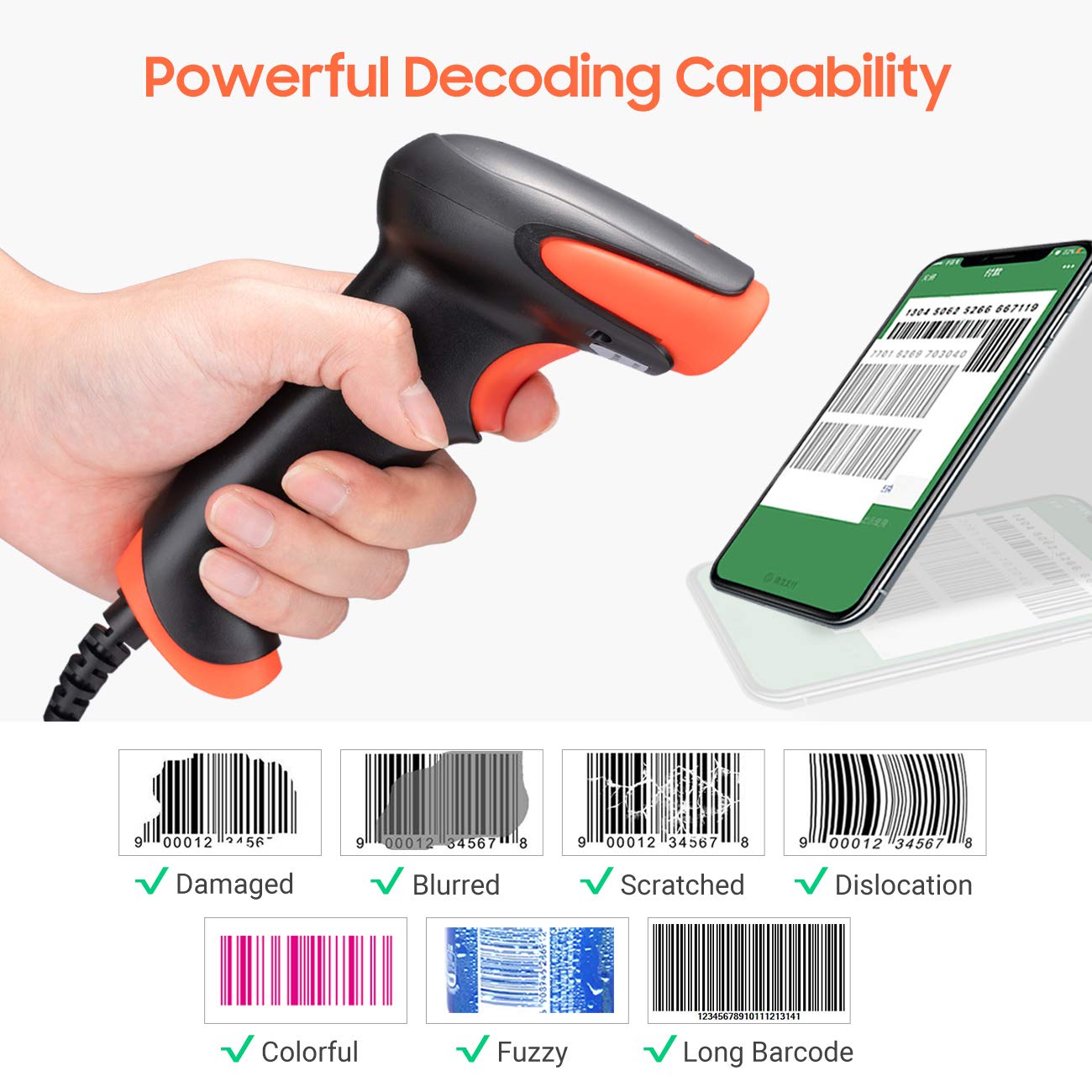
2.2-rasm: The scanner offers powerful decoding capabilities, accurately reading damaged, blurred, scratched, dislocated, colorful, fuzzy, and long 1D barcodes.
3. Paket tarkibi
- Tera 3106-2 Barcode Scanner x1
- Foydalanuvchi uchun qo'llanma x1
4. Sozlash
The Tera 3106-2 barcode scanner is designed for simple plug-and-play operation. No additional drivers or software installation is required for most systems.
- USB kabelini ulang: Plug the USB cable of the scanner into an available USB 2.0 port on your computer (desktop or laptop).
- Tizimni aniqlash: Your operating system (Windows, Linux, macOS, iOS, Android) will automatically detect and install the necessary device drivers. This process may take a few moments.
- Foydalanishga tayyor: Once the system indicates that the device is ready, the scanner can be used with applications such as Word, Excel, Novell, or other common software that accepts keyboard input.

4.1-rasm: The scanner is compatible with various devices and operating systems, including Windows, Linux, macOS, iOS, and Android.
5. Foydalanish bo'yicha ko'rsatmalar
5.1 Asosiy skanerlash
To scan a barcode, aim the scanner's light beam at the center of the barcode. A successful scan will typically be indicated by an audible beep and/or a visual confirmation (e.g., LED indicator). The decoded data will appear in the active input field on your connected device.
5.2 Skanerlash rejimlari
Skaner ikkita asosiy skanerlash rejimini qo'llab-quvvatlaydi:
- Qo'lda skanerlash: Press the trigger button to initiate a scan. This is the default mode.
- Auto Continuous Scanning: The scanner continuously emits a scan beam, automatically reading barcodes presented to it without needing to press the trigger.
To switch between these modes, refer to the configuration barcodes provided in the supplementary user guide or quick start sheet that came with your scanner. Scan the appropriate barcode to change the mode.
6. Moslashtirish parametrlari
The Tera 3106-2 scanner offers various customization settings to adapt to your specific needs. These settings are typically configured by scanning special barcodes found in the included user guide.
- Prefix/Suffix: Skanerlangan ma'lumotlardan oldin yoki keyin maxsus belgilarni qo'shing.
- Hajmi: Skanerlashni tasdiqlash signalining ovoz balandligini sozlang.
- Terminator: Configure the character sent after the barcode data (e.g., Carriage Return, Tab).
- Upper/Lower Case: Convert scanned data to all uppercase or all lowercase.
- Klaviatura tili: Select the appropriate keyboard layout for your region. Supported languages include English, Spanish, German, French, Italian, Japanese, and more.
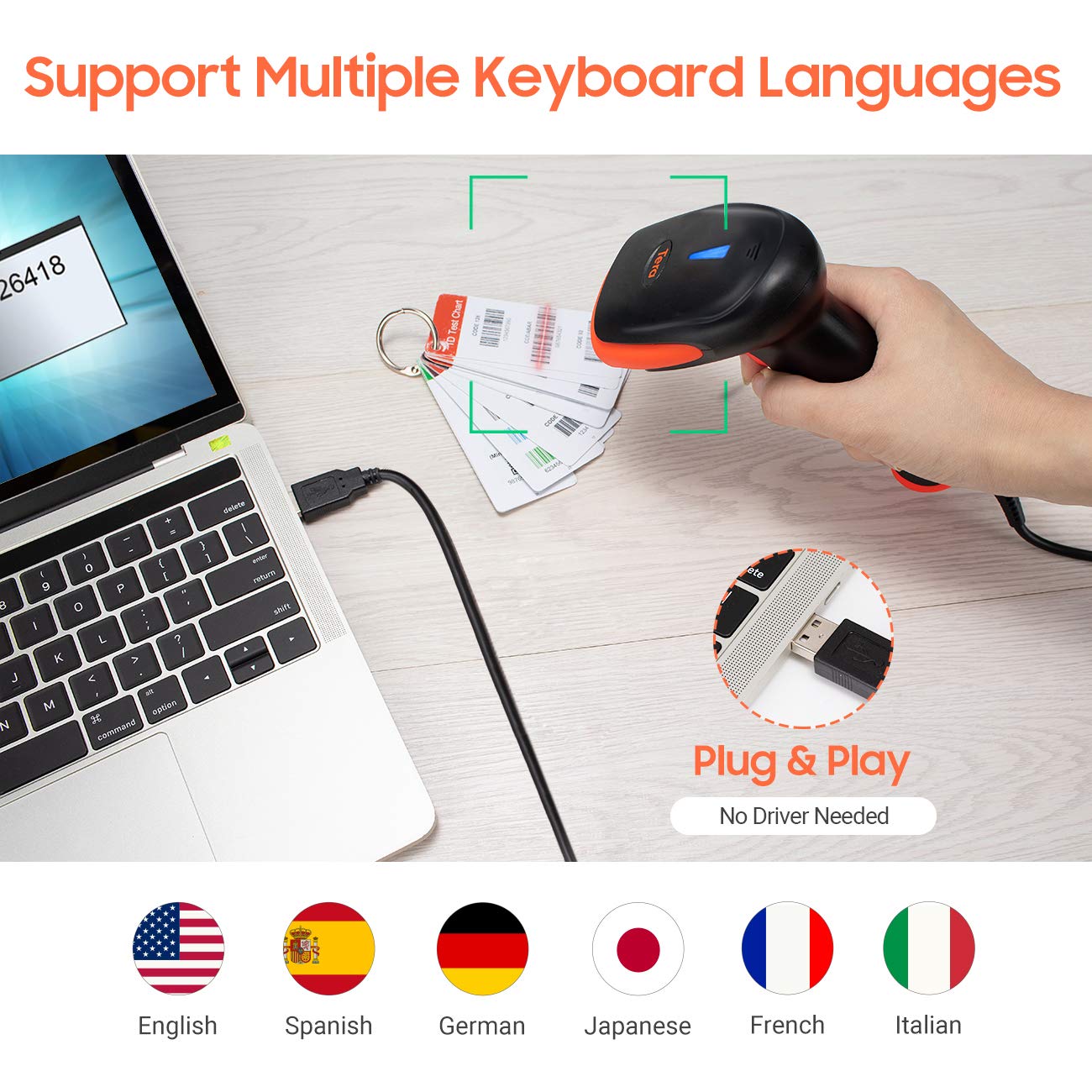
6.1-rasm: The scanner supports multiple keyboard languages for diverse international use.

6.2-rasm: Customize barcode output by adding prefixes, suffixes, or hiding specific digits.
7. Supported Barcodes
This scanner is compatible with a wide range of 1D barcode symbologies, including but not limited to:
- UPC&EAN (UPC-A, UPC-E, EAN-8, EAN-13)
- Kod 39, CODE32, Kod 93, CODE11, Kod 128, UCC-EAN128
- ISSN, ISBN
- CODABAR, MSI
- Interleaved 2 of 5, Matrix 2 of 5, Industrial 2 of 5
- Va yana.
The scanner also supports reading 1D barcodes directly from digital screens.
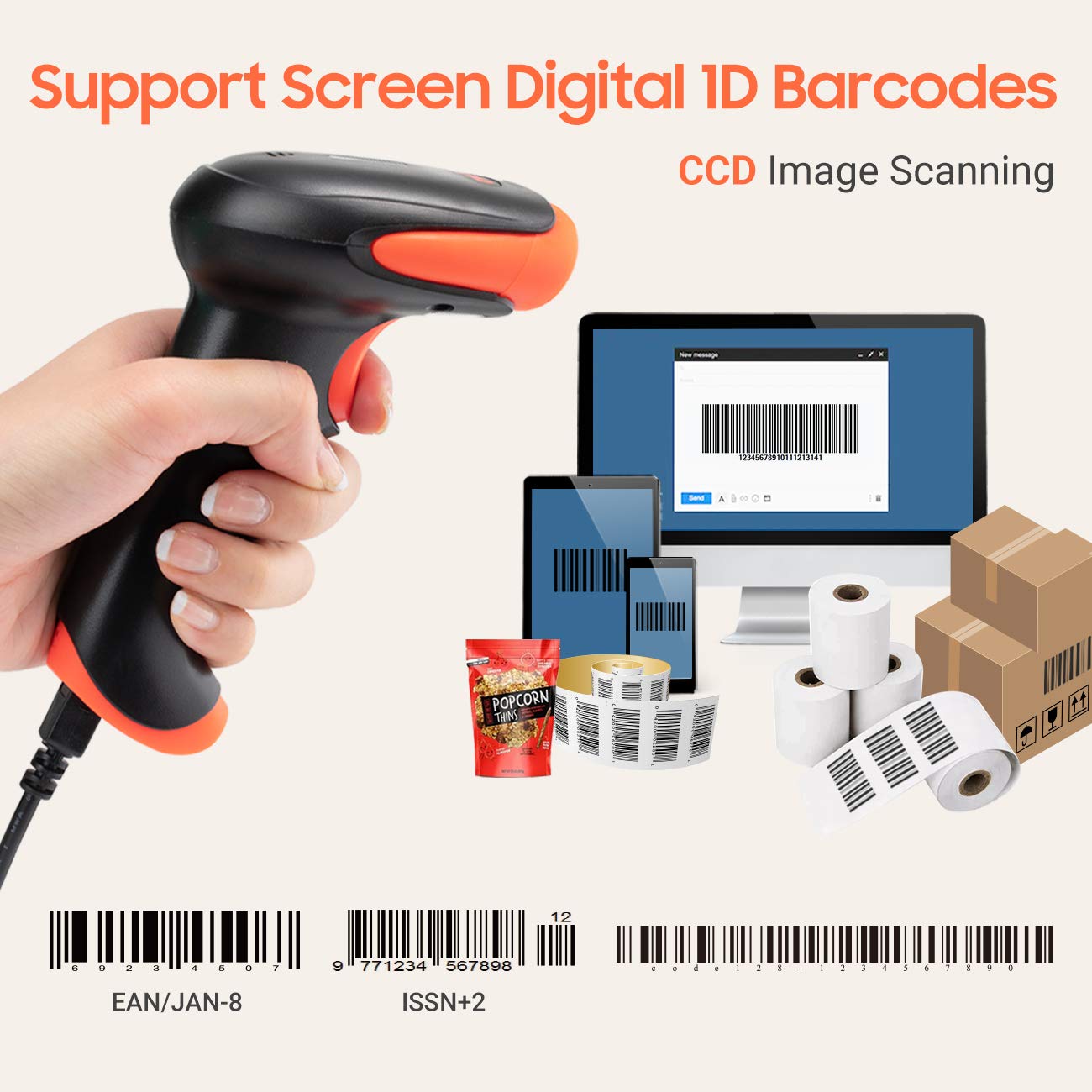
7.1-rasm: The scanner supports reading 1D barcodes from various sources, including digital screens and printed labels.
8. Xizmat ko'rsatish
- Tozalash: Skanerning tashqi qismini tozalash uchun yumshoq, quruq matodan foydalaning. Skanerlash oynasi uchun yumshoq, tuksiz matodan yengil foydalaning.ampened with water or a mild, non-abrasive cleaner. Avoid harsh chemicals.
- Saqlash: Skanerni salqin, quruq joyda, to'g'ridan-to'g'ri quyosh nuri va haddan tashqari haroratdan uzoqroq joyda saqlang.
- Ishlov berish: Avoid dropping the scanner or subjecting it to strong impacts. Do not attempt to disassemble the device.
9. Muammolarni bartaraf qilish; nosozliklarni TUZATISH
| Muammo | Mumkin sabab | Yechim |
|---|---|---|
| Scanner does not power on or respond. | USB kabeli to'g'ri ulanmagan yoki USB porti noto'g'ri. | USB kabelining ham skanerga, ham kompyuterga mahkam ulanganligiga ishonch hosil qiling. Boshqa USB portini sinab ko'ring. |
| Scanner reads barcodes slowly or inaccurately. | Barcode is damaged, blurred, or poorly printed. Insufficient lighting. Scanner window is dirty. | Ensure the barcode is clear and well-lit. Clean the scanner window. Try scanning from a different angle or distance. |
| Scanner does not read barcodes from digital screens. | Screen brightness is too low or glare is present. | Increase screen brightness. Adjust the angle of the scanner to minimize glare. Ensure the barcode is fully displayed on the screen. |
| Scanned data appears incorrectly (e.g., wrong characters, missing digits). | Incorrect keyboard language setting. Prefix/suffix or other data formatting settings are active. | Verify the keyboard language setting matches your computer's keyboard layout. Review and adjust prefix/suffix or other data formatting settings using the configuration barcodes. |
| Skaner signal beradi, lekin hech qanday ma'lumot uzatilmaydi. | Application not in focus or not accepting input. | Ensure the cursor is in the desired input field of your application. Test with a simple text editor like Notepad. |
10. Texnik shartlar
| Xususiyat | Tafsilot |
|---|---|
| Model | 3106-2 |
| Skanerlash turi | 1D Laser (Eye Safe) |
| Ulanish | USB Wired (USB 2.0) |
| Skanerlash tezligi | Up to 300 scans per second |
| Xato darajasi | 1 in 5 million scans |
| Mos qurilmalar | Ish stoli, noutbuk |
| Mos keladigan tizimlar | Windows, Linux, macOS, iOS, Android |
| Quvvat manbai | Simli elektr (USB orqali) |
| Mahsulot o'lchamlari (D x G x Y) | 7.9 x 19.3 x 10.4 santimetr |
| Supported 1D Barcodes | UPC&EAN, UPC-A, UPC-E, Code 39, CODE32, Code 93, CODE11, Code 128, UCC-EAN128, EAN-8, EAN-13, ISSN, ISBN, CODABAR, MSI, Interleaved 2 of 5, Matrix 2 of 5, Industrial 2 of 5, etc. |
11. Kafolat va qo'llab-quvvatlash
For warranty information, technical support, or service inquiries, please refer to the contact details provided with your purchase documentation or visit the official Tera websayt. Iltimos, kafolat da'volari uchun sotib olinganligingizni tasdiqlovchi hujjatingizni saqlab qo'ying.