
Kirish
Thank you for choosing the CRUA 27-inch 4K UHD 144Hz IPS Gaming Monitor. This monitor is designed to deliver an immersive visual experience with its high resolution, fast refresh rate, and vibrant color reproduction. This manual provides essential information for the proper installation, operation, and maintenance of your new monitor. Please read it thoroughly before use and retain it for future reference.
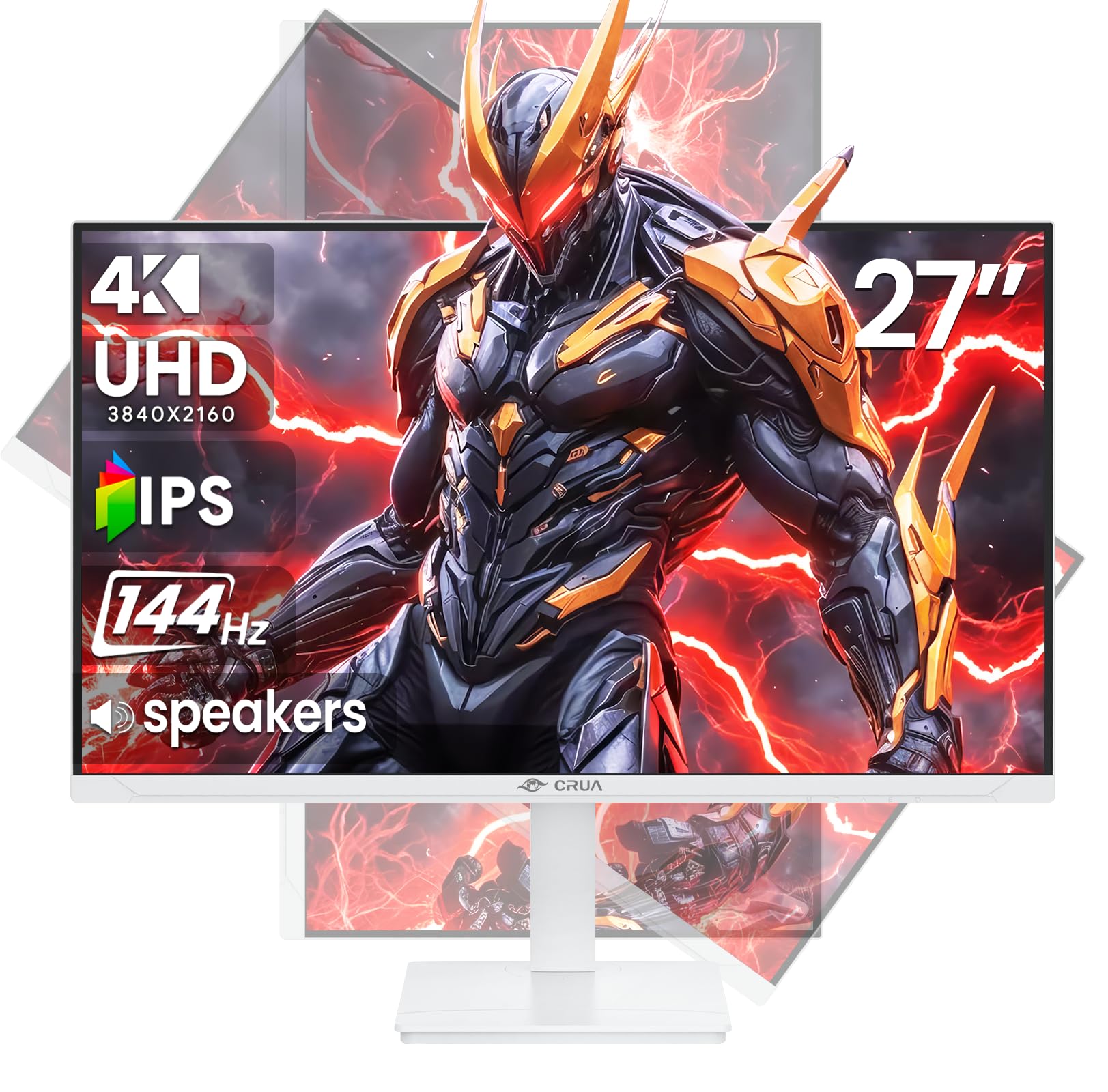
Rasm: old view of the CRUA 27-inch 4K UHD 144Hz IPS Gaming Monitor.
Qutida nima bor
Iltimos, paketingiz tarkibini tekshiring. Agar biron bir narsa etishmayotgan yoki shikastlangan bo'lsa, sotuvchingizga murojaat qiling.
- 27 dyuymli monitor
- DP kabeli
- Base and Support
- Foydalanuvchi uchun qo'llanma
- Quvvatlantirish manbai
Mahsulot xususiyatlari
- 27" 4K Display with IPS Panel: Experience ultra-clear visuals with a 3840x2160P resolution.
- 144 Gts yangilanish tezligi: Enjoy fluid and sharp motion, ideal for competitive gaming and fast-paced content.
- 120% sRGB Color Accuracy: Delivers rich and accurate tones with 350cd/m² brightness and 1000:1 high-contrast.
- O'rnatilgan dinamiklar: Provides clear audio for daily use.
- Full Ergonomic Adjustment: Features height, pivot, tilt, and rotation adjustments for optimal viewburchaklar.
- Bir nechta ulanish imkoniyatlari: Equipped with 2x HDMI 2.1 and 2x DP 1.4 ports.
- AMD FreeSync Support: Synchronizes the monitor's refresh rate with your GPU for tear-free gaming.
- Devorga o'rnatiladigan: Supports VESA 75mm x 75mm wall mounts for flexible installation.
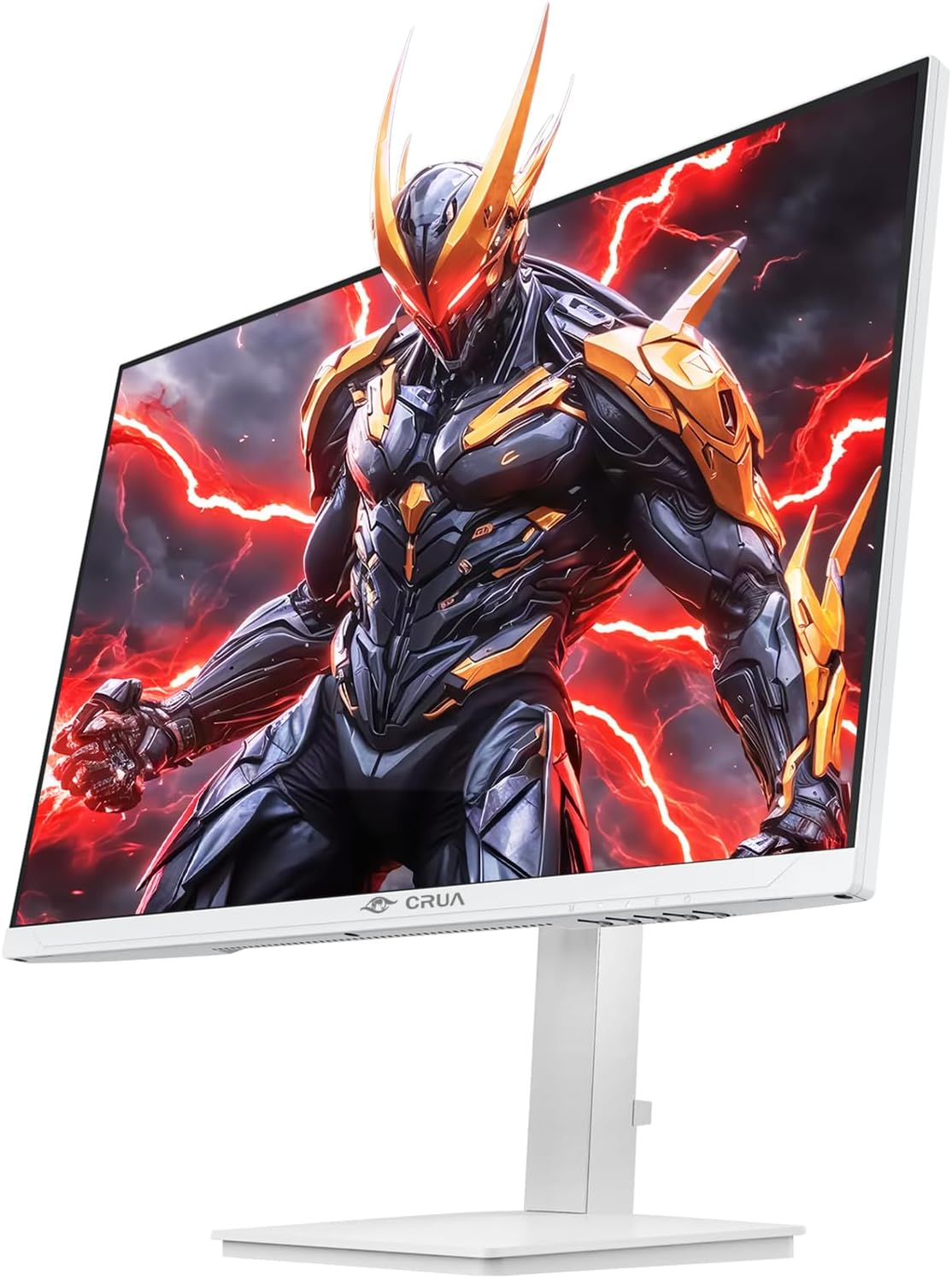
Rasm: old view of the CRUA 27-inch 4K UHD 144Hz IPS Gaming Monitor displaying a game scene.

Rasm: orqa view of the CRUA 27-inch 4K UHD 144Hz IPS Gaming Monitor showing the stand and RGB lighting.

Rasm: orqa view of the CRUA 27-inch 4K UHD 144Hz IPS Gaming Monitor highlighting the input ports (2x DP 1.4, 2x HDMI 2.1, and 3.5mm Audio Port).

Image: Diagram illustrating the adjustable height (110mm), tilt (-5° to +15°), swivel (±30°), and pivot (90°) features of the CRUA 27-inch 4K UHD 144Hz IPS Gaming Monitor.
O'rnatish bo'yicha ko'rsatmalar
1. Stendni yig'ish
- Monitor va stend komponentlarini qadoqdan ehtiyotkorlik bilan olib tashlang.
- Stend bo'ynini monitor paneliga ulang. Uning joyiga mahkam chertganiga yoki mavjud bo'lsa vintlar bilan mahkamlanganligiga ishonch hosil qiling.
- Attach the base to the stand neck, securing it with the thumb screw or other fasteners.
- Yig'ilgan monitorni barqaror, tekis yuzaga qo'ying.
2. Devorga o'rnatish (ixtiyoriy)
The monitor supports VESA 75mm x 75mm wall mounts. Remove the stand before attaching a compatible wall mount bracket (not included). Follow the instructions provided with your wall mount.
3. Kabellarni ulash
- Quvvat: Connect the power supply to the monitor's power input and then to a power outlet.
- Video kirish: Connect one end of the provided DP cable (or an HDMI cable) to the corresponding port on your computer's graphics card and the other end to a DP 1.4 or HDMI 2.1 port on the monitor.
- Ovoz chiqishi (ixtiyoriy): If using external speakers or headphones, connect them to the 3.5mm audio jack on the monitor.
4. Dastlabki yoqish
Press the power button on the monitor. The monitor should automatically detect the input signal. If not, you may need to manually select the input source using the OSD menu.
Foydalanish bo'yicha ko'rsatmalar
1. Quvvatni yoqish/o‘chirish
Press the power button located on the monitor to turn it on or off.
2. OSD menyusi navigatsiyasi
The On-Screen Display (OSD) menu allows you to adjust various monitor settings. Navigate the menu using the joystick or buttons typically located on the back or bottom of the monitor.
- OSD menyusini ochish uchun joystik/tugmasini bosing.
- Move the joystick up/down or use corresponding buttons to navigate through menu options.
- Move the joystick left/right or use corresponding buttons to adjust values or enter sub-menus.
- Press the joystick/button again to confirm selections or exit sub-menus.
3. Kirish manbasini tanlash
If the monitor does not automatically detect the correct input, open the OSD menu, navigate to "Input Source," and select the active input (e.g., HDMI1, HDMI2, DP1, DP2).
4. Displey sozlamalarini sozlash
OSD menyusida siz quyidagi kabi sozlamalarni sozlashingiz mumkin:
- Yorqinlik/kontrast: Umumiy yorqinlik va kontrast darajalarini sozlang.
- Rang sozlamalari: Rang harorati, gamma va individual RGB qiymatlarini aniq sozlang.
- Tasvir sifati: Select preset modes (e.g., Standard, Game, Movie) or customize sharpness and dynamic contrast.
- Ruxsat va yangilanish tezligi: Ensure your computer's display settings match the monitor's native 4K UHD (3840x2160P) resolution and 144Hz refresh rate for optimal performance.
- AMD FreeSync: Enable FreeSync in the OSD menu and your graphics card control panel for adaptive synchronization.
5. Ovoz sozlamalari
Adjust the volume of the built-in speakers or connected external audio devices through the OSD menu's audio section. You can also mute the audio if desired.
6. Ergonomik sozlashlar
Monitorni o'zingiz xohlagan tarzda sozlang viewpozitsiyasi:
- Balandligi: Gently push or pull the monitor up or down along the stand.
- Nishab: Tilt the screen forward or backward.
- Burilish: Monitorni uning asosida chapga yoki o'ngga aylantiring.
- Pivot: Rotate the screen 90 degrees for vertical orientation.
Xizmat
Ekranni tozalash
- Tozalashdan oldin har doim monitorni o'chiring va quvvat simini rozetkadan uzing.
- Yumshoq, tuklarsiz matodan engil foydalaning dampsuv yoki ixtisoslashtirilgan ekran tozalagich bilan yakunlanadi.
- Tozalash vositasini to'g'ridan-to'g'ri ekranga sepmang.
- Avoid using abrasive cleaners, alcohol, or ammonia-based solutions, as they can damage the screen surface.
Umumiy parvarish
- Monitorni to'g'ridan-to'g'ri quyosh nuri, issiqlik manbalari va ortiqcha changdan uzoqroq tuting.
- Haddan tashqari qizib ketishning oldini olish uchun monitor atrofida etarli shamollatishni ta'minlang.
- Monitor yoki uning kabellariga og'ir narsalarni qo'ymang.
- Ekranga o'tkir narsalar bilan tegmang.
Muammolarni bartaraf qilish; nosozliklarni TUZATISH
| Muammo | Mumkin yechim |
|---|---|
| Ekranda rasm yo'q |
|
| Karnaylardan ovoz yo'q |
|
| Tasvirning miltillashi yoki buzilishi |
|
| Tugmalar javob bermayapti |
|
For further assistance, please refer to the CRUA support websayt yoki mijozlarga xizmat ko'rsatish bilan bog'laning.
Texnik xususiyatlari
| Xususiyat | Tafsilot |
|---|---|
| Model raqami | CR270E |
| Ekran o'lchami | 27 dyuym |
| Rezolyutsiya | 4K UHD (3840 x 2160 piksel) |
| Yangilanish tezligi | 144Hz |
| Panel turi | IPS |
| Aspekt nisbati | 16:9 |
| Ranglar gamuti | 120% sRGB |
| Yorqinlik | 350 Kandela (cd/m²) |
| Kontrast nisbati | 1000:1 |
| Ulanish | 2x DP 1.4, 2x HDMI 2.1, 1x 3.5mm Audio Jack |
| Moslashuvchan sinxronlash | AMD FreeSync |
| Ergonomika | Height, Pivot, Tilt, Rotate Adjustable |
| Devorga o'rnatish | VESA 75mm x 75mm |
| O'rnatilgan dinamiklar | Ha |
| Mahsulot o'lchamlari | 2.5 x 24 x 14 dyuym |
| Element og'irligi | 11.38 funt |
Kafolat va qo'llab-quvvatlash
CRUA provides high-quality computer monitors and premium services. For warranty information, technical support, or any questions regarding your monitor, please visit the official CRUA website or contact their customer service team. Details can typically be found on the product packaging or the CRUA brand store on Amazon.
Bog'lanish uchun ma'lumot: Refer to your purchase documentation or the CRUA official webeng so'nggi qo'llab-quvvatlash aloqa ma'lumotlari uchun sayt.