
1. O'rnatish va dastlabki foydalanish
1.1 Qutidan chiqarish va paket tarkibi
Carefully unpack your Bnegynng Android 15 Tablet. Verify that all components are present:
- Bnegynng Android 15 Tablet (BNCP10)
- Bluetooth klaviatura
- Foldable Holster (Case)
- Simsiz sichqoncha
- Stylus qalam
- C-toifa zaryadlovchi kabel
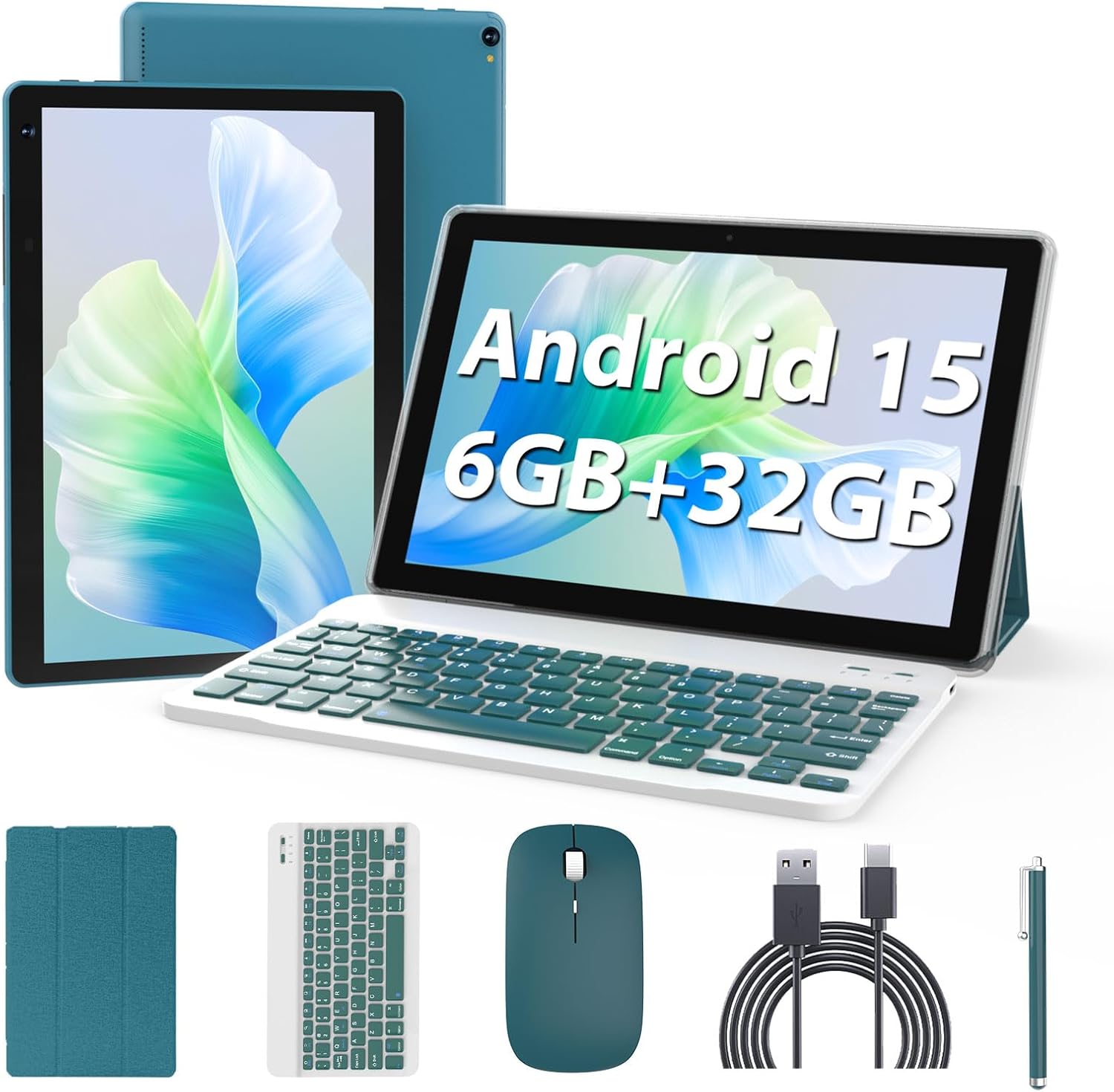
Image 1.1: The Bnegynng Android 15 Tablet with its full suite of accessories, including the keyboard, mouse, stylus, and case.
1.2 Dastlabki zaryadlash
Before first use, fully charge the tablet. Connect the provided Type-C charging cable to the tablet's charging port and plug the other end into a compatible USB power adapter (not included). The battery indicator on the screen will show charging status.
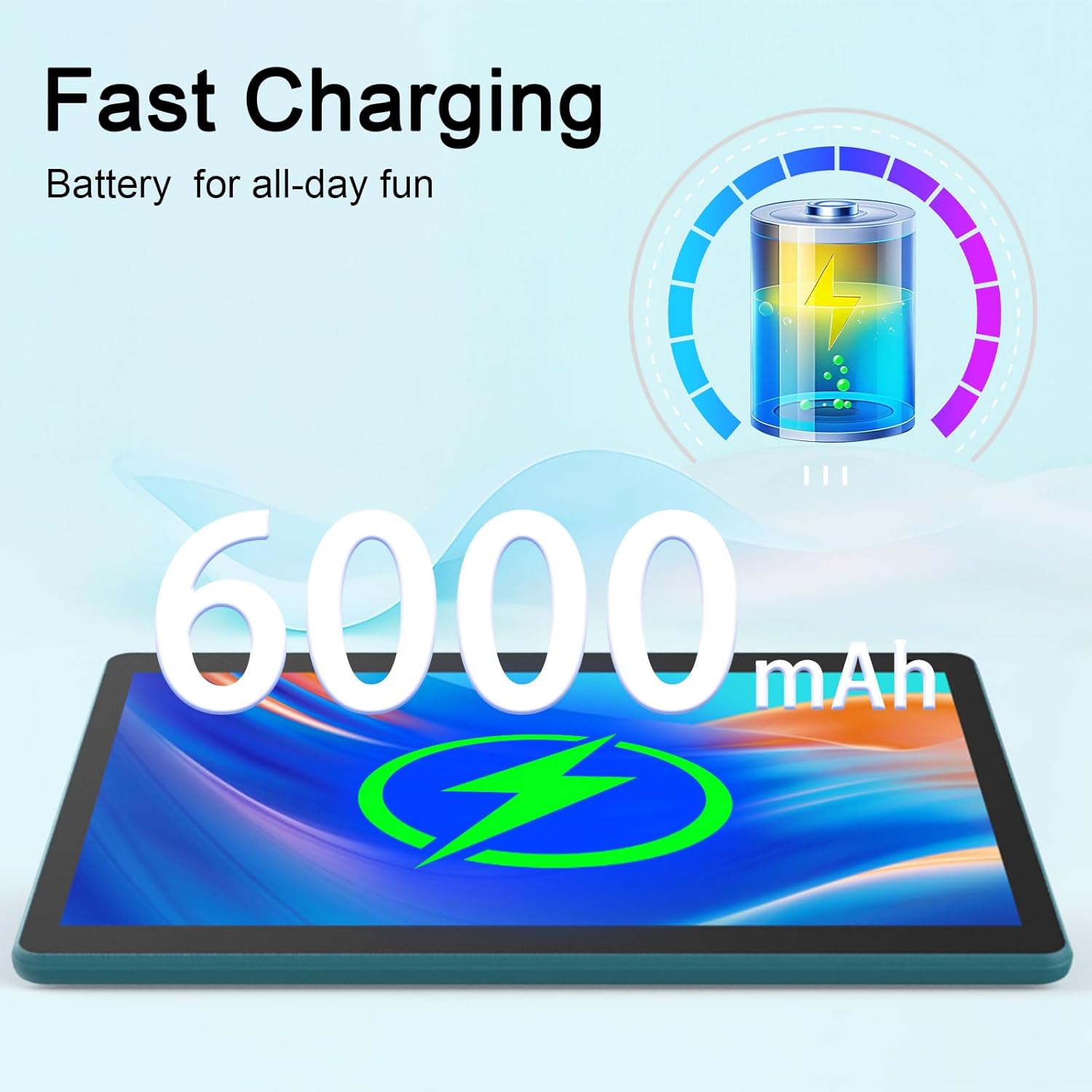
Image 1.2: The tablet features a 6000mAh battery, providing extended usage time.
1.3 Quvvatni yoqish/o‘chirish
- Yoqish uchun: Press and hold the Power button located on the side of the tablet until the Bnegynng logo appears.
- O'chirish uchun: Quvvat tugmasini bosib ushlab turing, so'ngra ekranda paydo bo'lgan variantlardan "Quvvatni o'chirish" ni tanlang.
- Qayta boshlash uchun: Quvvat tugmasini bosing va ushlab turing, so'ngra variantlardan "Qayta ishga tushirish" ni tanlang.
1.4 Initial Android 15 Setup
Birinchi marta yoqilgandan so'ng, planshet sizni dastlabki sozlash jarayoniga yo'naltiradi. Ekrandagi ko'rsatmalarga amal qiling:
- Tilingizni tanlang.
- Wi-Fi tarmog'iga ulaning.
- Google hisobingizga kiring yoki yangisini yarating. Bu Google Play Store va boshqa Google xizmatlariga kirish uchun zarur.
- Ekran qulfini sozlang (PIN, naqsh yoki parol).
1.5 Aksessuarlarni ulash
The tablet comes with a Bluetooth keyboard, mouse, and stylus for enhanced productivity.
- Bluetooth klaviaturasi/sichqonchasi: Turn on the keyboard/mouse. Go to Sozlamalar > Ulangan qurilmalar > Bluetooth on your tablet. Enable Bluetooth and search for available devices. Select the keyboard/mouse from the list and follow any pairing instructions.
- Qalam: The stylus is generally passive and does not require Bluetooth pairing. Simply use it directly on the screen.

Image 1.3: The tablet running Android 15, ready for use with Google Play Store access and privacy features.
2. Planshetingiz bilan ishlash
2.1 Asosiy navigatsiya
The Bnegynng tablet uses a touch-based interface. Common gestures include:
- Bosing: Elementni tanlash yoki ilovani ochish uchun.
- Surish: Sahifalar yoki roʻyxatlar boʻylab aylantirish uchun.
- Kattalashtirish uchun chimchilash: Tasvirlarni kattalashtirish yoki kichraytirish uchun va web sahifalar.
- Uzoq matbuot: Kontekst menyusiga kirish yoki ilova piktogrammalarini siljitish uchun.
2.2 Using the Keyboard, Mouse, and Stylus
Once connected, these accessories enhance your interaction with the tablet:
- Klaviatura: Use for typing documents, emails, and navigating with keyboard shortcuts.
- Sichqoncha: Provides precise cursor control, similar to a laptop.
- Qalam: Ideal for drawing, note-taking, and precise selections on the screen.

Image 2.1: A user interacting with the tablet using the external keyboard and mouse for productivity tasks.
2.3 Installing and Managing Applications
Your tablet is Google GMS certified, allowing full access to the Google Play Store.
- Ilovalarni o'rnatish: Open the 'Play Store' app, search for desired applications, and tap 'Install'.
- Ilovalarni olib tashlash: Long-press an app icon on the home screen or app drawer, then drag it to 'Uninstall', or go to Sozlamalar > Ilovalar > Barcha ilovalarni ko‘rish, ilovani tanlang va “O‘chirish” tugmasini bosing.

Image 2.2: The tablet supports a wide range of applications for study and entertainment.
2.4 Saqlashni boshqarish
The tablet comes with 32GB of internal storage (ROM) and supports expansion up to 1TB via a microSD card (not included).
- MicroSD kartani joylashtiring: Locate the card slot on the side of the tablet and gently insert the microSD card until it clicks into place.
- Xotirani boshqarish: ga boring Sozlamalar > Saqlash uchun view saqlashdan foydalanish va boshqarish files.
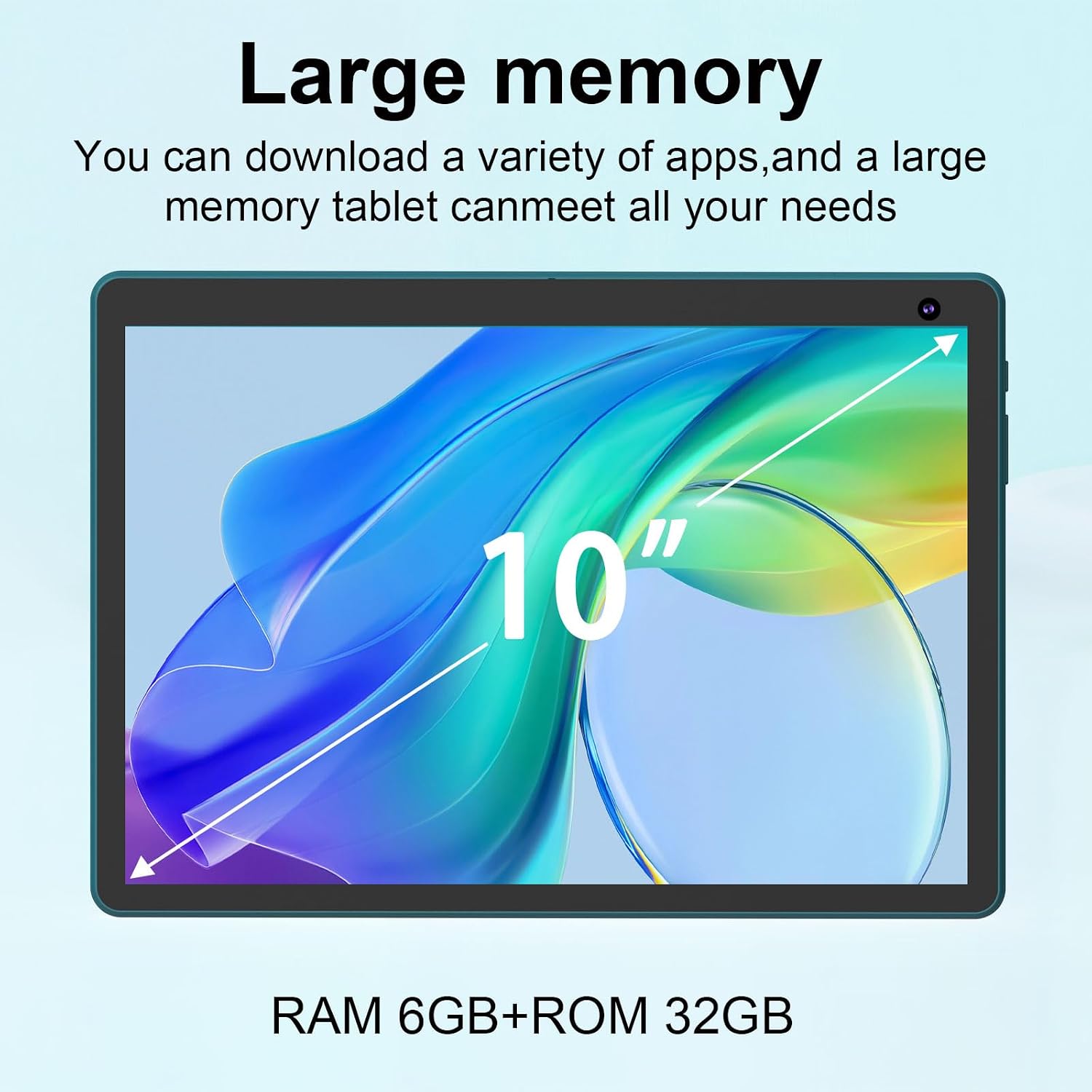
Image 2.3: The tablet offers 6GB RAM and 32GB ROM, expandable for extensive storage needs.
2.5 Kameradan foydalanish
Planshetda 2 megapikselli old kamera va 8 megapikselli orqa kamera mavjud.
- Open the 'Camera' app to take photos or record videos.
- Ekrandagi belgidan foydalanib, old va orqa kameralar o'rtasida almashinish.
2.6 Media iste'moli
With a 10.1-inch HD IPS display (1280x800 resolution) and Widevine L1 certification, the tablet is suitable for viewing high-definition content.
- Use pre-installed media players or download others from the Play Store.
- Widevine L1 ensures secure playback of high-definition content from streaming services.

Image 2.4: Enjoy music and media on the tablet, enhanced by the optional keyboard and mouse.
3. Xizmat ko'rsatish
3.1 Cleaning the Tablet and Accessories
- Planshet ekrani va korpusini tozalash uchun yumshoq, tuklarsiz matodan foydalaning.
- O'jar dog'lar uchun, bir oz dampMatoni suv yoki ekranni tozalash eritmasi bilan arting. Zararli kimyoviy moddalardan saqlaning.
- Clean the keyboard and mouse with a dry, soft cloth. Use compressed air to remove debris from keyboard crevices.
3.2 Dasturiy ta'minotni yangilash
Optimal ishlash, xavfsizlik va yangi funksiyalarga kirishni ta'minlash uchun tizim yangilanishlarini muntazam tekshirib turing va o'rnating.
- ga boring Sozlamalar > Tizim > Tizim yangilanishi mavjud yangilanishlarni tekshirish uchun.
- Ensure your tablet is connected to Wi-Fi and has sufficient battery charge before starting an update.
3.3 Saqlashni optimallashtirish
To maintain performance, periodically manage your tablet's storage.
- Delete unnecessary apps, photos, and videos.
- Ilovalar uchun kesh ma'lumotlarini tozalash Sozlamalar > Ilovalar > [Ilova nomi] > Xotira va kesh.
- Katta ko'chiring files to an external microSD card.
3.4 Batareyani parvarish qilish
Batareyaning ishlash muddatini uzaytirish uchun:
- Haddan tashqari haroratdan saqlaning.
- Planshetni uzoq vaqt davomida to'liq zaryadlangan yoki to'liq zaryadsizlangan holda qoldirmang.
- Taqdim etilgan zaryadlash kabelidan foydalaning.
4. Muammolarni bartaraf qilish; nosozliklarni TUZATISH
4.1 Umumiy muammolar va yechimlar
| Muammo | Mumkin yechim |
|---|---|
| Planshet yoqilmaydi | Ensure the battery is charged. Connect to charger for at least 30 minutes. Try holding the power button for 10-15 seconds. |
| Slow performance / Lagging | Close unused apps. Clear app caches. Restart the tablet. Check for system updates. Free up storage space. |
| Wi-Fi ulanishi bilan bog'liq muammolar | Restart the tablet and your Wi-Fi router. Forget and reconnect to the Wi-Fi network. Ensure you are within range. |
| Bluetooth accessories not connecting | Ensure accessories are charged and in pairing mode. Turn Bluetooth off and on again on the tablet. Forget and re-pair the device. |
| Batareya tezda tugaydi | Reduce screen brightness. Close background apps. Disable Wi-Fi/Bluetooth when not in use. Check for apps consuming excessive power in battery settings. |
4.2 Zavod sozlamalarini tiklash
Agar doimiy muammolar yuzaga kelsa, zavod sozlamalarini tiklash dasturiy ta'minot bilan bog'liq ko'plab muammolarni hal qilishi mumkin. Ogohlantirish: Bu planshetdagi barcha ma'lumotlarni o'chirib tashlaydi. Davom etishdan oldin muhim ma'lumotlarni zaxiralang.
- ga boring Sozlamalar > Tizim > Parametrlarni tiklash > Barcha ma’lumotlarni o‘chirish (zavod sozlamalarini tiklash).
- Qaroringizni tasdiqlang va ekrandagi ko'rsatmalarga amal qiling.
5. Texnik shartlar
| Xususiyat | Tafsilot |
|---|---|
| Model raqami | BNCP10 |
| Operatsion tizim | Android 15 |
| Protsessor | To'rt yadroli protsessor |
| Ram | 6GB (2GB + 4GB virtual memory) |
| Ichki xotira (ROM) | 32 GB |
| Kengaytiriladigan xotira | MicroSD karta orqali 1 TB gacha |
| Ekran o'lchami | 10.1 dyuym |
| Ekran ravshanligi | 1280 x 800 piksel (HD IPS) |
| Kameralar | Old: 2MP, Orqa: 8MP |
| Batareya quvvati | 6000mAh |
| O'rtacha batareya quvvati | 8 soatgacha |
| Simsiz ulanish | Wi-Fi (802.11b/g/n), Bluetooth |
| Olchamlari (UxKxY) | 10 x 7 x 1 dyuym |
| Og'irligi | 2.72 funt |
| Sertifikatlar | Google GMS, Widevine L1 |
6. Kafolat va qo'llab-quvvatlash
6.1 Mahsulot kafolati
Please refer to the warranty card included with your product packaging for specific warranty terms and conditions. Typically, Bnegynng products come with a limited manufacturer's warranty covering defects in materials and workmanship under normal use.
6.2 Mijozlarni qo‘llab-quvvatlash
For technical assistance, troubleshooting beyond this manual, or warranty claims, please contact Bnegynng customer support through the retailer where the product was purchased or visit the official Bnegynng webaloqa ma'lumotlari uchun sayt.
When contacting support, please have your product model number (BNCP10) and purchase information readily available.