
1. Kirish
This user manual provides detailed instructions for the KTC M27P6 27-inch MiniLED Gaming Monitor. Please read this manual thoroughly before operating the device to ensure proper usage and optimal performance. Keep this manual for future reference.
The KTC M27P6 is a high-performance gaming monitor featuring a 27-inch MiniLED panel with 1152 local dimming zones, offering exceptional contrast and brightness up to HDR1400. It supports dual display modes: 4K resolution at 160Hz and Full HD resolution at 320Hz, providing versatility for various gaming and professional needs. Key features include a 1ms GtG response time, Adaptive Sync technology, and comprehensive connectivity options including USB-C with 65W power delivery and KVM functionality.

Rasm: tugadiview of KTC M27P6 monitor's key features including MiniLED, 1152 local dimming zones, dual mode 4K@160Hz/FHD@320Hz, USB-C, KVM, HDR1400, 145% sRGB, Fast IPS, and Adaptive-Sync.
2. Xavfsizlik ma'lumotlari
- Monitorni yiqilishiga yo'l qo'ymaslik uchun uni doimo tekis, barqaror yuzaga qo'ying.
- Elektr toki urishi yoki yong'indan saqlanish uchun monitorni yomg'ir yoki namlik ta'siriga qo'ymang.
- Keep the monitor away from direct sunlight, heat sources, or extreme temperatures.
- Monitor atrofida to'g'ri shamollatilishini ta'minlang. Shamollatish teshiklarini to'sib qo'ymang.
- Faqat ishlab chiqaruvchi tomonidan taqdim etilgan yoki tavsiya etilgan quvvat adapteri va kabellaridan foydalaning.
- Unplug the power cord from the outlet if the monitor will not be used for a long period.
- Monitorni o'zingiz ta'mirlashga urinmang. Barcha xizmat ko'rsatishni malakali xizmat ko'rsatish xodimlariga topshiring.
- Ekranga o'tkir narsalar bilan tegmang.
3. Paket tarkibi
Verify that all components are present in your package. If any items are missing or damaged, contact your retailer.
- KTC M27P6 27-inch MiniLED Gaming Monitor
- Monitor stendi (asos va qo'l)
- Quvvat adapteri
- Quvvat kabeli
- HDMI kabeli
- DisplayPort kabeli
- USB-C kabeli
- USB-B to USB-A Cable (for KVM/USB Hub)
- Foydalanuvchi uchun qo'llanma (ushbu hujjat)
- Kafolat kartasi
4. Monitor Overview
4.1 Old qismi View
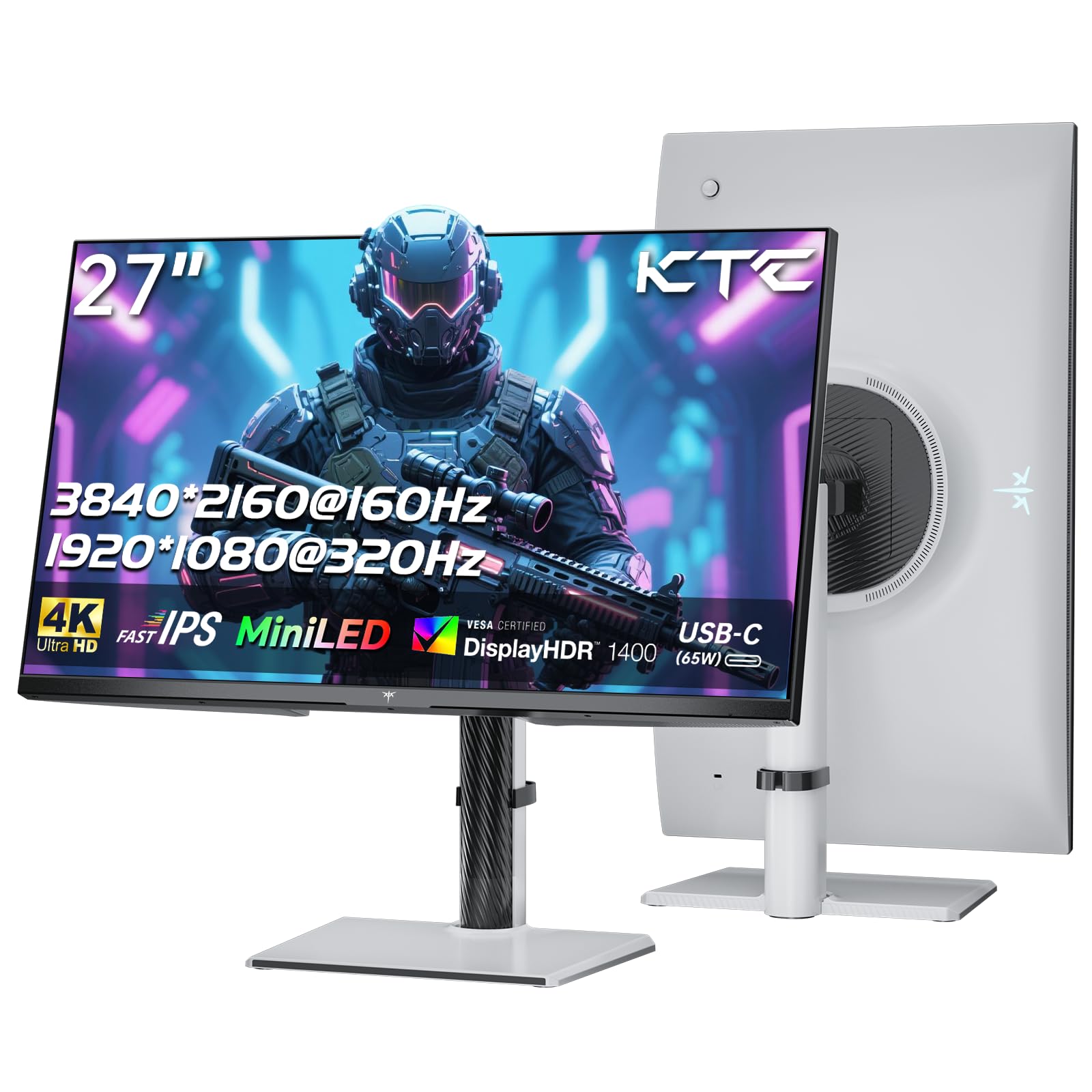
Rasm: old view of the KTC M27P6 27-inch MiniLED Gaming Monitor.
The front of the monitor features the 27-inch MiniLED display panel. The KTC logo is typically located at the bottom center bezel.
4.2 Orqa View va portlar

Rasm: orqa view of the KTC M27P6 monitor, highlighting the various input/output ports and the adjustable stand.
The rear of the monitor houses the input/output ports and the stand attachment point. The ports include:
- Kirish quvvati: Quvvat adapterini ulash uchun.
- HDMI 2.1 portlari (x2): For connecting to devices supporting HDMI 2.1 (4K@160Hz / FHD@320Hz).
- DisplayPort 1.4 Ports (x2): For connecting to devices supporting DisplayPort 1.4 (4K@160Hz / FHD@320Hz).
- USB-C porti (x1): Full-function port supporting video input (4K@160Hz / FHD@320Hz) and 65W Power Delivery.
- USB-B Upstream Port (x1): For connecting the monitor's USB hub to your computer, enabling the downstream USB-A ports and KVM functionality.
- USB-A 3.0 Downstream Ports (x3): Klaviatura, sichqoncha yoki USB drayverlar kabi periferik qurilmalarni ulash uchun.
- 3.5 mm audio chiqishi: Eshitish vositalarini yoki tashqi dinamiklarni ulash uchun.
Video: tugadiview of the KTC M27P6 monitor's features and design, including its connectivity options and adjustable stand.
5. Sozlash
5.1 Stendni yig'ish
- Monitor va stend komponentlarini qadoqdan ehtiyotkorlik bilan olib tashlang.
- Attach the stand arm to the monitor panel by aligning the mounting points and securing with screws (if applicable).
- Attach the stand base to the stand arm, ensuring it is firmly connected.
- Yig'ilgan monitorni barqaror, tekis yuzaga qo'ying.
The monitor also supports VESA mounting (100x100mm) for use with compatible wall mounts or monitor arms. Ensure the VESA mount is rated for the monitor's weight.

Image: Diagram illustrating the multi-angle adjustment capabilities of the KTC M27P6 monitor stand, including height, tilt, swivel, and pivot.
5.2 Ulanish kabellari
- Quvvat ulanishi: Connect the power adapter to the monitor's power input, then plug the power cable into a power outlet.
- Video ulanish:
- For PC/Gaming Console: Connect one end of the HDMI or DisplayPort cable to your device's output and the other end to the corresponding port on the monitor.
- For USB-C Compatible Devices: Connect the USB-C cable from your device to the monitor's USB-C port for video, data, and power delivery.
- USB Hub/KVM Connection: To use the monitor's USB-A ports and KVM functionality, connect the USB-B to USB-A cable from the monitor's USB-B upstream port to a USB-A port on your computer.
- Ovozli ulanish: If using external headphones or speakers, connect them to the 3.5mm audio out port on the monitor.
6. Foydalanish bo'yicha ko'rsatmalar
6.1 Quvvatni yoqish/o‘chirish
Monitorni yoqish yoki o'chirish uchun quvvat tugmasini (odatda monitorning orqa yoki pastki qismida joylashgan) bosing. Monitor yoqilganda quvvat indikatori chiroqchasi yonadi.
6.2 OSD menyusi navigatsiyasi
The On-Screen Display (OSD) menu allows you to adjust various monitor settings. Use the joystick or buttons (refer to your monitor's physical layout) to navigate the OSD menu:
- Press Joystick/Button: Enter OSD menu or confirm selection.
- Move Joystick Up/Down: Menyu parametrlari bo'ylab harakatlaning.
- Move Joystick Left/Right: Qiymatlarni sozlang yoki pastki menyularga o'ting.
- Chiqish tugmasi: Exit the current menu or OSD.
6.3 Dual Mode Switching (4K@160Hz / FHD@320Hz)
The KTC M27P6 supports seamless switching between two display modes: 4K (3840x2160) at 160Hz and Full HD (1920x1080) at 320Hz. This allows you to optimize performance based on your content (e.g., high-resolution graphics for AAA games or ultra-high refresh rate for competitive FPS games).
To switch modes, access the OSD menu and navigate to the "Display" or "Gaming" settings. Select the desired resolution and refresh rate. Your connected device must also support these resolutions and refresh rates for optimal performance.

Image: Illustration of the KTC M27P6 monitor's seamless dual mode switching capability, showing a 4K@160Hz gaming scene and a FHD@320Hz gaming scene.
6.4 Moslashuvchan sinxronlash
The monitor supports Adaptive Sync (AMD FreeSync and NVIDIA G-Sync compatible) to eliminate screen tearing and stuttering, providing a smoother gaming experience. Ensure Adaptive Sync is enabled in the monitor's OSD settings and in your graphics card control panel.

Image: Visual representation of Adaptive Sync technology, showing how it prevents screen tearing by synchronizing the monitor's refresh rate with the GPU's frame rate.
6.5 KVM Functionality
The integrated KVM (Keyboard, Video, Mouse) switch allows you to control multiple computers or devices connected to the monitor using a single keyboard and mouse. To use KVM:
- Connect your primary computer to the monitor via DisplayPort/HDMI and the USB-B upstream cable.
- Connect your secondary device (e.g., laptop via USB-C) to the monitor.
- Connect your keyboard and mouse to the USB-A downstream ports on the monitor.
- Switch between connected devices using the KVM hotkey or OSD menu option.
6.6 Color Settings and HDR1400
The monitor features a MiniLED panel with 1152 local dimming zones and VESA DisplayHDR 1400 certification, providing high contrast and vibrant colors. You can adjust color settings (brightness, contrast, color temperature, gamma) through the OSD menu. For HDR content, ensure HDR is enabled in your operating system and the monitor's OSD. The monitor supports 10-bit color depth and a wide color gamut (145% sRGB / 99% DCI-P3).

Image: Visual comparison demonstrating the enhanced dynamic range and detail provided by HDR1400 on the KTC M27P6 monitor.
7. Xizmat ko'rsatish
- Ekranni tozalash: Ekranni yumshoq, tuklarsiz mato bilan sekin artib oling. O'jar belgilar uchun dampen the cloth with a small amount of screen cleaner (non-ammonia based). Do not spray cleaner directly onto the screen.
- C ni tozalashasing: Monitorni artish uchun yumshoq, quruq matodan foydalaning casing. Abraziv tozalash vositalari yoki erituvchilardan foydalanishdan saqlaning.
- Ventilyatsiya: Ensure the ventilation openings on the monitor are clear of dust and debris to prevent overheating.
8. Muammolarni bartaraf qilish; nosozliklarni TUZATISH
| Muammo | Mumkin sabab | Yechim |
|---|---|---|
| Ekranda rasm yo'q | Quvvat kabeli uzilgan; Video kabeli uzilgan; Noto'g'ri kirish manbai. | Check power and video cable connections. Select the correct input source via the OSD menu. |
| Tasvir loyqa yoki buzilgan | Noto'g'ri rezolyutsiya; Noto'g'ri video kabel. | Set the display resolution to the native 3840x2160 or 1920x1080. Try a different video cable. |
| O'yinlarda ekran yirtilishi yoki duduqlanishi | Adaptive Sync not enabled; Graphics card driver issues. | Enable Adaptive Sync in monitor OSD and graphics card settings. Update graphics drivers. |
| USB portlari ishlamayapti | USB-B upstream cable not connected; Driver issues. | Ensure the USB-B upstream cable is connected from the monitor to your computer. Check computer's USB drivers. |
| Ovoz chiqishidan ovoz yo'q | Incorrect audio output selected; Volume too low. | Check audio output settings on your computer. Adjust monitor and device volume. |
9. Texnik shartlar
| Xususiyat | Tafsilot |
|---|---|
| Brend | CTC |
| Model nomi | M27P6 |
| Ekran o'lchami | 27 Pollici (27 inches) |
| Panel turi | MiniLED, Fast IPS |
| Resolution (Native) | 3840 x 2160 (4K UHD) |
| Max Refresh Rate (4K) | 160 Gts |
| Max Refresh Rate (FHD) | 320 Gts |
| Javob vaqti | 1ms GtG |
| Mahalliy karartma zonalari | 1152 ta zona |
| HDR sertifikati | VESA DisplayHDR 1400 |
| Yorqinlik | 1400 CD / bo'yicha (tepalik) |
| Kontrast nisbati | 1,000,000 1 XNUMX:XNUMX (Dinamik) |
| Ranglar gamuti | 145% sRGB, 99% DCI-P3 |
| Rang chuqurligi | 10-bit |
| Moslashuvchan sinxronlash | AMD FreeSync, NVIDIA G-Sync Compatible |
| Viewburchak | 178 daraja |
| Ulanish | 2x HDMI 2.1, 2x DisplayPort 1.4, 1x USB-C (65W PD), 1x USB-B Upstream, 3x USB-A 3.0 Downstream, 1x 3.5mm Audio Out |
| KVM qo'llab-quvvatlash | Ha |
| Stendni sozlash | Balandlik, egilish, aylanish, aylanish |
| VESA tog'i | 100 x 100 mm |
| Olchamlari (DxWxH) | 21.1P x 61.7l x 54.7H sm |
10. Kafolat va qo'llab-quvvatlash
KTC products are covered by a limited warranty. Please refer to the warranty card included in your package for specific terms and conditions. For technical support, troubleshooting assistance, or warranty claims, please contact KTC customer service or visit the official KTC websayt.
You can find more information and contact details on the KTC official store page: KTC Store.