
ARCCTV P2
ARCCTV 2K Security Camera Outdoor P2 User Manual
Model: P2
1. Kirish
This manual provides detailed instructions for the installation, operation, and maintenance of your ARCCTV 2K Security Camera Outdoor P2. Please read this manual thoroughly before using the product to ensure correct usage and optimal performance. Keep this manual for future reference.

1.1-rasm: Old view of the ARCCTV 2K Security Camera Outdoor P2.
2. Qutida nima bor
Paketda barcha komponentlar mavjudligiga ishonch hosil qiling:
- Kamera tanasi
- 5V1A quvvat adapteri
- O'rnatish vintlari (to'plam)
- Screw Positioning Sticker
- Ogohlantirish stikeri
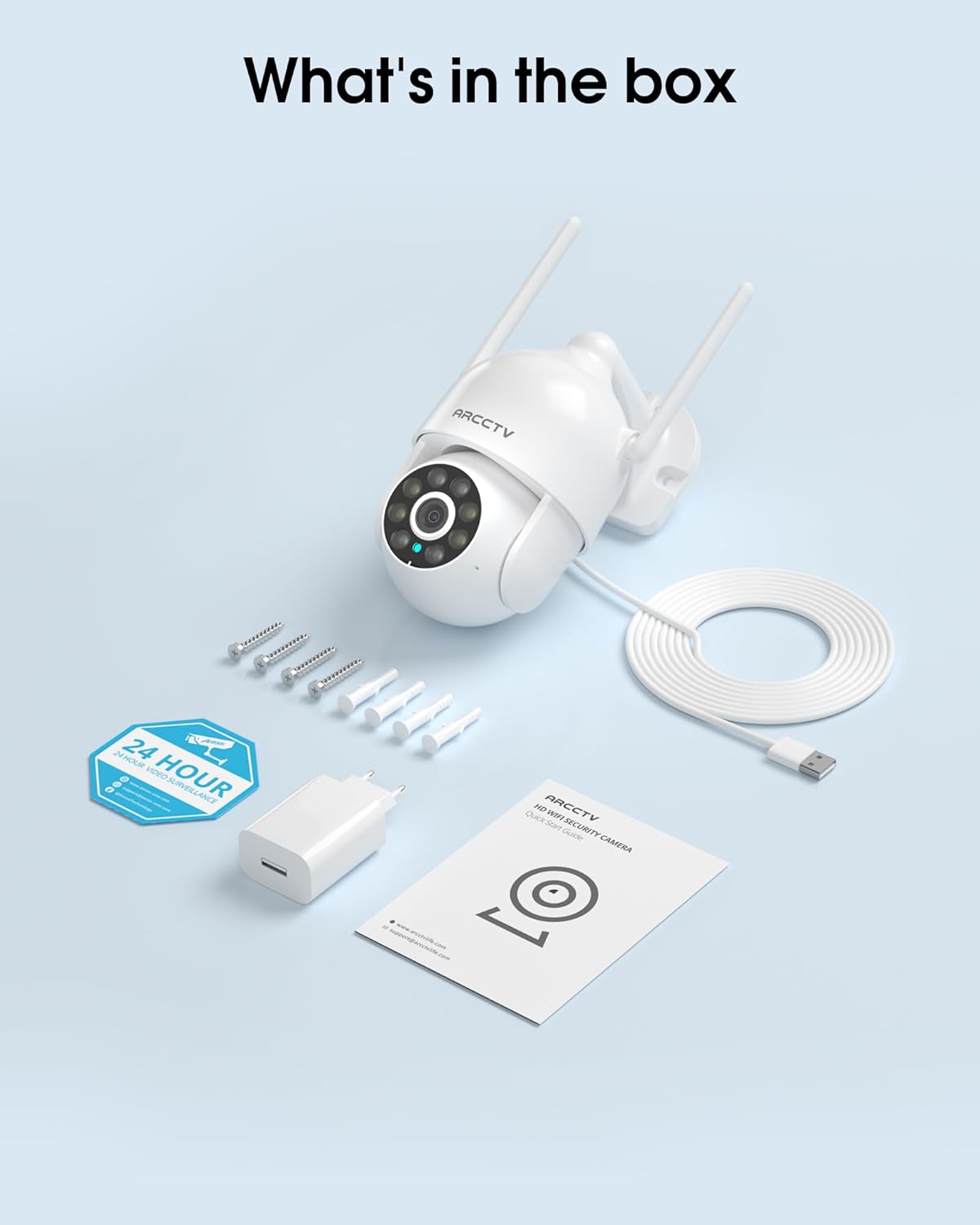
Image 2.1: All items included in the ARCCTV 2K Security Camera package.
3. Mahsulot xususiyatlari
- 2K Ultra HD ruxsati: Provides clear 2304x1296p video.
- To'liq rangli tungi ko'rish: Built-in spotlight enables vivid color monitoring in low light.
- 360° Pan-Tilt-Zoom (PTZ): Remotely control 355° horizontal and 90° vertical rotation.
- Avtomatik harakatni kuzatish: Smart AI automatically follows and records detected movement.
- Ikki tarmoqli WiFi: Supports both 2.4G and 5G WiFi for stable connectivity.
- Ikki tomonlama audio: Aloqa uchun o'rnatilgan mikrofon va karnay.
- IP66 ob-havoga chidamli: Durable design for outdoor use in various weather conditions (-4°F ~ 122°F).
- Moslashuvchan saqlash: Supports local microSD card storage (up to 128GB, not included) and optional cloud storage.
- 24/7 yozib olish: Continuous recording capability with stable power supply.
4. Sozlash
4.1 O'rnatish
- Joyni tanlang: Shaffof havo bilan ochiq havoda joy tanlang view of the area you wish to monitor. Ensure it is within range of your Wi-Fi network and a power outlet.
- Kamerani o'rnatish: Use the provided screw positioning sticker to mark drill holes. Drill holes, insert wall anchors, and secure the camera body to the wall using the mounting screws.
- Quvvatni ulash: Plug the 5V1A power adapter into the camera and then into a power outlet. The camera will power on and begin its startup sequence.
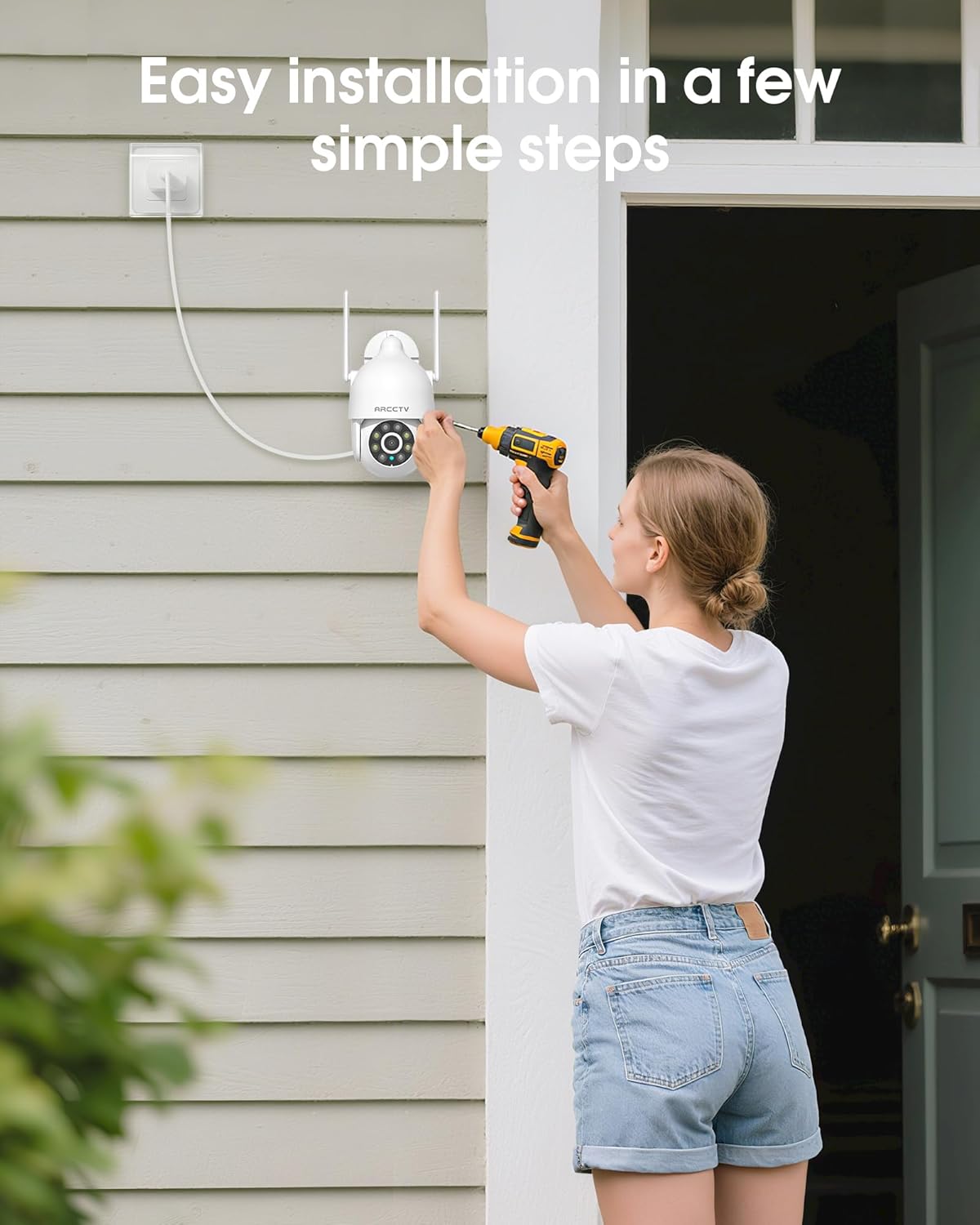
Image 4.1: Illustration of easy camera installation steps.
4.2 Ilovani yuklab olish va hisob yaratish
- Download the official ARCCTV app from your smartphone's app store (iOS or Android).
- Ilovani oching va yangi hisob yaratish uchun ekrandagi ko'rsatmalarga rioya qiling yoki agar sizda mavjud bo'lsa tizimga kiring.
4.3 Wi-Fi ulanishi
- In the app, tap the "Add Device" or "+" icon.
- Select your camera model and follow the prompts to connect it to your Wi-Fi network. The camera supports both 2.4GHz and 5GHz bands for stable connectivity.
- O'rnatish jarayonida smartfoningiz bir xil Wi-Fi tarmog'iga ulanganligiga ishonch hosil qiling.
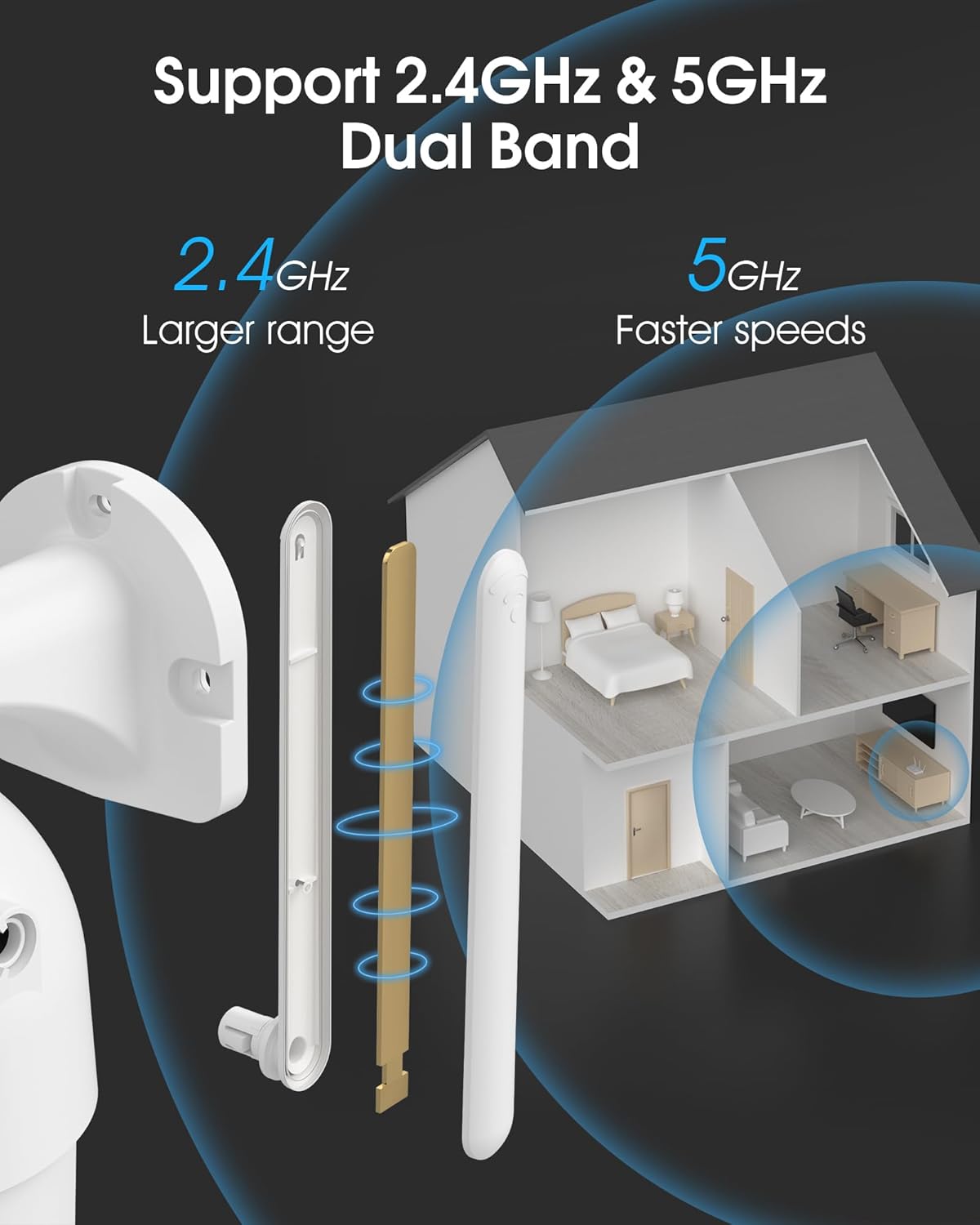
Image 4.2: The camera supports both 2.4GHz (larger range) and 5GHz (faster speeds) Wi-Fi bands.
4.4 MicroSD Card Installation (Optional)
For local storage, install a microSD card (up to 128GB, not included) into the designated slot on the camera. Ensure the camera is powered off before inserting or removing the card.
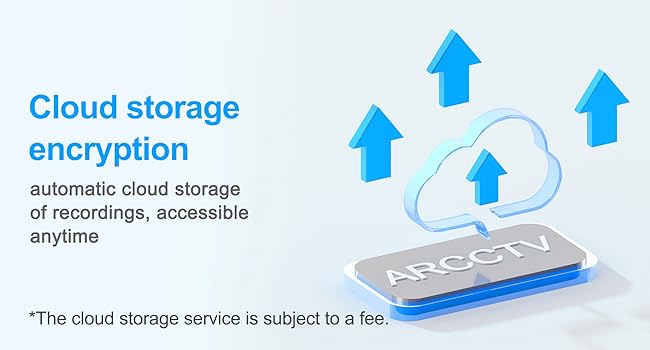
Image 4.3: Location of the microSD card slot on the camera.
5. Kamerani ishlatish
5.1 Jonli View
Open the ARCCTV app and select your camera to view the live feed. You can monitor your property in real-time.
5.2 Pan-Tilt-Zoom (PTZ) boshqaruvi
Jonli efirda view screen, use the directional controls to rotate the camera horizontally (Pan: 355°) and vertically (Tilt: 90°) to adjust the viewing angle. You can also set preset points for quick navigation.
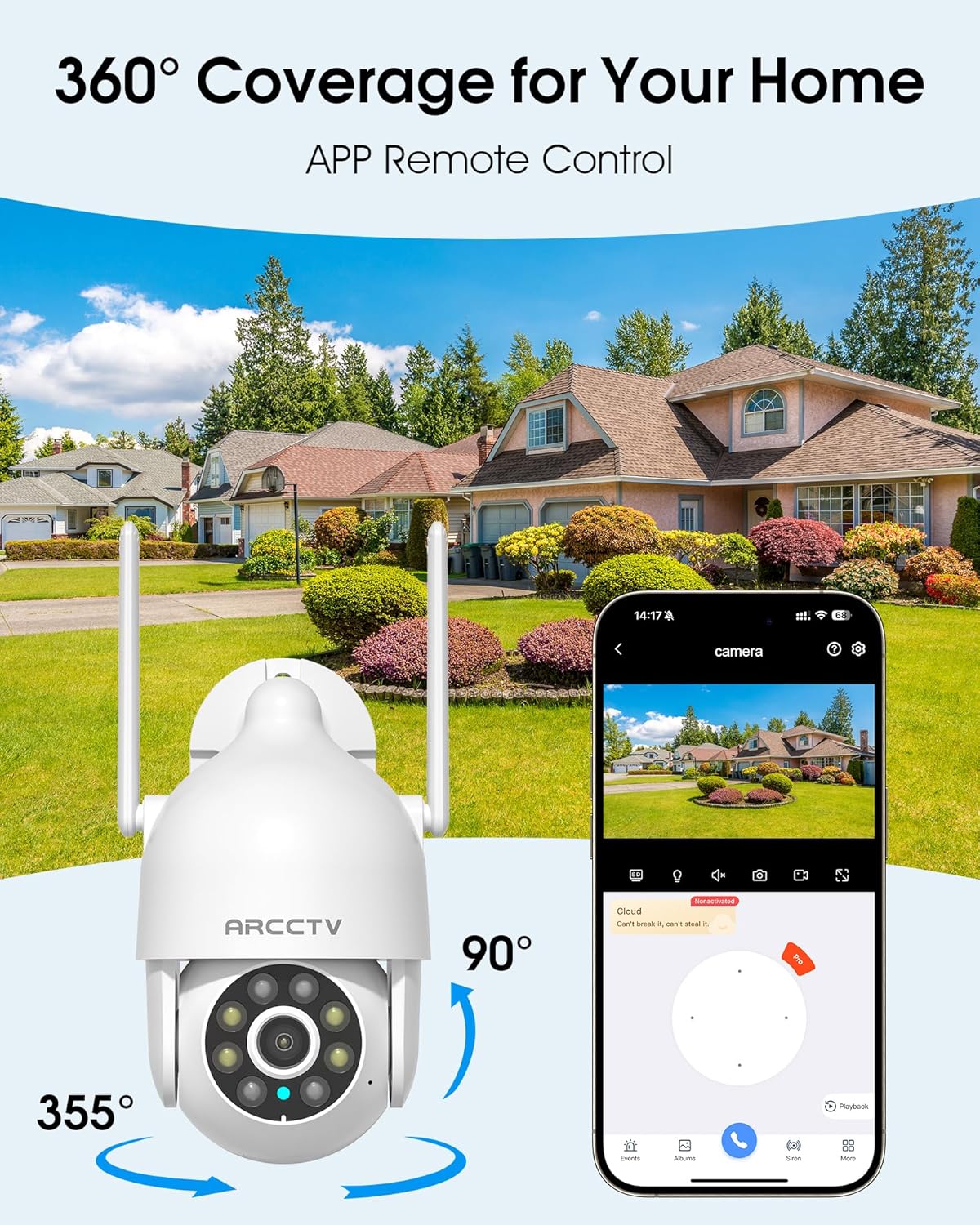
Image 5.1: The camera offers 360° coverage through remote pan and tilt controls.
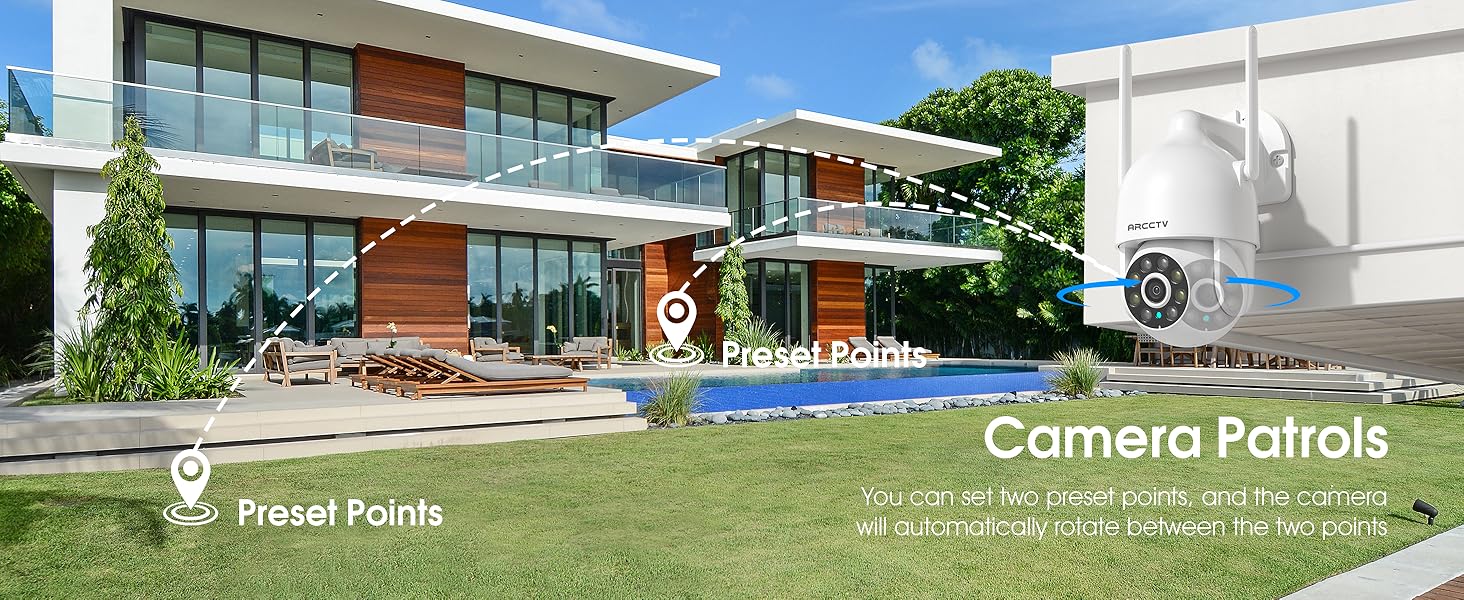
Image 5.2: Setting up camera patrol routes between preset points.
5.3 Motion Tracking and Alerts
The camera features smart AI motion tracking that automatically follows detected movement. You can customize alert zones and receive instant notifications on your smartphone when motion is detected.

Image 5.3: The camera's smart motion tracking feature in action.

Image 5.4: Instant alerts with customizable settings, including spotlight, siren, and two-way audio.
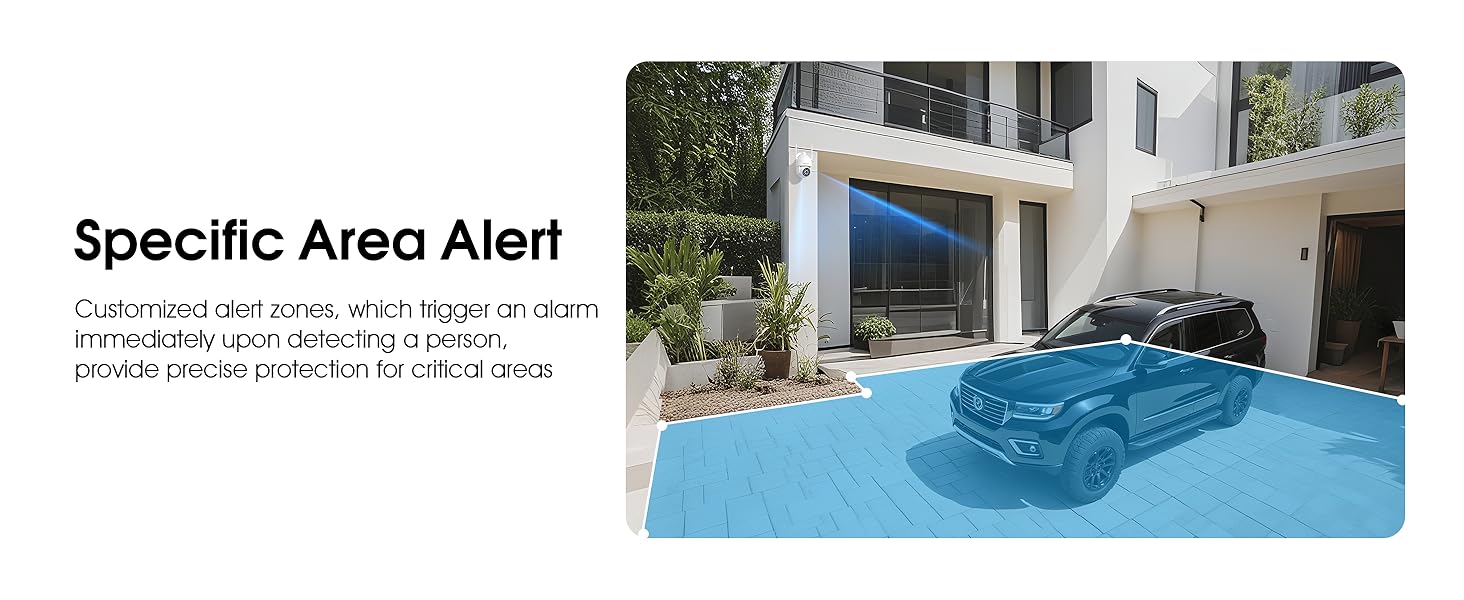
Image 5.5: Setting up specific area alerts for precise protection.
5.4 Tungi ko'rish rejimlari
The camera offers both full-color night vision (activated by the built-in spotlight) and infrared night vision for clear monitoring in various low-light conditions.

Image 5.6: Comparison of Color Night Vision and Infrared Night Vision.
5.5 Ikki tomonlama audio
Use the two-way audio feature to communicate with visitors or deter unwanted guests directly through the camera's built-in microphone and speaker.
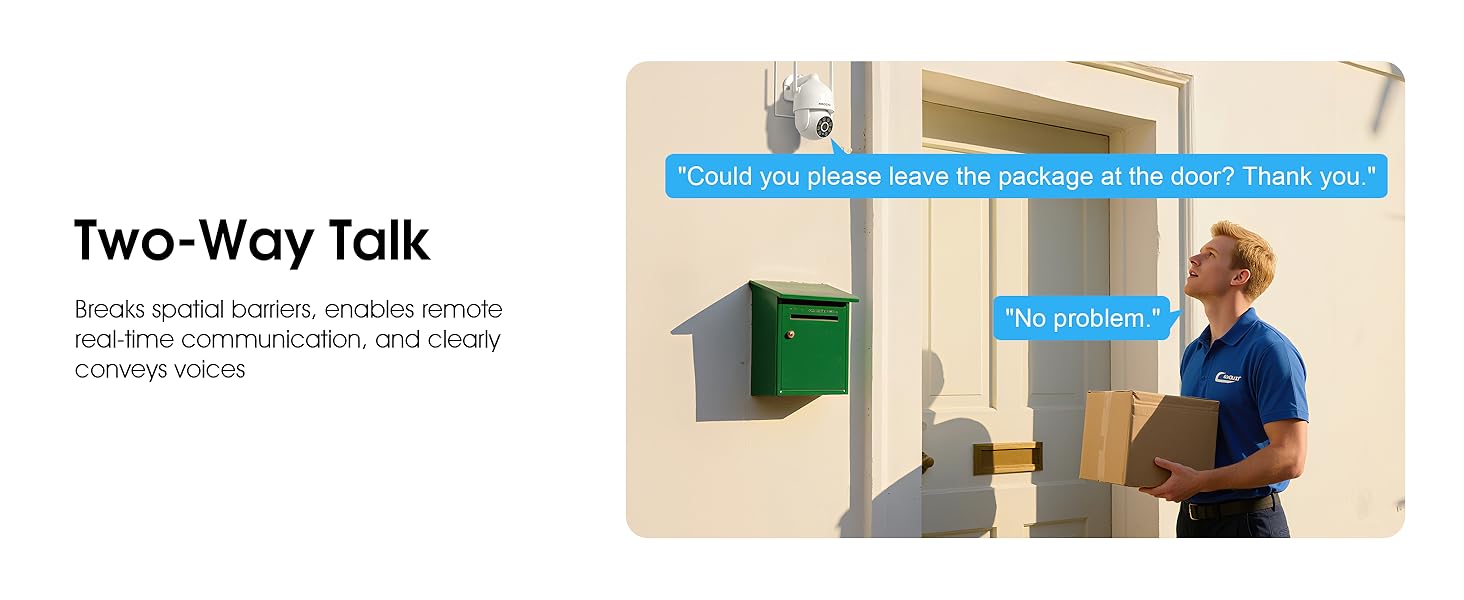
Image 5.7: Utilizing two-way talk for remote communication.
5.6 Yozib olish va tinglash
Kamera 24/7 uzluksiz yozib olishni qo'llab-quvvatlaydi.tage can be saved to a local microSD card (up to 128GB) or to optional cloud storage. Access recorded videos through the app's playback function.

Image 5.8: The camera provides 24/7 recording capabilities.
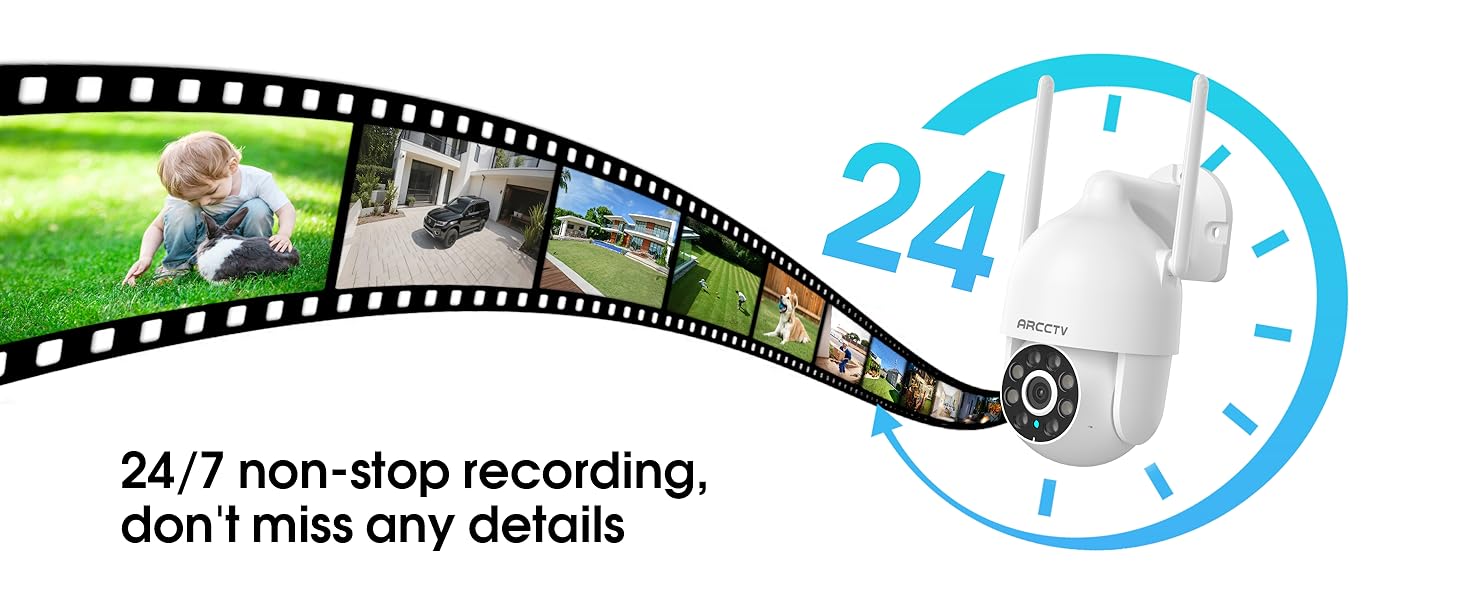
Image 5.9: Continuous 24/7 recording ensures no details are missed.
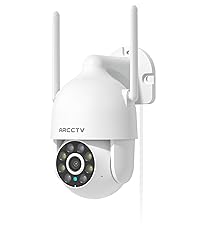
Image 5.10: Cloud storage encryption for secure and accessible recordings (subscription may apply).
5.7 Oilaviy almashinuv
The app supports multi-member sharing, allowing family members to view the camera feed and collaborate on security monitoring.
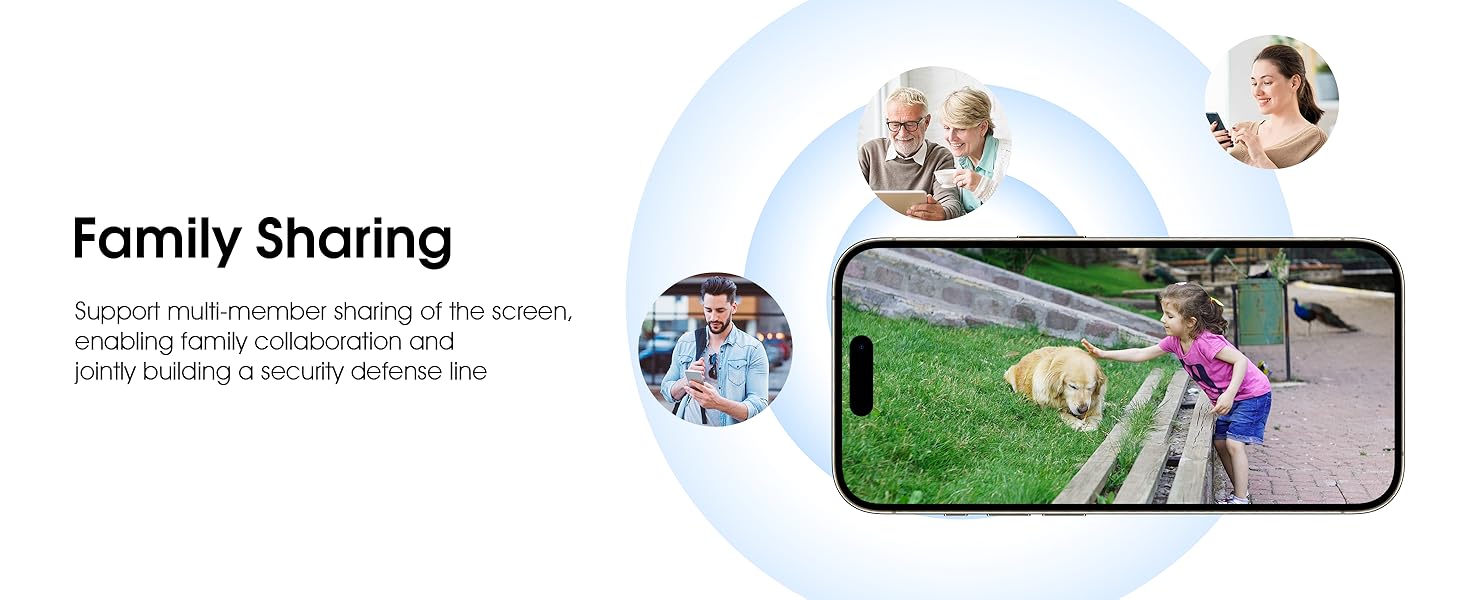
Image 5.11: The family sharing feature allows multiple users to access the camera feed.
5.8 Alexa mosligi
The camera is compatible with Alexa, allowing you to check the monitoring screen using voice commands.
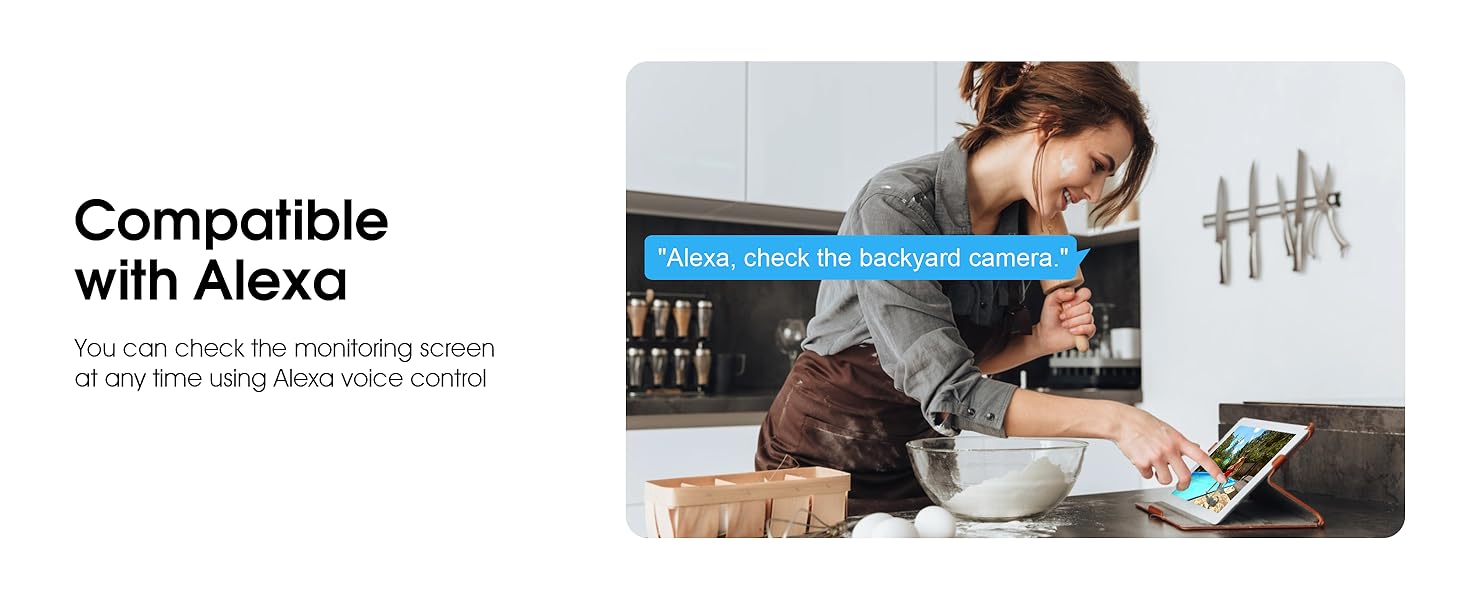
Image 5.12: Voice control via Alexa for convenient monitoring.
6. Xizmat ko'rsatish
6.1 Kamerani tozalash
Vaqti-vaqti bilan kamera linzalari va korpusini yumshoq, damp Chang va qoldiqlarni tozalash uchun matodan foydalaning. Qattiq kimyoviy moddalar yoki abraziv tozalagichlardan foydalanmang.
6.2 Mikrodasturlarni yangilash
Ensure your camera's firmware is up to date for optimal performance and security. Check for updates within the ARCCTV app and follow the instructions to install them.
6.3 Saqlashni boshqarish
If using a microSD card, regularly check its status in the app. Format the card periodically to maintain performance. For cloud storage, manage your subscription and storage space through the app.
7. Muammolarni bartaraf qilish; nosozliklarni TUZATISH
- Kamera Wi-Fi tarmog'iga ulanmayapti:
- Ensure your Wi-Fi network is 2.4GHz or 5GHz and has a strong signal at the camera's location.
- Wi-Fi paroli to'g'ri kiritilganligini tekshiring.
- Routeringizni va kamerani qayta ishga tushiring.
- Tasvir sifati past:
- Kamera linzalarini tozalang.
- Kecha ko'rishning optimal ishlashi uchun yetarli yorug'likni ta'minlang.
- Internetga ulanish tezligingizni tekshiring.
- Harakatni aniqlash ishlamayapti:
- Ilova sozlamalarida harakatni aniqlash yoqilganligini tekshiring.
- Sezuvchanlik sozlamalarini sozlang.
- Kamera maydonida hech qanday to'siqlar yo'qligiga ishonch hosil qiling view.
- No Recording to MicroSD Card:
- Ensure a microSD card is properly inserted and formatted in the app.
- Check if the card is full; consider formatting or replacing it.
- Verify recording settings in the app.
8. Texnik shartlar
| Xususiyat | Spetsifikatsiya |
|---|---|
| Model nomi | P2 |
| Ichki/tashqi makonda foydalanish | Ochiq havoda |
| Video suratga olish ruxsati | 2K (2304x1296p) |
| Ulanish texnologiyasi | Simsiz (Wi-Fi) |
| Simsiz aloqa texnologiyasi | Wi-Fi (2.4G/5G Dual-Band) |
| Viewburchak | 360 Degrees (355° Pan, 90° Tilt) |
| Kecha ko'rish diapazoni | 50 fut |
| Suvga chidamlilik darajasi | IP66 suv o'tkazmaydigan |
| Quvvat manbai | 5V1A quvvat adapteri |
| Fleshli xotira qo'llab-quvvatlanadigan maksimal hajmi | 128 GB (MicroSD) |
| Audio-vizual yozuv imkoniyatlari | Video va audio |
| Maxsus xususiyat | 2-Way Audio, Motion Tracking, Full Color Night Vision |
| Ob'ektning o'lchamlari L x G x H | 7.8 x 6.6 x 5.3 dyuym |
| Element og'irligi | 1.39 funt |
9. Kafolat va qo'llab-quvvatlash
For warranty information and technical support, please refer to the official ARCCTV website or contact their customer service directly. Contact details are typically provided on the product packaging or within the mobile application.
Ask a question about this manual
Ask about setup, troubleshooting, compatibility, parts, safety, or missing instructions. Manuals+ will review the question and use this page’s manual context to help answer it.