
OSEE GoStream Duet 8 ISO
OSEE GoStream Duet 8 ISO Live Streaming Switcher User Manual
Comprehensive guide for setup, operation, and maintenance of your GoStream Duet 8 ISO.
1. Kirish
The OSEE GoStream Duet 8 ISO is an advanced 8-channel video switcher designed for professional live production environments. It offers extensive input compatibility, including 3G-SDI, 4K HDMI, NDI HX, USB webcams, SRT, RTMP, and direct web browser inputs. This versatility makes it suitable for a wide range of applications, from IP cameras and PTZ setups to camcorders and mirrorless cameras, eliminating the need for external converters.
This manual provides detailed instructions to help you set up, operate, and maintain your GoStream Duet 8 ISO switcher, ensuring optimal performance for your live streaming productions.
Asosiy xususiyatlar
- 8 Inputs + ISO Recording: Simultaneously record all 8 input channels and the Program (PGM) output in high-quality MP4 (H.264) format. Includes built-in dual media players for instant video playback.
- Professional audio: Features two XLR inputs with 48V phantom power and studio-grade preamps (up to 75 dB gain), alongside 3.5mm mic support for various microphone types.
- Advanced Layouts & Graphics: Utilize SuperSource with 4 customizable windows, 2 Downstream Keyers (DSKs) for logos and lower-thirds, and 1 Upstream Keyer (USK) for green screen, Picture-in-Picture (PIP), and pattern effects.
- Seamless Control: Offers auto-switching, integration with Stream Deck & Companion, a physical control panel with T-Bar, Preview (PVW)/Program (PGM) bus, macro and scene controls, and intuitive PC software for comprehensive management.

2. Sozlash
This section guides you through the initial setup of your GoStream Duet 8 ISO, including power connection, input/output connections, and software installation.
2.1. Jismoniy aloqalar
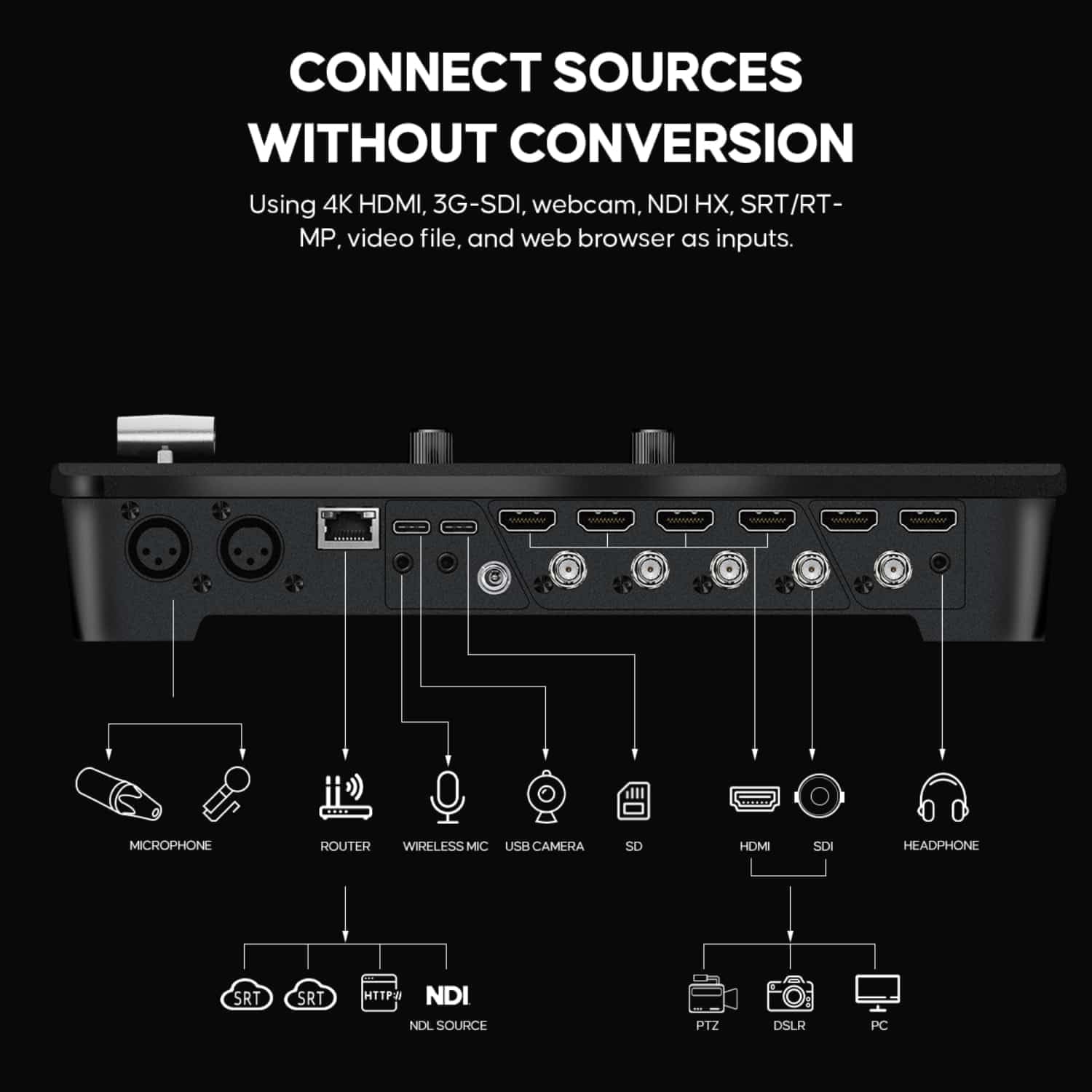
Before powering on the device, ensure all necessary cables are securely connected.
- Quvvat: Connect the provided power adapter to the DC input port on the rear panel and then to a power outlet.
- Video yozuvlari: Connect your video sources (cameras, computers, media players) to the available HDMI and SDI input ports. The GoStream Duet 8 ISO supports 4K HDMI and 3G-SDI.
- Audio kirishlar: For professional audio, connect XLR microphones to the dedicated XLR inputs. For 3.5mm microphones, use the corresponding input.
- Tarmoq: Connect an Ethernet cable from the LAN port to your network router for NDI HX, SRT, RTMP, and web browser inputs, as well as for PC software control.
- USB: Use the USB ports for connecting webcams or for data transfer.
- Video chiqishlari: Connect your monitors or recording devices to the HDMI and SDI output ports for program and multi-view monitoring.

2.2. Dasturiy ta'minotni o'rnatish (ixtiyoriy)
While the GoStream Duet 8 ISO can be operated via its physical panel, installing the intuitive PC software provides enhanced control and configuration options. Refer to the official OSEE webeng so'nggi dasturiy ta'minotni yuklab olish va o'rnatish bo'yicha ko'rsatmalar uchun sayt.
3. Foydalanish bo'yicha ko'rsatmalar
This section covers the core functionalities of the GoStream Duet 8 ISO, from basic switching to advanced features.
3.1. Video Switching
The physical control panel allows for seamless switching between your video sources. Use the PVW (Preview) bus to select the next source to go live, and the PGM (Program) bus to select the source currently on air. The T-Bar or CUT/AUTO buttons can be used for transitions.
- PVW/PGM Bus: Press the numbered buttons under PVW to select a source for preview. Press the numbered buttons under PGM to immediately switch a source to the program output.
- T-bar: Smoothly transition between the preview and program sources by moving the T-Bar.
- CUT Button: Performs an instant, hard cut between the preview and program sources.
- AVTO tugmasi: Executes a pre-selected transition (e.g., dissolve, wipe) between the preview and program sources.

3.2. Audio Mixing
The GoStream Duet 8 ISO features an integrated audio mixer. Adjust audio levels for each input using the dedicated controls on the panel or via the PC software.
- XLR kirishlari: Connect professional microphones. Ensure 48V phantom power is enabled if required by your condenser microphone.
- 3.5mm Mic Input: For connecting consumer-grade microphones or wireless mic receivers.
- Audio boshqaruvlari: Use the audio mixer section on the panel to adjust gain, volume, and mute individual audio sources.

3.3. Advanced Layouts and Graphics
- SuperSource: Create complex multi-window layouts with up to 4 customizable windows. This is ideal for panel discussions, news broadcasts, or online conferences. Configure SuperSource layouts using the PC software or dedicated panel buttons.
- DSK (Downstream Keyer): Overlay graphics such as logos, lower-thirds, or titles onto your program output. The GoStream Duet 8 ISO provides 2 DSKs for flexible graphic integration.
- USK (Upstream Keyer): Utilize the USK for chroma key (green screen) effects, Picture-in-Picture (PIP), or other pattern-based keying.

3.4. Yozib olish va striming
- ISO Recording: The GoStream Duet 8 ISO can simultaneously record all 8 input channels and the final program output as individual MP4 (H.264) files. This allows for post-production flexibility.
- Media Players: Utilize the built-in dual media players to play back pre-recorded video clips or graphics during your live production.
- SRT/RTMP Streaming: Directly stream your program output to various platforms using SRT (Secure Reliable Transport) or RTMP (Real-Time Messaging Protocol). This feature also enables inviting remote guests worldwide.

4. Xizmat ko'rsatish
Proper maintenance ensures the longevity and reliable performance of your GoStream Duet 8 ISO.
- Tozalash: Regularly wipe the exterior of the unit with a soft, dry cloth. Avoid using abrasive cleaners or solvents. Ensure no liquids enter the device.
- Ventilyatsiya: Ensure the ventilation openings are clear and not obstructed to prevent overheating. Operate the device in a well-ventilated area.
- Dasturiy ta'minotni yangilash: Periodically check the official OSEE website for firmware updates. Firmware updates can provide new features, performance improvements, and bug fixes. Follow the instructions provided with the update package carefully.
- Kabelni boshqarish: Keep cables organized and free from kinks or excessive bending to prevent damage and ensure stable connections.
5. Muammolarni bartaraf qilish; nosozliklarni TUZATISH
This section provides solutions to common issues you might encounter with your GoStream Duet 8 ISO.
5.1. Video signali yo'q
- Ulanishlarni tekshiring: Ensure all HDMI/SDI cables are securely connected to both the source and the switcher.
- Verify Source Output: Confirm that your video source (camera, computer) is powered on and outputting a signal. Try connecting the source directly to a monitor to verify its output.
- Kirish formati: Ensure the input signal format (resolution, frame rate) is supported by the GoStream Duet 8 ISO. Refer to the specifications.
- To'g'ri kiritishni tanlang: Make sure you have selected the correct input channel on the switcher's control panel or software.
5.2. No Audio Output
- Check Audio Levels: Verify that the audio levels for the active input are not muted or set too low on the switcher.
- Mikrofon ulanishi: Ensure microphones are properly connected to the XLR or 3.5mm inputs. If using condenser mics, confirm 48V phantom power is enabled.
- Audio manba: If audio is embedded in HDMI/SDI, ensure the source device is outputting audio.
- Chiqish qurilmasi: Check the audio connection to your monitoring device (headphones, speakers) and its volume.
5.3. Tarmoqqa ulanish muammolari
- Ethernet kabeli: Ensure the Ethernet cable is securely connected to the LAN port and your router/network switch.
- Tarmoq sozlamalari: Verify IP address settings (DHCP or static) on the switcher and your controlling PC.
- Xavfsizlik devori: Check if your computer's firewall is blocking communication with the switcher's software.
- Router holati: Confirm your router is functioning correctly and providing network access.
5.4. Qurilma javob bermayapti
- Quvvat aylanishi: Disconnect the power adapter, wait 10 seconds, and then reconnect it.
- Mikrodastur: Ensure the device is running the latest firmware.
- Zavod parametrlarini tiklash: As a last resort, consult the OSEE support documentation for instructions on performing a factory reset. Note that this will erase all custom settings.
6. Texnik shartlar
Below are the technical specifications for the OSEE GoStream Duet 8 ISO Live Streaming Switcher.
| Xususiyat | Tafsilot |
|---|---|
| Model | GoStream Duet 8 ISO |
| Brend | OSEE |
| ASIN | B0FC32987P |
| UPC | 769293552381 |
| Video kirishlar | 4K HDMI, 3G-SDI, NDI HX, USB Webcam, SRT, RTMP, Web Brauzer |
| Ovozli yozuvlar | 2 x XLR (with 48V Phantom Power), 1 x 3.5mm Mic |
| Yozib olish | 8-channel ISO + PGM (MP4 H.264) |
| Keyers | 1 x Upstream Keyer, 2 x Downstream Keyers |
| Maxsus xususiyatlar | SuperSource (4 windows), Dual Media Players, Stream Deck & Companion Integration |
| Birinchi mavjud sana | 5 yil 2025 iyun |
7. Kafolat va qo'llab-quvvatlash
For warranty information, please refer to the documentation included with your purchase or visit the official OSEE websayt. Kafolat shartlari mintaqa va sotuvchiga qarab farq qilishi mumkin.
If you encounter issues not covered in this manual or require further assistance, please contact OSEE customer support. Have your product model (GoStream Duet 8 ISO) and serial number ready when contacting support.
Ishlab chiqaruvchi: OSEE
For the most up-to-date support resources, including FAQs, software downloads, and contact information, please visit the official OSEE support page.
Ask a question about this manual
Ask about setup, troubleshooting, compatibility, parts, safety, or missing instructions. Manuals+ will review the question and use this page’s manual context to help answer it.