
Kirish
This manual provides essential information for the setup, operation, maintenance, and troubleshooting of your VGKE B12 2-in-1 Touch Screen Laptop. Please read this manual thoroughly before using your device to ensure proper function and longevity.
The VGKE B12 is a versatile device designed for both productivity and entertainment, featuring a 12.3-inch 3K IPS touchscreen and a detachable magnetic keyboard.
Mahsulot tugadiview
The VGKE B12 combines the functionality of a laptop with the portability of a tablet. Key features include:
- Protsessor: Intel Celeron J4125 (4 Cores, up to 2.7 GHz)
- Displey: 12.3-inch WQHD (3000 x 2000) 3K IPS Touchscreen, 300 nits brightness, 100% sRGB
- Xotira: 8GB LPDDR4 RAM
- Saqlash: 256 GB SSD
- Ulanish: Wi-Fi 5 (802.11ac), Bluetooth 4.2
- Portlar: 2x Full-functional USB Type-C, 1x 3.5 mm Headphone Jack
- Kamera: 2 MP old kamera
- Batareya: 3500mAh lithium battery, up to 8.5 hours usage
- Operatsion tizim: Windows 11
Qurilma komponentlari
Familiarize yourself with the various parts of your VGKE B12 device.

1-rasm: The VGKE B12 2-in-1 laptop with its magnetic keyboard attached, showcasing its sleek design and kickstand.

2-rasm: The VGKE B12 in tablet mode, supported by its integrated kickstand, displaying a vibrant screen.
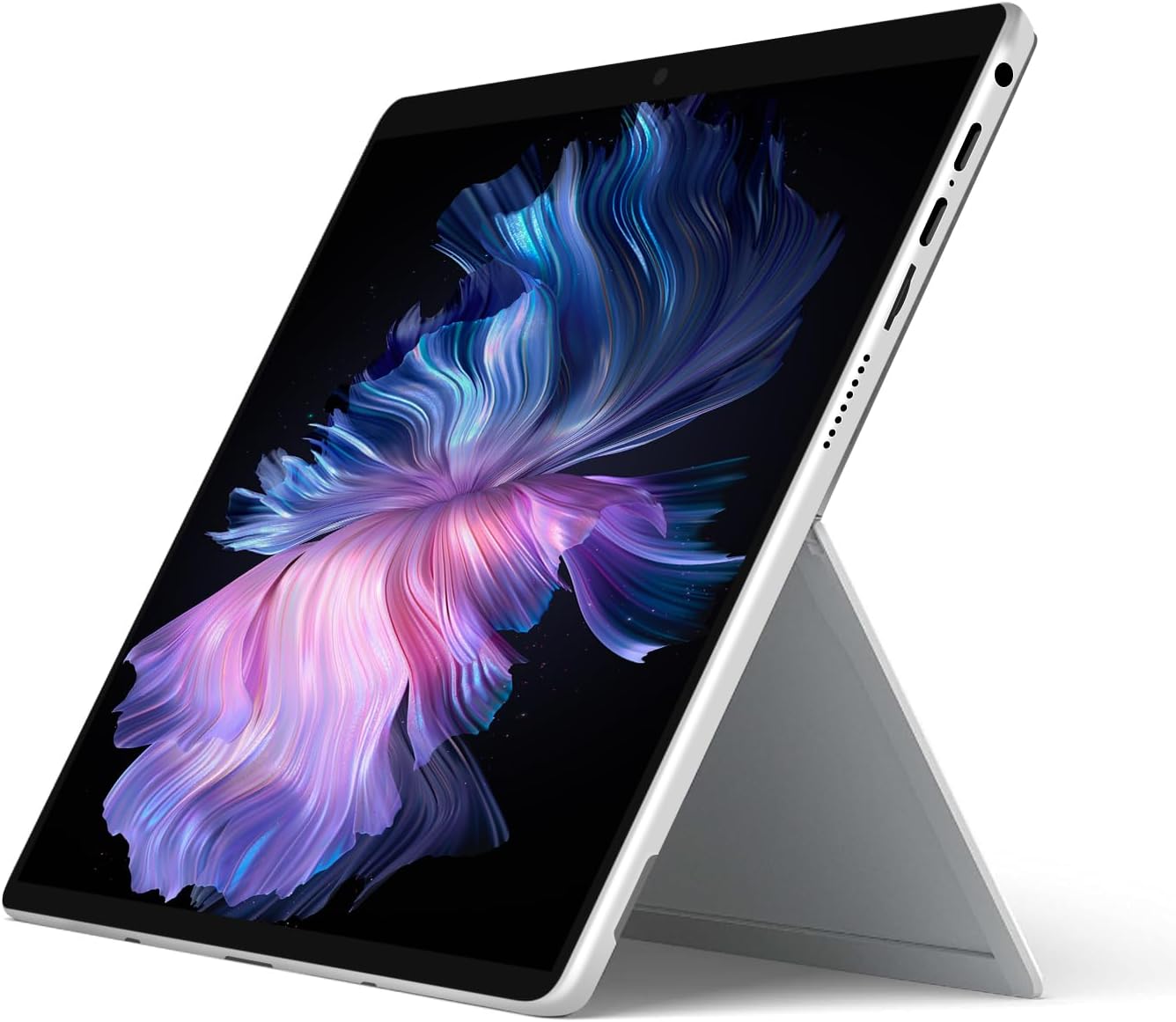
3-rasm: Batafsil view of the magnetic connection mechanism for attaching the keyboard to the tablet.

4-rasm: The VGKE B12 tablet separated from its magnetic keyboard, illustrating the full keyboard layout and touchpad.
Sozlash; o'rnatish
1. Dastlabki zaryadlash
Before first use, fully charge your VGKE B12. Connect the included USB Type-C charger to one of the USB Type-C ports on the device and plug it into a power outlet. The charging indicator light will illuminate.
2. Attaching the Magnetic Keyboard
Align the magnetic connector of the keyboard with the corresponding port at the bottom edge of the tablet. The magnets will automatically snap the keyboard into place. Ensure a secure connection for proper functionality.
3. First Power-On
Press and hold the power button (typically located on the side or top edge of the tablet) for a few seconds until the screen illuminates. The device will boot up.
4. Windows-ni dastlabki sozlash
Follow the on-screen prompts to complete the Windows 11 setup process. This includes selecting your region, language, connecting to a Wi-Fi network, and setting up your user account.
Foydalanish bo'yicha ko'rsatmalar
Quvvatni boshqarish
- Yoqilgan: Quvvat tugmasini bosing va ushlab turing.
- Kutish rejimi: Briefly press the power button. Press again to wake.
- O'chirish; yopish: Go to Start Menu > Power > Shut down. Alternatively, press and hold the power button for 10 seconds for a forced shutdown (use only when necessary).
Sensorli ekrandan foydalanish
The 3K IPS touchscreen supports multi-touch gestures for intuitive navigation.
- Bosing: Elementni tanlang yoki ilovani oching.
- Teging va ushlab turing: Kontekst menyulariga kiring yoki elementlarni sudrab boring.
- Kattalashtirish uchun chimchilash: Kattalashtirish yoki kichraytirish uchun ikki barmoqdan foydalaning.
- Surish: Kontentni aylantiring yoki ekranlar orasida harakatlaning.

5-rasm: A user interacting with the responsive touchscreen of the VGKE B12.
Klaviatura va sensorli panel
When the magnetic keyboard is attached, it functions like a standard laptop keyboard and touchpad.
- Yozish: Use the keys for text input.
- Funktsional tugmalar: Use the Fn key in combination with F1-F12 for special functions (e.g., volume, brightness).
- Sensorli panel: Use for cursor control, left-click (single tap), right-click (two-finger tap or tap bottom right corner), and multi-touch gestures.
Ulanish
- Wi-fi: Access network settings via the Windows taskbar to connect to available Wi-Fi networks.
- Bluetooth: Enable Bluetooth in Windows settings to pair with compatible devices like headphones or mice.
- USB Type-C portlari: Use the two full-functional USB Type-C ports for charging, data transfer, or connecting external displays with compatible adapters.
- Eshitish vositasi uyasi: Connect 3.5mm headphones or external speakers.
Webkameradan foydalanish
The integrated 2MP front camera can be used for video calls and conferences. Access it through applications like Camera, Microsoft Teams, or Zoom.
Xizmat
Qurilmani tozalash
- Ekran: Bir oz yumshoq, tuklarsiz matodan foydalaning dampsuv yoki ekran tozalagich bilan yakunlanadi. Qattiq kimyoviy moddalardan saqlaning.
- Body and Keyboard: Yumshoq, quruq mato bilan artib oling. O'jar kirlar uchun, bir oz d foydalaningamp cloth. Ensure no liquid enters ports.
Batareya parvarishi
- Haddan tashqari haroratdan saqlaning.
- Tez-tez batareyaning to'liq zaryadsizlanishiga yo'l qo'ymang.
- Uzoq muddatli saqlash uchun batareyani taxminan 50-60% gacha zaryadlang.
Dasturiy ta'minot yangilanishlari
Regularly check for and install Windows updates to ensure optimal performance and security. Go to Settings > Windows Update.
Saqlash boshqaruvi
Vaqti-vaqti bilan keraksiz narsalarni tozalang files and applications to maintain system speed. Use Windows' built-in Disk Cleanup tool or Storage Sense.
Muammolarni bartaraf qilish; nosozliklarni TUZATISH
| Muammo | Mumkin sabab / yechim |
|---|---|
| Qurilma yoqilmaydi | Ensure the device is charged. Connect the charger and wait a few minutes before attempting to power on again. Try a forced shutdown by holding the power button for 10 seconds, then press it again to restart. |
| Screen is blank or unresponsive | Check if the device is in sleep mode; press the power button to wake it. If unresponsive, perform a forced shutdown and restart. Ensure brightness is not set to minimum. |
| Keyboard or touchpad not working | Ensure the magnetic keyboard is securely attached. Detach and reattach the keyboard. Restart the device. |
| Wi-Fi ulanishi bilan bog'liq muammolar | Check if Wi-Fi is enabled in Windows settings. Restart your router. Forget the network and reconnect. Update Wi-Fi drivers if necessary. |
| Sekin ishlash | Close unnecessary applications. Check for background processes. Ensure sufficient free storage space. Run Windows Update. |
Agar bu yerda ko'rsatilmagan muammolarga duch kelsangiz yoki taklif qilingan yechimlar muammoni hal qilmasa, iltimos, mijozlarni qo'llab-quvvatlash xizmatiga murojaat qiling.
Texnik xususiyatlari
| Xususiyat | Tafsilot |
|---|---|
| Brend | VGKE |
| Model nomi | B12 |
| Ekran o'lchami | 12.3 dyuym |
| Rezolyutsiya | 3000 x 2000 (3K WQHD) |
| Displey turi | IPS LCD, Touchscreen |
| Protsessor | Intel Celeron J4125 (4 Cores, up to 2.7 GHz) |
| Ram | 8 GB LPDDR4 |
| Saqlash | 256 GB SSD |
| Operatsion tizim | Windows 11 |
| Grafik protsessor | Intel UHD Grafik 600 |
| Ulanish | Wi-Fi 5 (802.11ac), Bluetooth 4.2 |
| Portlar | 2x USB Type-C, 1x 3.5mm Headphone Jack |
| Webkamera | 2 MP old kamera |
| Batareya muddati | Up to 8.5 Hours (3500mAh) |
| Dimensions (L x W x Th) | 10.8" x 7.83" x 0.36" |
| Form faktor | Kabriolet (2 ta 1 da) |
Kafolat va qo'llab-quvvatlash
Kafolat haqida ma'lumot
The VGKE B12 comes with a limited warranty. Please refer to the warranty card included with your product for specific terms and conditions. Additionally, a 30-day return policy may apply from the point of purchase.
Mijozlarni qo‘llab-quvvatlash
For technical assistance, troubleshooting, or warranty claims, please contact VGKE customer support. You can typically find contact information on the official VGKE websayt yoki chakana sotuvchingizning qo'llab-quvvatlash kanallari orqali.
Qo'shimcha ma'lumot olish uchun tashrif buyuring VGKE Store on Amazon.