
1. Kirish
This manual provides comprehensive instructions for the installation, operation, and maintenance of your Fortdows 4Core 2+64G Car Radio. Please read this manual thoroughly before using the product to ensure proper function and safety. This head unit is designed for specific Nissan Sentra models manufactured between 2013 and 2017.

Image 1.1: Fortdows Car Radio installed in a Nissan Sentra dashboard.
2. Paket tarkibi
Verify that all items listed below are included in your product package. If any items are missing or damaged, please contact customer support.
- Fortdows 4Core 2+64G Car Radio Head Unit
- Quvvat kabeli
- Original USB Cable
- GPS antenna
- RCA kabeli
- AHD zaxira kamerasi
- USB kabeli (x2)
- Teskari chiziq
- CanBus Decoder
- Tashqi mikrofon
- Crowbar (Installation Tool)
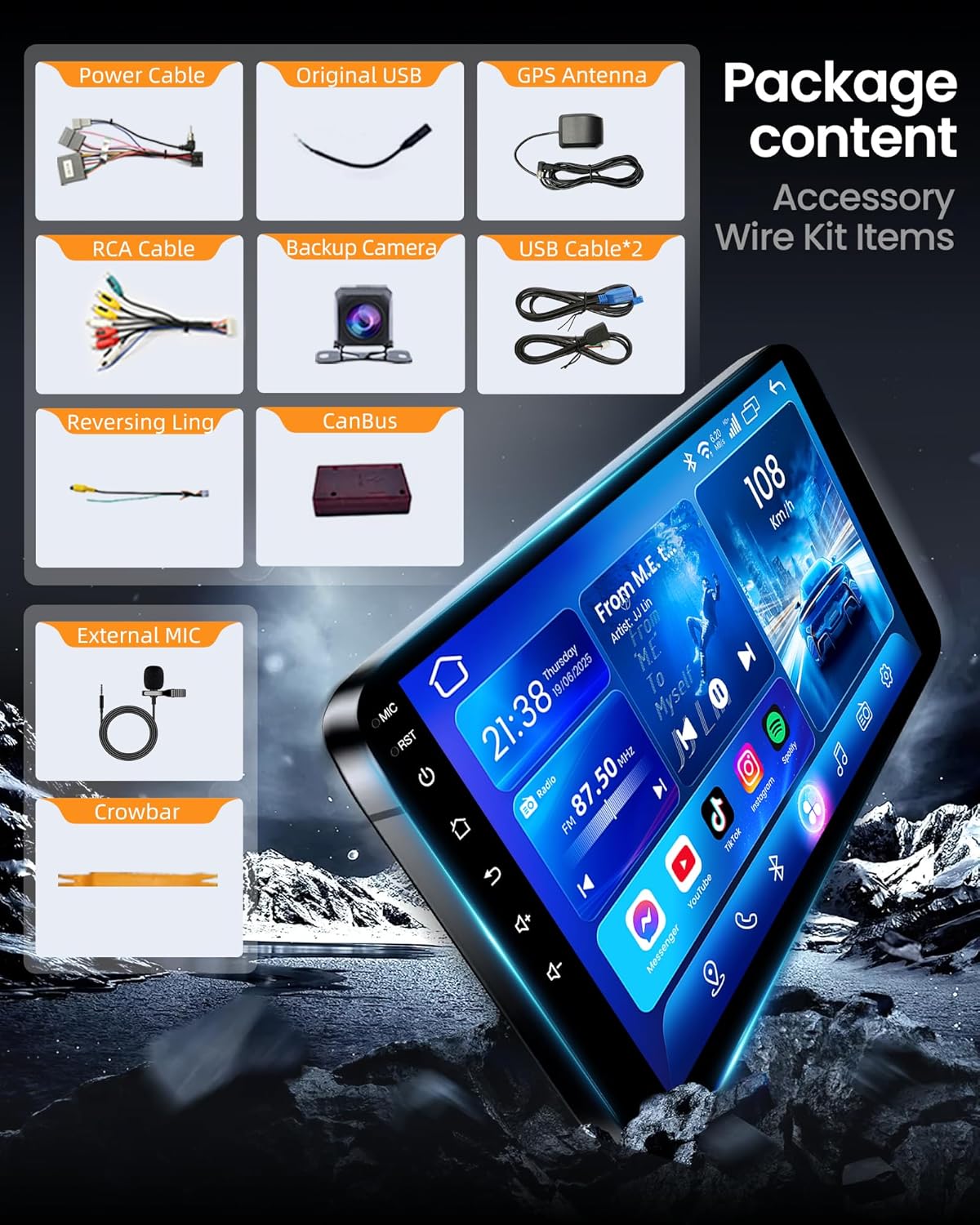
Image 2.1: All components included in the package.
3. O'rnatish va o'rnatish
Installation of this car radio requires technical knowledge and experience with car electronics. It is highly recommended to seek professional installation to avoid damage to the unit or your vehicle.
3.1 O'rnatishdan oldingi tekshiruvlar
- O'rnatishni boshlashdan oldin avtomobilning kontakti o'chirilganligiga va batareyaning uzilganligiga ishonch hosil qiling.
- Confirm compatibility with your Nissan Sentra model (2013-2017). Refer to Image 3.1 for visual confirmation of dashboard fitment.
- Identify all existing wiring harnesses in your vehicle.
3.2 Simli ulanishlar
Connect the provided wiring harnesses to the corresponding ports on the head unit and your vehicle's wiring system. Pay close attention to the following connections:
- Quvvat kabeli: Avtomobilning quvvat manbaiga ulang.
- GPS antennasi: Shaffof joyga o'rnating view signalni optimal qabul qilish uchun osmon.
- USB kabellari: Connect for external USB devices.
- AHD Backup Camera: Connect the camera and reversing line as per the wiring diagram (not included in this manual, refer to separate camera instructions).
- Tashqi mikrofon: Connect for improved call quality.
- CanBus Decoder: Integrate for steering wheel control and other vehicle data.
3.3 Mounting the Head Unit
Carefully insert the head unit into the dashboard opening. Secure it using the vehicle's mounting brackets or the provided installation hardware. Ensure all cables are properly routed and not pinched.

Image 3.1: Dashboard compatibility for Nissan Sentra 2013-2017.
4. Foydalanish bo'yicha ko'rsatmalar
This section details the operation of the Fortdows Car Radio's various features.
4.1 Yoqish/o'chirish va asosiy navigatsiya
- Yoqilgan: Turn the vehicle's ignition to the ACC or ON position. The unit will power on automatically.
- O'chirish: Turn the vehicle's ignition off. The unit will power off.
- Sensorli ekran: Navigate the interface by touching icons and swiping. The 10.1-inch 1280*800P IPS touchscreen provides clear visuals.

Image 4.1: 1280*800P IPS Touchscreen display quality.
4.2 Wireless CarPlay & Android Auto & Mirror Link
The unit supports wireless Apple CarPlay, Android Auto, and Mirror Link for seamless smartphone integration.
- Ulanish: Enable Bluetooth and Wi-Fi on your smartphone. On the head unit, select the CarPlay or Android Auto application. Follow the on-screen prompts to pair your device.
- Funktsionallik: Access navigation, music, calls, and other compatible apps directly from the head unit's display.
- Oyna havolasi: For devices not supporting CarPlay or Android Auto, use Mirror Link to display your phone's screen on the head unit.

Image 4.2: Wireless CarPlay and Android Auto interfaces.

Image 4.3: Mirror Link feature in operation.
4.3 GPS navigatsiyasi
The unit features a built-in GPS module and supports both online and offline navigation applications.
- Using Navigation: Open the pre-installed navigation app or download your preferred app from the application store.
- Xarita yangilanishlari: Ensure your navigation app's maps are updated for accurate routing.
4.4 Bluetooth 5.0
Qo'llarni tekkizmasdan qo'ng'iroq qilish va audio uzatish uchun smartfoningizni Bluetooth orqali ulang.
- Ulanish: Go to the Bluetooth settings on the head unit and enable Bluetooth. Ni qidirish available devices on your phone and select the head unit's name to pair.
- Qo'ng'iroqlarsiz qo'ng'iroq: Make and receive calls directly through the head unit. The built-in and external microphones ensure clear communication.
- Ovozli oqim: Play music from your phone through the car's speakers.
4.5 FM Radio with RDS
Enjoy stable FM radio reception with RDS (Radio Data System) functionality.
- tuning: Use the radio application to manually or automatically search for stations.
- Dastlabki sozlamalar: Save your favorite stations for quick access.
- RDS: Displays station information, song titles, and other data where available.

Image 4.4: FM/AM RDS Radio interface.
4.6 Rulda boshqaruvi (SWC)
The unit supports your vehicle's original steering wheel controls for convenient operation.
- Sozlash; o'rnatish: After proper wiring with the CanBus decoder, access the steering wheel control settings in the unit's menu. Follow the instructions to map your vehicle's steering wheel buttons to the desired functions (e.g., volume, track skip, answer call).
- Foydalanish: Control basic functions without taking your hands off the steering wheel.
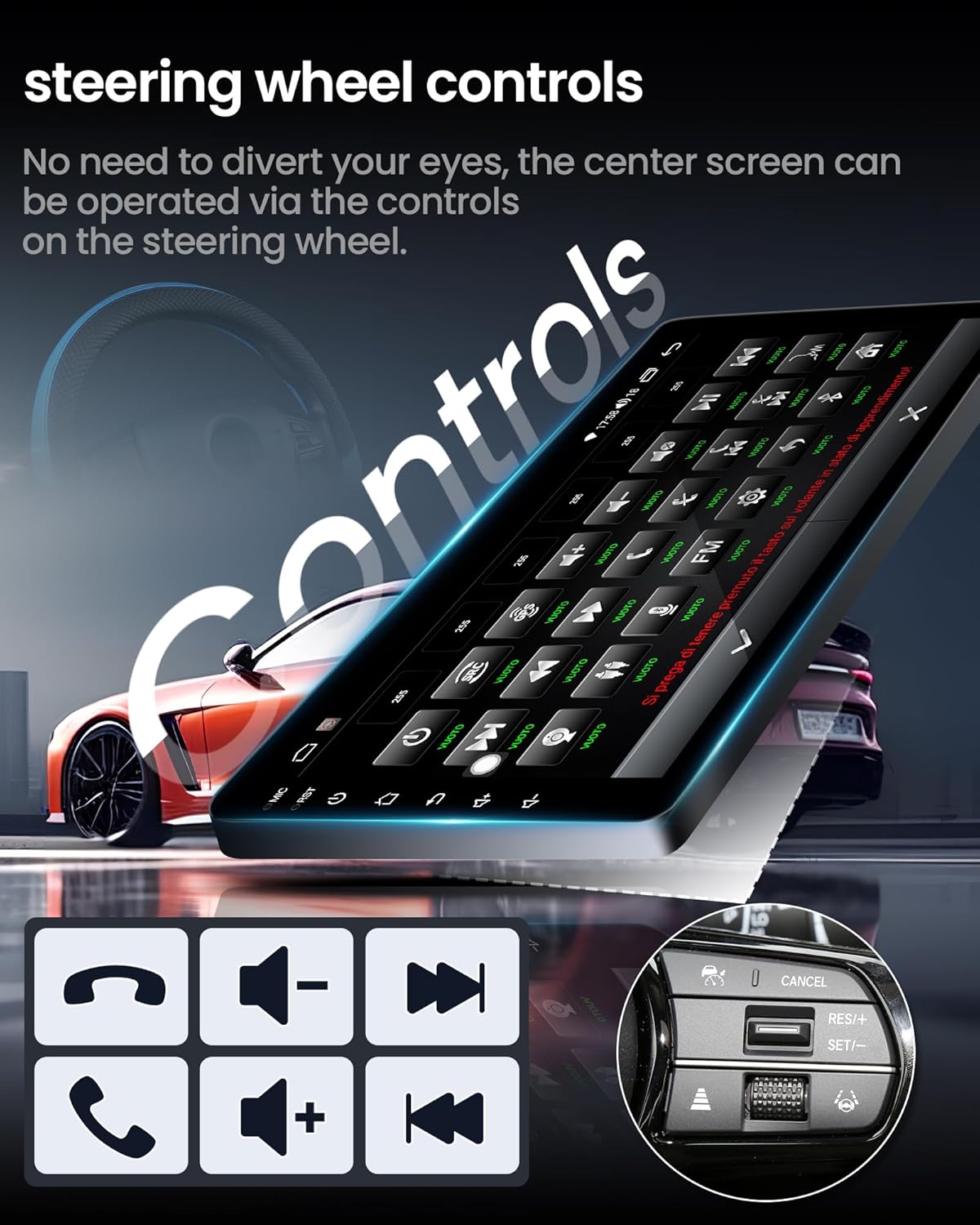
Image 4.5: Steering wheel control functionality.
4.7 AHD Rear Camera
The included AHD backup camera provides a clear view avtomobilingiz orqasidagi maydon.
- Avtomatik displey: When the vehicle is shifted into reverse, the camera feed will automatically display on the head unit screen.
- Xususiyatlari: The camera offers a 170-degree ultra-wide angle and a waterproof design.
4.8 5G WiFi Connection
Connect the head unit to a Wi-Fi hotspot for internet access, enabling online navigation, app downloads, and streaming.
- Ulanish: Go to the Wi-Fi settings on the head unit, scan for available networks, and connect to your desired hotspot.
- Foydasi: Improved network performance and faster data transfer.

Image 4.6: 5G WiFi function details.
4.9 Ekranni ajratish funksiyasi
The split-screen feature allows you to run two applications simultaneously on the display.
- Faollashtirish: While an app is open, long-press the recent apps button or follow the specific gesture/button combination for split-screen mode. Select a second app to open alongside the first.
- Foydalanish: Misol uchunample, use navigation on one side and music playback on the other.

Image 4.7: Split Screen Functionality.
4.10 Audio Settings (RDS Sound)
Adjust audio output for an optimized listening experience.
- Ekvalayzer (EQ): Access the EQ settings to customize sound frequencies.
- Ovoz maydoni: Adjust the sound field to optimize audio for different seating positions.

Image 4.8: Professional RDS Sound settings.
Video 4.1: Demonstration of the car radio's features, including RDS Sound and EQ adjustments.
5. Texnik shartlar
Key technical specifications of the Fortdows 4Core 2+64G Car Radio.
| Xususiyat | Spetsifikatsiya |
|---|---|
| Brend | Fortdows |
| Model raqami | B0GGH5P9TW |
| Operatsion tizim | Android 13 |
| Protsessor | 4 yadroli |
| Ram | 2 GB |
| ROM (ichki xotira) | 64 GB |
| Ekran o'lchami | 10 dyuym |
| Displey turi | IPS LCD |
| Ekran ravshanligi | 1280*800P |
| Sensorli ekran turi | Kapasitiv |
| Ulanish texnologiyasi | Bluetooth 5.0, USB, Wi-Fi (5G) |
| Supported Navigation Systems | GPS, GLONASS, BeiDou |
| Kiritilgan komponentlar | AHD backup camera |
| Avtomobillarga xizmat ko'rsatish turi | Car (Nissan Sentra 2013-2017) |

Image 5.1: Core processor and memory specifications.
6. Muammolarni bartaraf qilish; nosozliklarni TUZATISH
This section addresses common issues you might encounter with your car radio.
6.1 Quvvat yo'q
- Ulanishlarni tekshiring: Ensure the power cable is securely connected to both the head unit and the vehicle's power source.
- Sug'urta: Inspect the vehicle's fuse box and the inline fuse on the head unit's power cable. Replace if blown.
- Yonish: Confirm the vehicle's ignition is in the ACC or ON position.
6.2 Ovoz yo'q
- Ovoz darajasi: Check if the volume is turned up and not muted.
- Dinamik ulanishlari: Verify all speaker wires are correctly connected.
- Audio manba: Ensure the correct audio source (e.g., FM, Bluetooth, CarPlay) is selected.
6.3 GPS Signal Loss
- Antennani joylashtirish: Ensure the GPS antenna is mounted in a location with an unobstructed view osmondan.
- To'siqlar: Tall buildings, tunnels, or dense foliage can interfere with GPS signals.
- Ilova sozlamalari: Check the navigation app's settings to ensure GPS is enabled.
6.4 CarPlay/Android Auto Not Connecting
- Telefon sozlamalari: Smartfoningizda Bluetooth va Wi-Fi yoqilganligiga ishonch hosil qiling.
- Ilova yangilanishlari: Update your CarPlay/Android Auto app on your phone to the latest version.
- Qayta ulash: Delete the existing pairing from both the head unit and your phone, then attempt to re-pair.
- USB ulanishi: If wireless fails, try connecting via a high-quality USB cable to rule out wireless interference.
6.5 Steering Wheel Controls Not Working
- CanBus Connection: Verify the CanBus decoder is correctly installed and connected.
- Ta'lim funktsiyasi: Re-enter the steering wheel control learning function in the unit's settings and re-map the buttons.
7. Xizmat ko'rsatish
Proper maintenance ensures the longevity and optimal performance of your car radio.
- Ekranni tozalash: Use a soft, lint-free cloth to clean the touchscreen. Avoid abrasive cleaners or solvents.
- Dasturiy ta'minot yangilanishlari: Periodically check for and install software updates for the Android system and pre-installed applications to ensure optimal performance and security.
- Atrof-muhit sharoitlari: Jihozni haddan tashqari harorat, uzoq vaqt davomida to'g'ridan-to'g'ri quyosh nuri yoki haddan tashqari namlik ta'siridan saqlaning.
8. Qo'llab -quvvatlash va kafolat
For technical assistance or warranty inquiries, please contact Fortdows customer support.
- Mijozlarga xizmat ko'rsatish: Refer to your purchase documentation or the seller's contact information for support channels.
- Kafolat: This product is covered by a standard manufacturer's warranty. Details regarding the warranty period and terms are typically provided with your purchase. Keep your proof of purchase for warranty claims.

Image 8.1: Information on technical support availability.