Kirish
Welcome to your new TERIOS Mobile Game Controller. This manual provides detailed instructions for setup, operation, and maintenance to ensure optimal performance and an enhanced gaming experience across various platforms including Android smartphones, Windows PCs, and PlayStation 3 consoles. Please read this manual thoroughly before using the device.
Asosiy xususiyatlar
- Innovative Gaming: Designed to enrich your mobile gaming experience with precision and responsiveness.
- Keng muvofiqlik: Connects via Bluetooth 4.0 to Android smartphones, and is compatible with Windows PC and PlayStation 3. Supports popular games like PUBG, Call of Duty, and Mobile Legends.
- Gaming Joysticks: Features dual analog sticks for comprehensive and precise control.
- Ergonomik dizayn: Comfortable grip with an integrated smartphone holder for extended gaming sessions.
- Turbo funktsiyasi: Allows for rapid, continuous input with a single button press.
- Responsive Active Buttons: Includes 2 quick access buttons on the back and numerous action buttons for enhanced accuracy.
- Uzoq batareya muddati: Up to 12 hours of continuous play on a single charge.
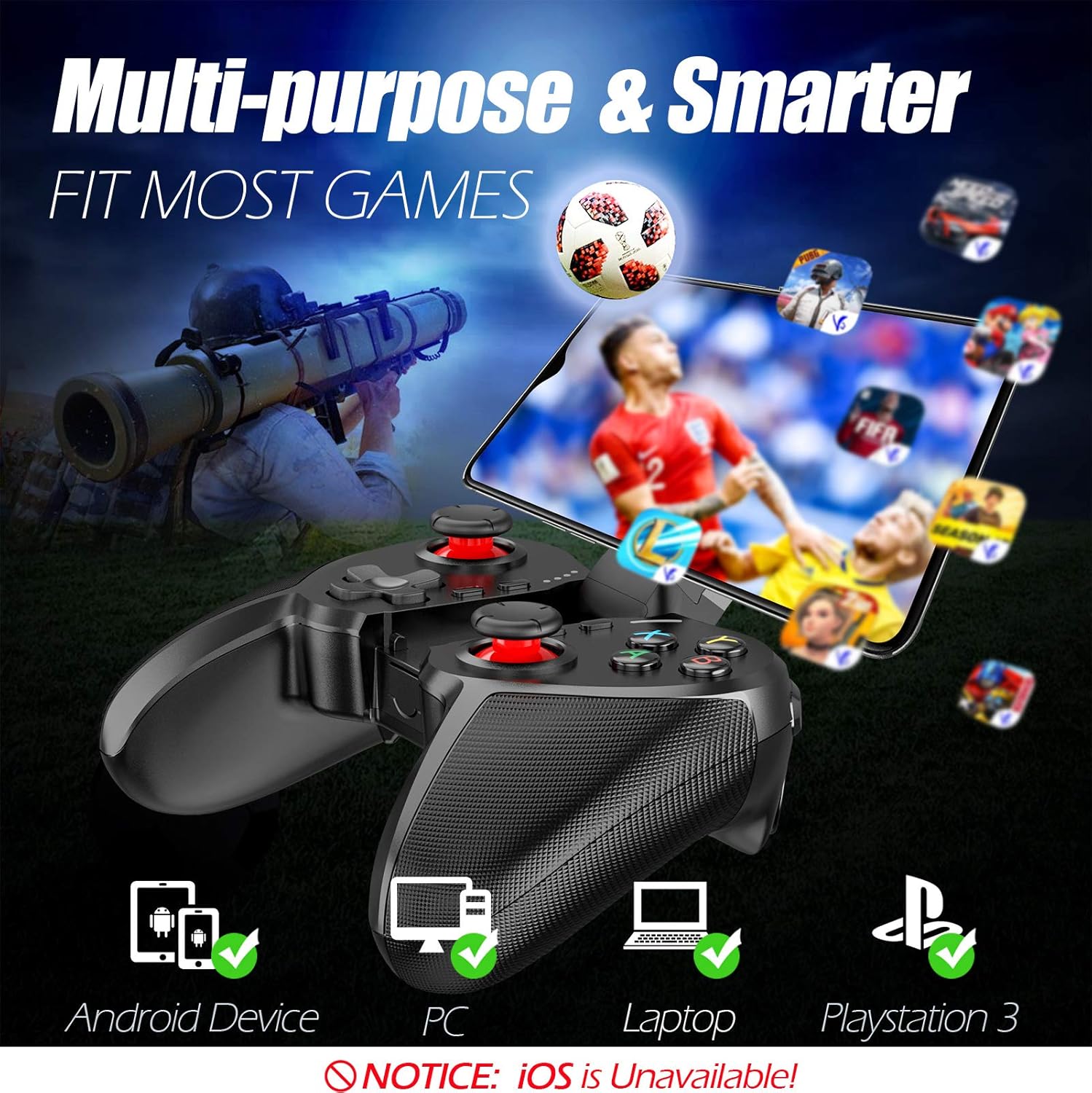
Figure 1: The TERIOS controller is compatible with Android devices, PCs, Laptops, and PlayStation 3.

Figure 2: Detail of the controller's built-in smartphone bracket, accurate buttons, and comfortable soft rubber grips.
O'rnatish va ulanish
1. Tekshirish moslamasini zaryadlash
Before first use, fully charge the controller. Connect the provided Micro USB cable to the controller's charging port and the other end to a USB power source (e.g., computer USB port, USB wall adapter). The indicator lights will show charging status and turn off when fully charged.

Figure 3: The controller features a 400mAh battery, providing 12-14 hours of playtime with a 2-3 hour charging time.
2. Quvvatni yoqish/o'chirish
- Yoqish uchun: ni bosing va ushlab turing UY button for 2 seconds. The indicator lights will flash.
- O'chirish uchun: ni bosing va ushlab turing UY button for 5 seconds until the indicator lights turn off. The controller will automatically power off after 5 minutes of inactivity.
3. Bluetooth Pairing (Android Smartphones / PS3)
- Tekshirish moslamasi o'chirilganligiga ishonch hosil qiling.
- On your Android smartphone or PS3, enable Bluetooth.
- ni bosing va ushlab turing UY button on the controller until the indicator lights flash rapidly, indicating pairing mode.
- On your device, search for new Bluetooth devices. Select "TERIOS Gamepad" or similar from the list.
- Once connected, the indicator light will become solid.
4. Kompyuterga ulanish
For PC connection, the controller typically uses a USB dongle (often included). Insert the USB dongle into an available USB port on your PC. The controller should automatically connect. If not, press the UY button to initiate connection.
5. Initial Setup and App (V3 App)
For optimal customization and compatibility with certain mobile games, it is recommended to download the V3 app from the Google Play Store. This app allows you to map virtual keys on your screen to the physical buttons of the controller.
- Download the "V3" app from the Google Play Store.
- Connect the TERIOS gamepad to your smartphone via Bluetooth.
- Open the V3 app and follow the on-screen instructions to customize key mappings for your desired games.

Figure 4: The V3 app allows for easy customization of virtual keys to match controller buttons, creating more combinations.
Foydalanish bo'yicha ko'rsatmalar
1. Button Layout and Functions

Figure 5: The TERIOS Mobile Game Controller with a smartphone securely mounted in its integrated holder.
- Chap analog tayoq: Asosiy harakatni boshqarish.
- O'ng analog tayoq: Camera control or secondary movement.
- D-Pad (Yo'naltiruvchi panel): Precise directional input.
- ABXY tugmalari: Standart harakat tugmalari (A, B, X, Y).
- L1/L2, R1/R2 Buttons: Shoulder and trigger buttons for various in-game actions.
- SELECT tugmasi: Typically used for menu navigation or specific game functions.
- START tugmasi: Typically used for pausing games or accessing menus.
- HOME tugmasi: Powers on/off, enters pairing mode, and returns to home screen on some devices.
- TURBO tugmasi: Activates the turbo function for other buttons.
- CLEAR tugmasi: Deactivates the turbo function.

Figure 6: The dual analog sticks are designed for precise control and execution in games.
2. Turbo funksiyasi
The Turbo function allows a button to be pressed repeatedly as long as you hold it down, which is useful for rapid-fire actions in games.
- Faollashtirish uchun: ni bosing va ushlab turing TURBO button, then press the desired action button (e.g., A, B, X, Y, L1, R1). Release both buttons. Now, holding down the action button will activate turbo fire.
- O'chirish uchun: ni bosing va ushlab turing TOZLASH button, then press the action button for which turbo was activated. Release both buttons.

Figure 7: The dedicated Turbo button enables rapid-fire functionality with one click.
3. Smartphone Holder Usage
The integrated smartphone holder can accommodate most smartphone sizes. Gently extend the holder and place your smartphone securely within the clamps. Ensure the phone is centered for balance.
Xizmat
- Tozalash: Kontrollerni tozalash uchun yumshoq, quruq matodan foydalaning. Abraziv tozalagichlar yoki erituvchilardan foydalanmang.
- Saqlash: Tekshirgichni to'g'ridan-to'g'ri quyosh nuri va haddan tashqari haroratdan uzoqda, salqin va quruq joyda saqlang.
- Batareya parvarishi: Batareya quvvatini uzaytirish uchun kontrollerni tez-tez to'liq zaryadsizlantirishdan saqlaning. Uzoq vaqt davomida ishlatilmasa ham, uni muntazam ravishda zaryadlang.
Muammolarni bartaraf qilish; nosozliklarni TUZATISH
| Muammo | Mumkin sabab | Yechim |
|---|---|---|
| Controller not connecting via Bluetooth. | Controller not in pairing mode; device Bluetooth off; interference. | Ensure controller is in pairing mode (rapid flashing lights). Check device Bluetooth settings. Move closer to the device. Try restarting both controller and device. |
| Buttons are unresponsive or delayed. | Low battery; software glitch; interference. | Charge the controller fully. Restart the controller. Ensure no other strong wireless signals are nearby. For mobile games, check V3 app settings. |
| Tekshirish moslamasi tez-tez uzilib qoladi. | Low battery; too far from device; interference. | Charge the controller. Stay within the recommended Bluetooth range. Minimize wireless interference. |
| Turbo funksiyasi ishlamayapti. | Incorrect activation sequence; button not supported. | Ensure you press and hold TURBO, then press the desired action button, then release both. Some games or buttons may not fully support turbo. |
Mahsulot spetsifikatsiyalari
| Xususiyat | Tafsilot |
|---|---|
| Brend | TERIOS |
| Model | T-12 |
| Ulanish texnologiyasi | Bluetooth 4.0 |
| Mos qurilmalar | Android Smartphones, Windows PC, PlayStation 3 |
| Quvvat manbai | Batareya bilan ishlaydi (Lityum polimer) |
| Batareya quvvati | 400mAh (approx. 1.48 Watt Hours) |
| O'yin vaqti | 12-14 soatgacha |
| Zaryadlash vaqti | 2-3 soat |
| Tugmalar soni | 16 (including ABXY, D-pad, analog sticks, L/R triggers/bumpers, Select, Start, Home, Turbo, Clear) |
| Maxsus xususiyatlar | Turbo Function, Dual Analog Sticks, In-built Smartphone Holder, Responsive Action Buttons |
| O'lchamlari (paket) | 17 x 12.4 x 7.7 sm |
| Og'irligi (paket) | 310 gr |
Kafolat va qo'llab-quvvatlash ma'lumotlari
The TERIOS Mobile Game Controller is designed for durability and performance. For any product-related inquiries, technical support, or warranty claims, please refer to the contact information provided with your purchase or visit the official TERIOS support websayt. Kafolat maqsadlari uchun sotib olishni tasdiqlovchi hujjatni saqlang.


