1. Kirish
This manual provides detailed instructions for installing, configuring, and operating your TP-Link AC1900 Smart WiFi Router, model Archer A8. Please read this guide thoroughly to ensure proper setup and optimal performance of your device.
2. Paket tarkibi
Paketingizda barcha narsalar mavjudligini tekshiring:
- TP-Link AC1900 Smart WiFi Router (Archer A8)
- Quvvat adapteri
- RJ45 chekilgan kabeli
- Tez o'rnatish uchun qo'llanma
3. Jismoniy tugashview
Familiarize yourself with the router's components and indicators.
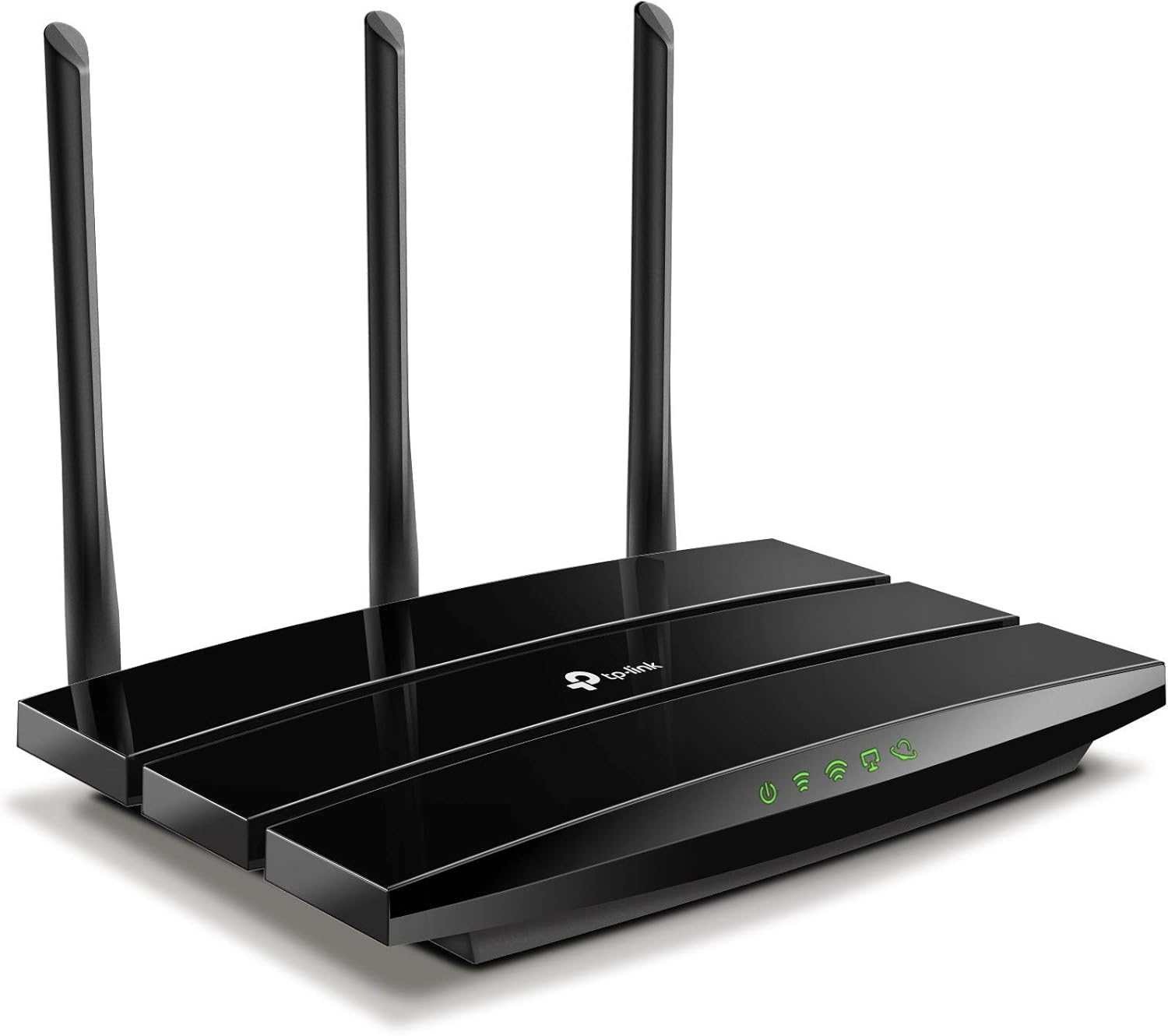
3.1-rasm: Old View of TP-Link Archer A8 Router. This image displays the top-down view of the TP-Link Archer A8 router, featuring its sleek black design and three external antennas. The front panel includes LED indicators for power, internet connectivity, Wi-Fi status, and Ethernet port activity.
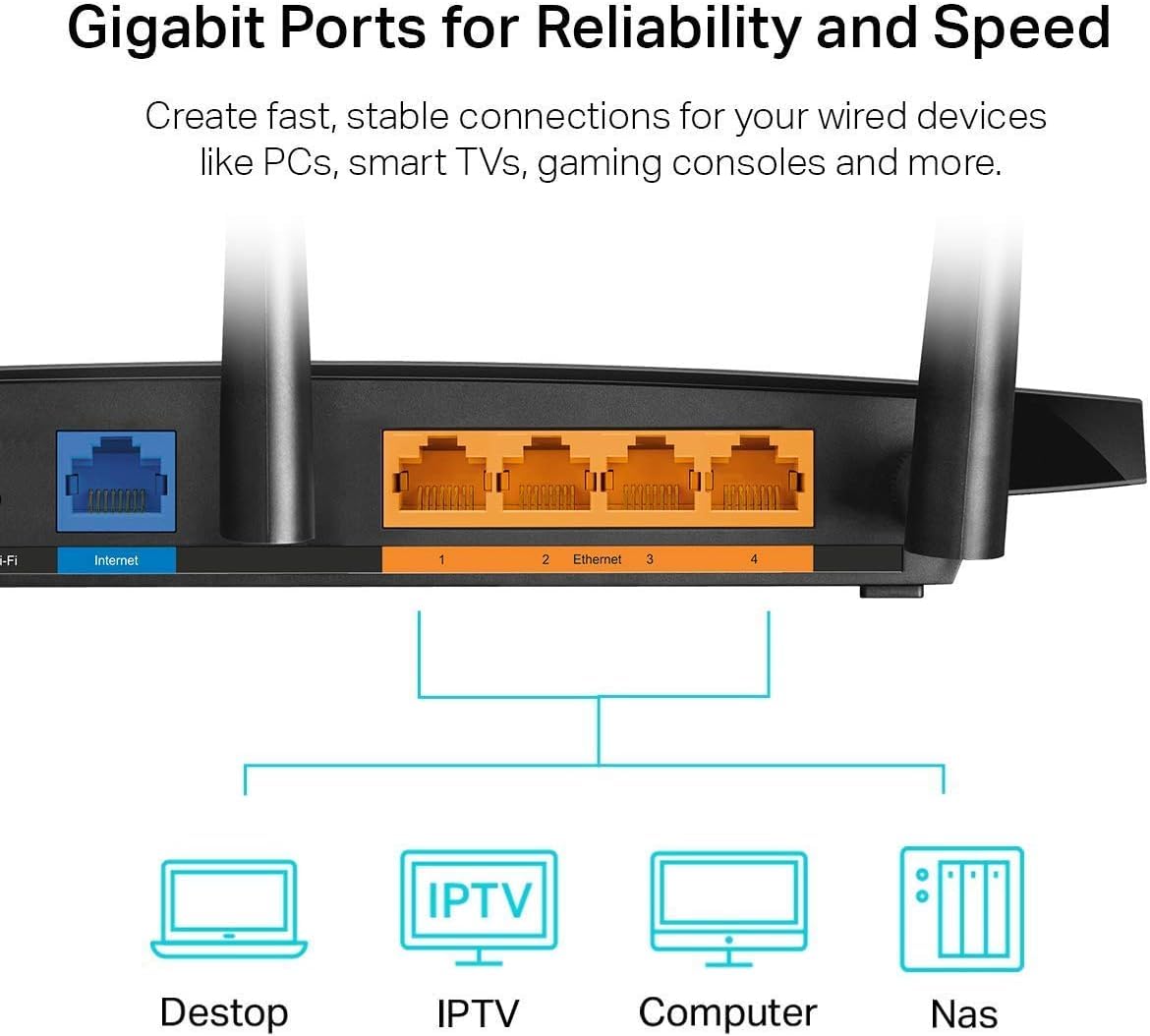
Figure 3.2: Rear Panel of TP-Link Archer A8 Router. This image shows the rear panel of the router, highlighting the Gigabit WAN port (blue) and four Gigabit LAN ports (orange). These ports are used for wired connections to your modem and other network devices.
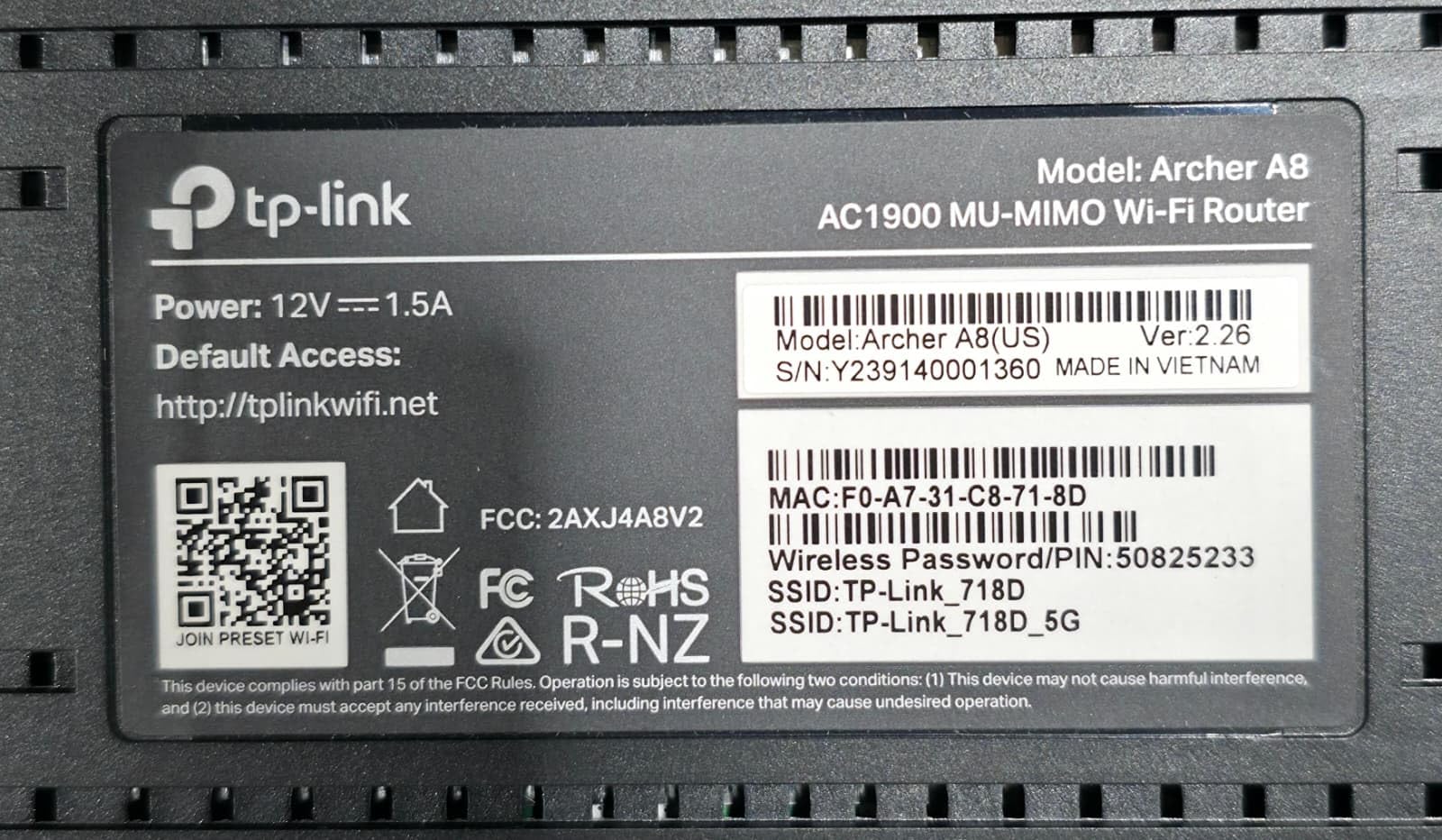
Figure 3.3: Router Bottom Label. This label provides essential information including the model (Archer A8, AC1900 MU-MIMO Wi-Fi Router), power specifications (12V===1.5A), default access URL (http://tplinkwifi.net), MAC address (F0:A7:31:C8:71:8D), serial number (Y239140001360), and default Wi-Fi network names (SSID: TP-Link_718D, TP-Link_718D_5G) with the default wireless password (50825233). It also includes FCC and RoHS compliance marks.
4. O'rnatish bo'yicha ko'rsatmalar
- Modemni o'chiring: Disconnect the power from your existing modem.
- Routerni ulang:
- Modemingizning Ethernet kabelini tarmoqqa ulang WAN porti (blue) on the Archer A8 router.
- Quvvat adapterini routerga ulang va uni rozetkaga ulang.
- Power on your modem, then power on the router. Wait for the LED indicators to stabilize.
- Routerga ulaning:
- Simsiz ulanish: Connect your computer or mobile device to the router's default Wi-Fi network. The default SSIDs (e.g., TP-Link_718D, TP-Link_718D_5G) and Wireless Password (e.g., 50825233) are printed on the router's bottom label (refer to Figure 3.3).
- Simli ulanish: Connect your computer to one of the router's LAN portlari (orange) using an Ethernet cable.
- Routerni sozlang:
- Ochish a web browser and enter the default access URL: http://tplinkwifi.net.
- Follow the on-screen instructions in the Quick Setup wizard to configure your internet connection and Wi-Fi settings. You will be prompted to create a new login password for the router.
- Alternatively, use the TP-Link Tether App for mobile-based setup.
5. Foydalanish bo'yicha ko'rsatmalar
5.1. Qurilmalarni ulash
Once the router is set up, you can connect your devices:
- Simsiz qurilmalar: Ni qidirish your Wi-Fi network name (SSID) on your device and enter the password you configured during setup.
- Simli qurilmalar: Connect devices like PCs, Smart TVs, or gaming consoles to the router's Gigabit LAN ports using Ethernet cables.
5.2. Dual-Band Wi-Fi
The Archer A8 operates on two frequency bands:
- 2.4 gigagertsli diapazon: Provides wider coverage and better penetration through walls, ideal for general internet use and older devices. Offers speeds up to 600Mbps.
- 5 gigagertsli diapazon: Offers faster speeds (up to 1300Mbps) and lower latency, suitable for bandwidth-intensive activities like 4K streaming and online gaming. Has a shorter range and is more susceptible to obstacles.
The router supports Smart Connect, which automatically assigns devices to the best available band for optimal performance.
5.3. MU-MIMO Technology
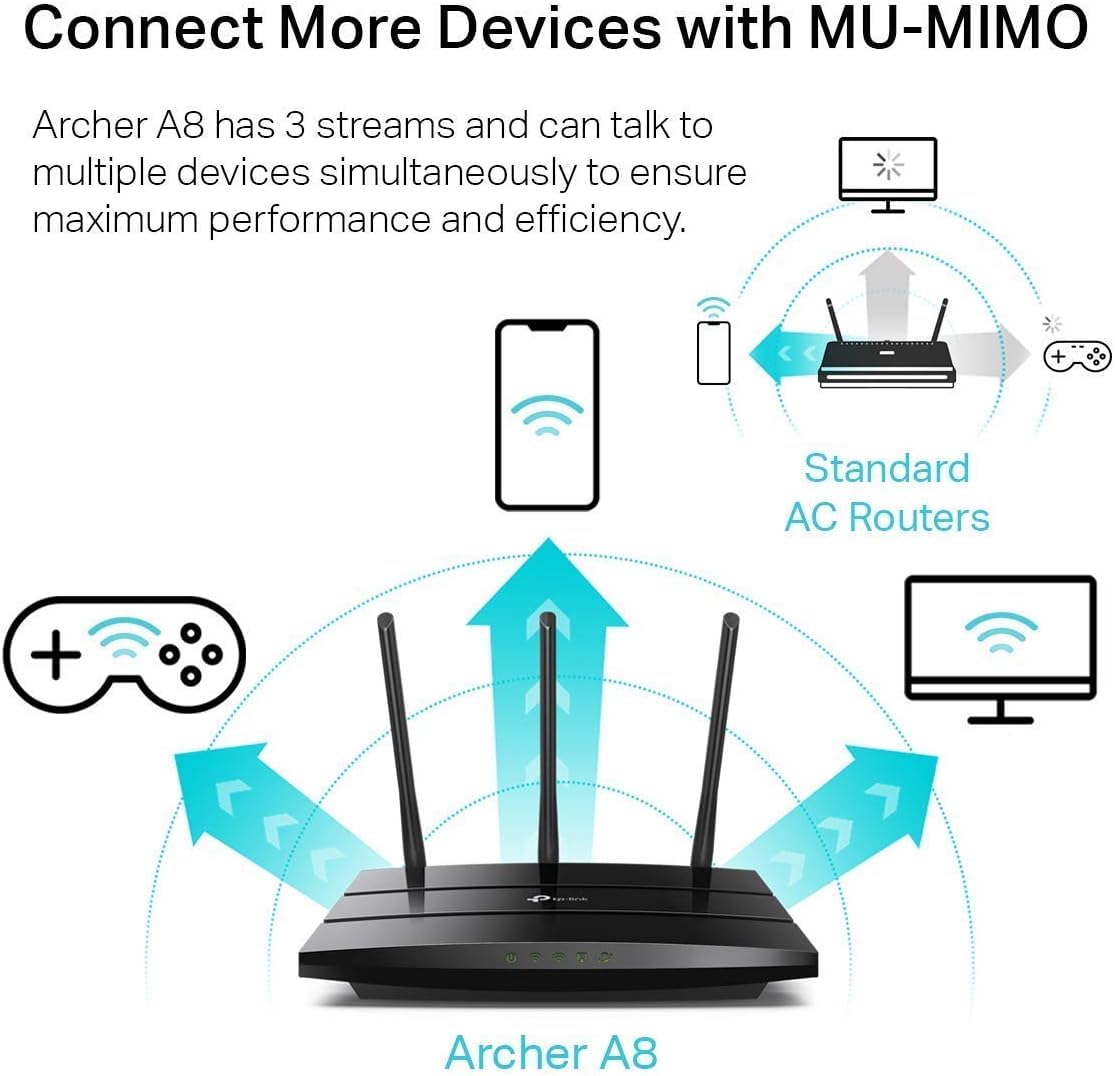
Figure 5.1: MU-MIMO Operation. This diagram illustrates how the Archer A8 router, equipped with MU-MIMO technology, can communicate with multiple devices simultaneously, unlike standard AC routers that communicate with one device at a time. This improves network efficiency and performance for all connected devices.
MU-MIMO (Multi-User, Multiple-Input, Multiple-Output) allows the Archer A8 to communicate with multiple devices simultaneously, rather than sequentially. This significantly improves network efficiency and throughput, especially in environments with many connected devices. For MU-MIMO to function, client devices must also support MU-MIMO.
5.4. Beamforming Technology
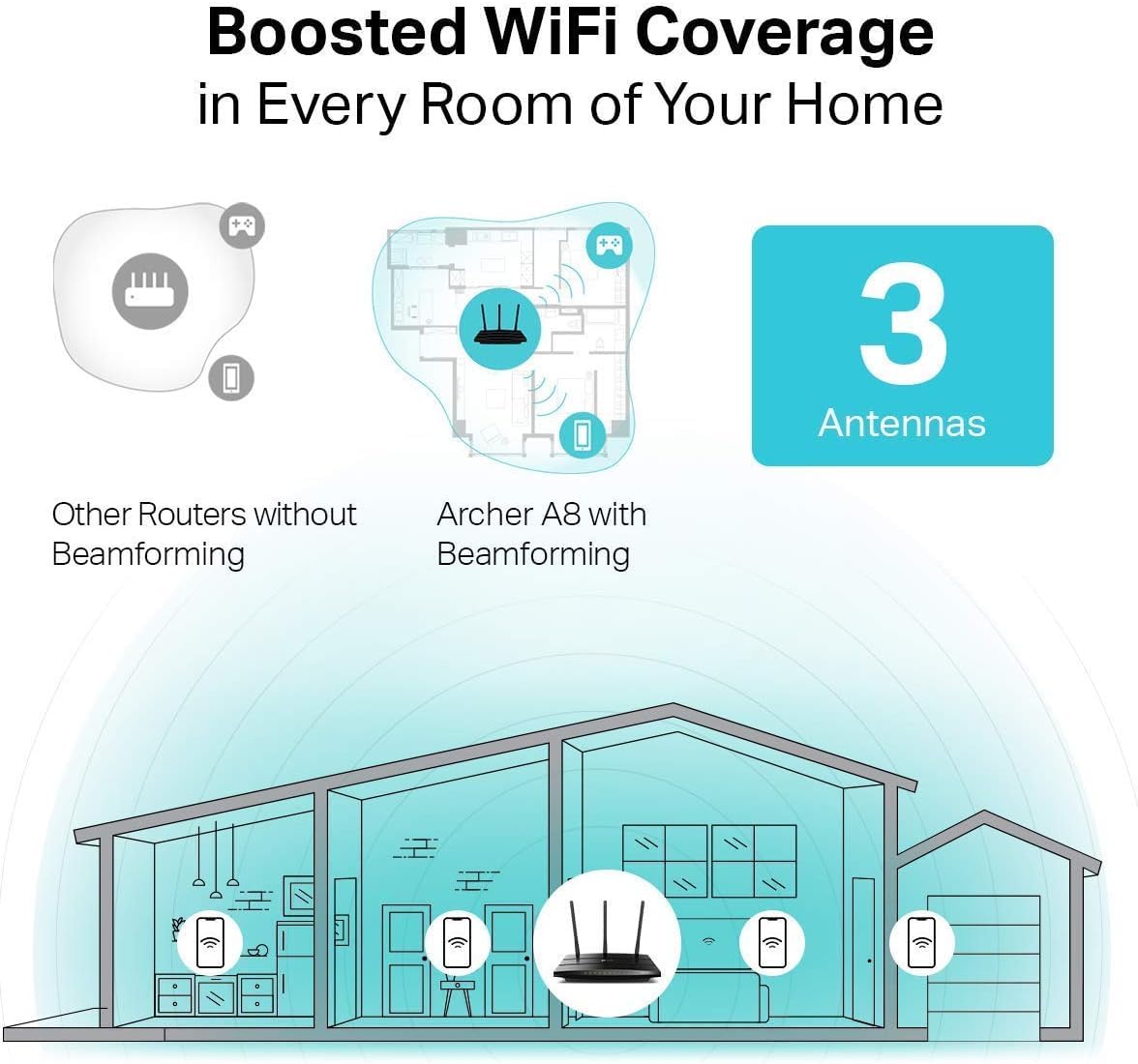
Figure 5.2: Beamforming Coverage. This image compares Wi-Fi coverage between a router without Beamforming and the Archer A8 with Beamforming. The Archer A8 directs stronger, more focused Wi-Fi signals towards connected devices, extending coverage and improving signal strength throughout your home.
Beamforming technology detects the location of your connected devices and concentrates the Wi-Fi signal directly towards them. This results in a more efficient and stronger wireless connection, extending Wi-Fi coverage and improving reliability, particularly for long-range connections.
5.5. Guest Wi-Fi Network
The router allows you to create a separate guest network, providing internet access to visitors without granting them access to your main network resources. This enhances security for your primary network.
5.6. Ota-ona nazorati
Utilize the Parental Controls feature to manage internet access for children. You can block inappropriate content and set daily time limits for online activity.
6. Xizmat ko'rsatish
- Dasturiy ta'minotni yangilash: Router orqali proshivka yangilanishlarini muntazam tekshirib turing va o'rnating web management interface or the TP-Link Tether App. Updates often include performance improvements, security patches, and new features.
- Routerni joylashtirish: Place the router in a central location, away from obstructions and devices that emit electromagnetic interference (e.g., microwaves, cordless phones) to maximize Wi-Fi coverage.
- Qayta yuklanmoqda: Periodically reboot your router (unplug and replug the power adapter) to clear its memory and refresh network connections, which can resolve minor performance issues.
- Xavfsizlik: Use strong, unique passwords for your Wi-Fi network and router administration. Enable WPA2/WPA3 encryption for your wireless network.
7. Muammolarni bartaraf qilish; nosozliklarni TUZATISH
If you encounter issues with your router, consider the following steps:
- Internetga kirish imkoni yo'q:
- Modemingiz to'g'ri ishlayotganligini tekshiring.
- Ensure all cables are securely connected to the correct ports (WAN port to modem, LAN ports to devices).
- Modem va routerni qayta ishga tushiring.
- Routerda internet sozlamalarini tekshiring web boshqaruv interfeysi.
- Weak Wi-Fi Signal or Dropouts:
- Relocate the router to a more central position, away from obstacles and interference sources.
- Optimal signal yo'nalishi uchun yo'riqnoma antennalarini sozlang.
- Consider using a Wi-Fi analyzer app to identify channel interference and switch to a less congested channel.
- Routerni boshqarish sahifasiga kirish imkoni yo'q:
- Qurilmangiz router tarmog'iga (simli yoki simsiz) ulanganligiga ishonch hosil qiling.
- Verify you are using the correct access URL (http://tplinkwifi.net) or IP address.
- Brauzeringiz keshini tozalang yoki boshqa brauzerni sinab ko'ring.
- Routerga kirish parolini unutdingizmi:
- Perform a factory reset on the router. This will revert all settings to default, including the login password (which you will then set up again via the Quick Setup wizard). To factory reset, press and hold the reset button on the router (usually a small pinhole button) for about 10 seconds while the router is powered on.
8. Texnik shartlar
| Xususiyat | Tafsilot |
|---|---|
| Model nomi | TP-Link AC1900 (Archer A8) |
| Simsiz standart | IEEE 802.11ac/n/a 5 gigagertsli, IEEE 802.11n/b/g 2.4 gigagertsli |
| Wi-Fi tezligi | AC1900 (5 gigagertsda 1300 Mbit / s, 2.4 gigagertsda 600 Mbit / s) |
| Antennalar | 3 Ruxsat etilgan tashqi antennalar |
| Ethernet portlari | 1x Gigabit WAN porti, 4x Gigabit LAN portlari |
| Maxsus xususiyatlar | MU-MIMO, Beamforming, Smart Connect, Guest Wi-Fi, Parental Controls, WPS |
| Olchamlari (G x D x Y) | 9.57 x 6.32 x 1.28 dyuym |
| Element og'irligi | 14.6 untsiya |
| Quvvat kiritish | 12V===1.5A |
| Mos qurilmalar | Gaming Console, Personal Computer, Smart Television |
Eslatma: Maximum wireless transmission rates are physical rates derived from IEEE 802.11 specifications. Actual wireless data throughput and wireless coverage are not guaranteed and will vary due to network conditions, environmental factors, and client limitations. Use of MU-MIMO requires client devices to also support MU-MIMO.
9. Kafolat va qo'llab-quvvatlash
TP-Link provides an industry-leading 2-year warranty for this product. For technical assistance, please contact TP-Link's 24/7 technical support.
For the most up-to-date information, support resources, and contact details, please visit the official TP-Link websayt.
Huquqiy rad etish:
1. Maximum wireless transmission rates are the physical rates derived from IEEE Standard 802.11 specifications. Range and coverage specifications are based upon test results under normal usage conditions. Actual wireless transmission rate and wireless coverage are not guaranteed and will vary as a result of 1) environmental factors, including building materials, physical objects, and obstacles, 2) network conditions, including local interference, volume and density of traffic, product location, network complexity, and network overhead and 3) client limitations, including rated performance, location, connection quality, and client condition. 2. Use of MU-MIMO requires clients to also support MU-MIMO.


