1. Kirish
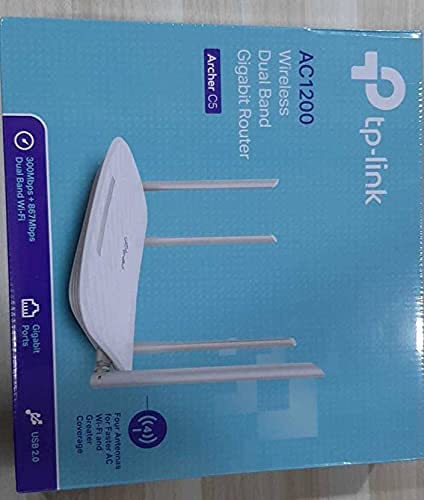
This manual provides comprehensive instructions for the installation, operation, and maintenance of your TP-Link Archer C5 AC1200 Dual-Band Gigabit Wireless Wi-Fi Router. The Archer C5 is designed to provide seamless Wi-Fi coverage with its dual-band capabilities, offering speeds up to 750Mbps on the 5GHz band and up to 300Mbps on the 2.4GHz band. It features four external antennas for stable wireless connections and full Gigabit ports for high-speed wired connections.
Please read this manual carefully before using the device to ensure proper setup and optimal performance.
2. Paket tarkibi
Paketingizda quyidagi elementlar mavjudligiga ishonch hosil qiling:
- TP-Link Archer C5 Router
- Power Adapter (DC Adapter)
- Ethernet kabeli (RJ45)
- Quick Installation Guide (may be a separate document)
3. Mahsulot tugadiview
3.1 Old panel

The front panel features LED indicators that provide information about the router's status, including power, internet connectivity, Wi-Fi status for both 2.4GHz and 5GHz bands, and LAN port activity.
3.2 Orqa panel

The rear panel includes all physical connection ports and buttons:
- Kirish quvvati: Taqdim etilgan quvvat adapteriga ulanadi.
- Quvvat tugmasi: Routerni yoqadi yoki o'chiradi.
- USB port: USB xotira qurilmalarini ulash uchun files tarmoq bo'ylab.
- WAN porti (ko'k): Connects to your modem for internet access. This is a Gigabit port.
- LAN portlari (sariq): Four Gigabit Ethernet ports for connecting wired devices such as computers, gaming consoles, or smart TVs.
- Qayta tiklash tugmasi: Routerni zavod sozlamalariga qaytarish uchun foydalaniladi.
- WPS/Wi-Fi tugmasi: Press to enable WPS (Wi-Fi Protected Setup) for easy connection, or press and hold to turn Wi-Fi on/off.
4. O'rnatish bo'yicha qo'llanma
Follow these steps to set up your TP-Link Archer C5 router:
- Modemni o'chiring: Disconnect the power from your existing modem.
- Routerni ulang:
- Connect one end of the provided Ethernet cable to the WAN port (blue) on your Archer C5 router.
- Ethernet kabelining ikkinchi uchini modemingizning Ethernet portiga ulang.
- Qurilmalarni yoqish:
- Quvvat adapterini yo'riqnoma quvvat manbaiga ulang va uni rozetkaga ulang.
- Power on your modem, then wait for it to fully boot up (usually indicated by stable LED lights).
- Power on the Archer C5 router. Wait for the LED indicators to stabilize, particularly the Internet LED.
- Connect to the Router's Wi-Fi Network:
- Locate the Wi-Fi network name (SSID) and password printed on the label at the bottom of your router.
- On your computer or mobile device, select the router's Wi-Fi network and enter the password to connect.
- ga kirish Web Boshqaruv interfeysi:
- Ochish a web brauzer (masalan, Chrome, Firefox) va yozing
http://tplinkwifi.netor192.168.0.1manzil satriga. - Standart foydalanuvchi nomi va paroldan foydalanib tizimga kiring (odatda
adminikkalasi uchun ham yoki yo'riqnoma yorlig'ida ko'rsatilganidek). - Follow the Quick Setup wizard to configure your internet connection and personalize your Wi-Fi network name and password.
- Ochish a web brauzer (masalan, Chrome, Firefox) va yozing
- Optional: Use the TP-Link Tether App: Download the TP-Link Tether app from your mobile device's app store for easy setup and management.
5. Foydalanish bo'yicha ko'rsatmalar
Once your router is set up, you can manage its functions through the web management interface or the TP-Link Tether app.
5.1 Dual-band Wi-Fi
The Archer C5 operates on two Wi-Fi bands:
- 2.4 gigagertsli diapazon: Kengroq qamrovni va devorlar orqali yaxshiroq o'tishni ta'minlaydi, Internetdan umumiy foydalanish va eski qurilmalar uchun mos keladi.
- 5 gigagertsli diapazon: Offers faster speeds and less interference, ideal for bandwidth-intensive activities like online gaming and HD video streaming.
You can configure separate SSIDs (network names) and passwords for each band or use a single SSID with Band Steering enabled (if available in your firmware) to allow the router to automatically assign devices to the best band.
5.2 Tarmoqni boshqarish
orqali web interfeysi, siz:
- Change Wi-Fi settings (SSID, password, security type).
- Set up a Guest Network for visitors.
- Configure parental controls to manage internet access for children.
- Prioritize devices or applications using Quality of Service (QoS).
- Ulangan qurilmalarni boshqaring.
- Access advanced settings like port forwarding, VPN server, and dynamic DNS.
6. Xizmat ko'rsatish
Regular maintenance helps ensure the longevity and optimal performance of your router.
- Dasturiy ta'minotni yangilash: Vaqti-vaqti bilan TP-Link rasmiysini tekshiring website for firmware updates. Updating firmware can improve performance, add new features, and fix security vulnerabilities.
- Jismoniy joylashtirish: Place the router in a central location, away from obstructions and devices that emit electromagnetic interference (e.g., microwaves, cordless phones). Elevating the router can also improve signal distribution.
- Tozalash: Keep the router clean and free from dust. Ensure ventilation holes are not blocked to prevent overheating.
- Qayta yuklanmoqda: If you experience slow speeds or connectivity issues, try rebooting the router by unplugging its power adapter for 10 seconds and then plugging it back in.
7. Muammolarni bartaraf qilish; nosozliklarni TUZATISH
Ushbu bo'lim Archer C5 routeringiz bilan duch kelishi mumkin bo'lgan umumiy muammolarni ko'rib chiqadi.
7.1 Internetga kirish imkoni yo'q
- Kabel ulanishlarini tekshiring: Ensure the Ethernet cable from your modem is securely connected to the router's blue WAN port.
- Modem holati: Modemingiz to'g'ri ishlayotganini va faol internet aloqasi mavjudligini tekshiring.
- Router LEDlari: Check the Internet LED on the router. If it's off or red, there might be an issue with your internet service provider (ISP) or modem connection.
- Qurilmalarni qayta ishga tushirish: Power cycle your modem and then your router.
- MAC manzilini klonlash: Some ISPs require MAC address cloning. Access the router's web interface and check WAN settings for this option.
7.2 Wi-Fi Signal Drops or is Weak
- Routerni joylashtirish: Move the router to a central location, away from obstacles and interference sources.
- Antenna yo'nalishi: Adjust the four external antennas for optimal signal reception.
- Kanal aralashuvi: Routerda web interfeysida, 2.4 gigagertsli va 5 gigagertsli diapazonlar uchun Wi-Fi kanalini kamroq tirbandlikka o'zgartirishga harakat qilib ko'ring.
- Dasturiy ta'minotni yangilash: Routeringizning dasturiy ta'minoti yangilanganligiga ishonch hosil qiling.
7.3 Routerga kirish parolini unutdingizmi?
Agar siz parolni unutgan bo'lsangiz web management interface, you will need to reset the router to its factory default settings. Locate the Reset button on the rear panel, press and hold it for about 10 seconds until the LEDs flash, then release. The router will reboot with default settings (usually admin for username and password).
8. Texnik shartlar
| Xususiyat | Tafsilot |
|---|---|
| Brend | TP-Link |
| Model nomi | ArcherC5 |
| Simsiz standart | IEEE 802.11ac/n/a 5 GHz, IEEE 802.11n/b/g 2.4 GHz |
| Wi-Fi tezligi | AC1200 (5 gigagertsda 867 Mbit / s, 2.4 gigagertsda 300 Mbit / s) |
| Chastota diapazoni klassi | Ikki tarmoqli (2.4 gigagertsli va 5 gigagertsli) |
| Ethernet portlari | 1x Gigabit WAN porti, 4x Gigabit LAN portlari |
| USB port | 1x USB 2.0 porti |
| Antennalar | 4x tashqi antennalar |
| Xavfsizlik protokoli | WPA2-PSK |
| Operatsion tizim | RouterOS (as per product data, typically TP-Link custom firmware) |
| Maxsus xususiyat | Masofaviy kirish |
| Element og'irligi | 710 gr |
| Kiritilgan komponentlar | Router, DC Adapter, RJ45 Ethernet Cable |
9. Kafolat va qo'llab-quvvatlash
9.1 Kafolat haqida ma'lumot
The TP-Link Archer C5 router typically comes with a 1 Yil Kafolat. Please refer to the warranty card included in your product packaging or visit the official TP-Link webmintaqangiz uchun batafsil kafolat shartlari va shartlari uchun sayt.
9.2 Texnik yordam
For technical assistance, firmware updates, or further information, please visit the official TP-Link support website. You can usually find FAQs, troubleshooting guides, and contact information for customer support there.
TP-Link rasmiy Websayt: www.tp-link.com


