1. Kirish
This manual provides essential information for the proper use and maintenance of your Gateway 15.6-inch FHD Ultra Slim Laptop, Model GTW15G. This device is equipped with an AMD Ryzen 5 3450U Mobile Processor, 8GB of DDR4 RAM, and a 256GB Solid State Drive (SSD). It features a 15.6-inch Full HD (1920x1080) IPS display, a built-in fingerprint scanner, and runs on Windows 10, with an available free upgrade to Windows 11.
Please read this manual thoroughly before operating your laptop to ensure optimal performance and longevity.
2. Sozlash
2.1 Paketni ochish va dastlabki tekshirish
Carefully remove the laptop and all accessories from the packaging. Verify that all components are present and undamaged. The package should include the laptop, power adapter, and this user manual.
2.2 Quvvat adapterini ulash
Before first use, connect the power adapter to the laptop's charging port and then to a power outlet. Allow the battery to charge for at least 30 minutes before powering on for the first time.

Figure 2.1: Gateway 15.6-inch Ultra Slim Laptop overview.
2.3 Birinchi marta yoqish va Windows-ni sozlash
Press the power button located on the keyboard. The laptop will boot up and guide you through the Windows 10 initial setup process. Follow the on-screen instructions to configure your region, language, network connection, and user account.
2.4 Fingerprint Scanner Setup (Windows Hello)
During or after the initial Windows setup, you can configure the built-in fingerprint scanner for secure login using Windows Hello. Navigate to Sozlamalar > Hisoblar > Kirish parametrlari and follow the prompts to set up your fingerprint.
3. Foydalanish bo'yicha ko'rsatmalar
3.1 Quvvatni yoqish/o'chirish va Kutish rejimi
- Yoqilgan: Quvvat tugmasini bosing.
- O'chirish; yopish: ni bosing Boshlash tugmasi, keyin Power > Shut down.
- Kutish rejimi: Close the lid or click the Boshlash tugmasi, keyin Quvvat > Kutish.
3.2 Using the Precision Touchpad
The laptop features a precision touchpad for navigation. It supports multi-touch gestures for scrolling, zooming, and other functions. Refer to Windows settings for customizing touchpad gestures.
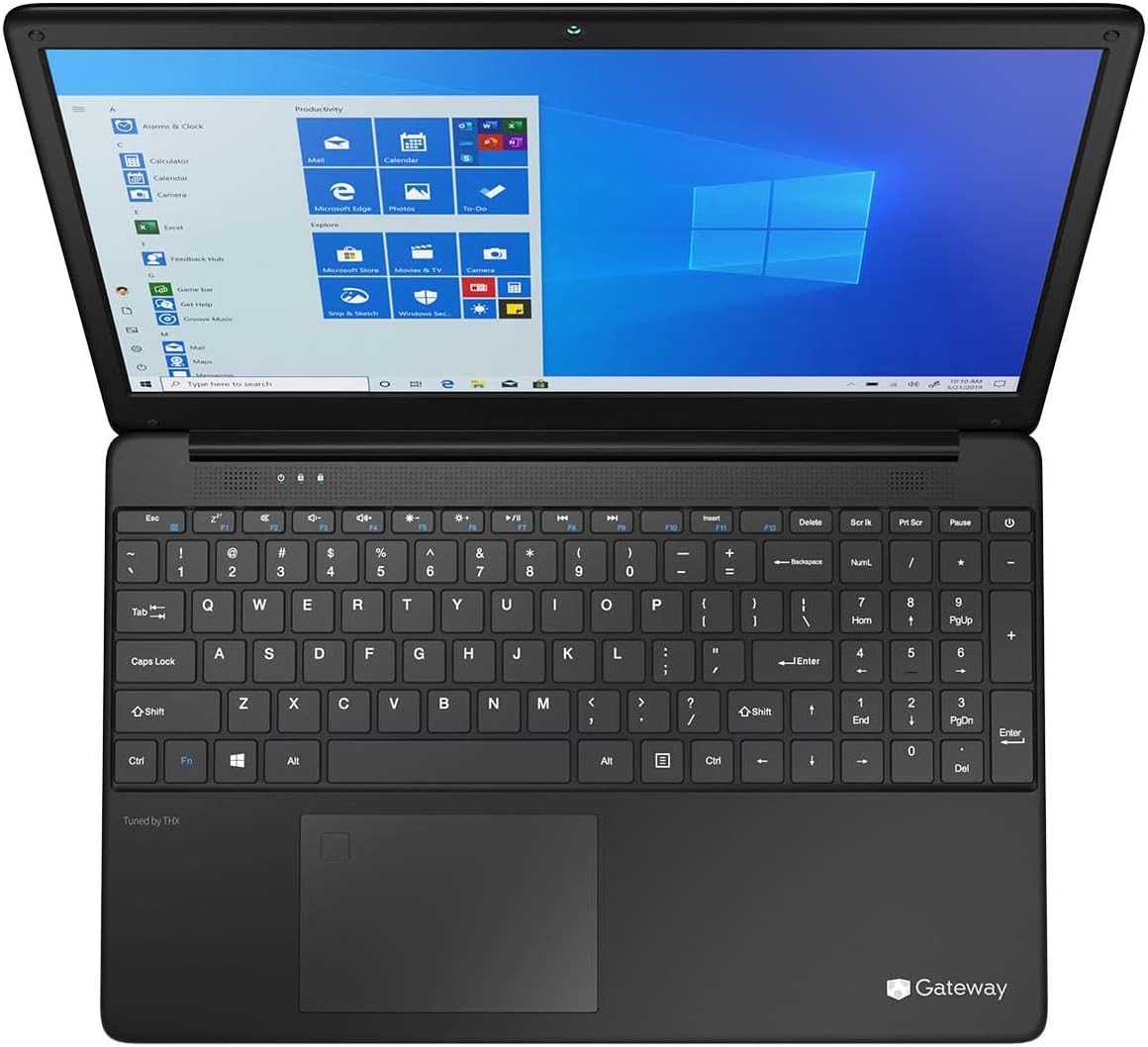
Figure 3.1: Keyboard and Precision Touchpad layout.
3.3 Tashqi qurilmalarni ulash
Noutbukda periferik qurilmalarni ulash uchun turli xil portlar mavjud:
- USB 3.0 portlari (x2): Tashqi qattiq disklar, sichqonchalar yoki klaviaturalar kabi USB qurilmalarini ulash uchun.
- USB Type-C Port (x1): Supports both charging and data transfer.
- HDMI Output (x1): Connect to an external monitor or TV.
- Micro SD Slot (x1): Supports Micro SD cards up to 512 GB for expanded storage.
- Kensington qulfi: Jismoniy xavfsizlik uchun.
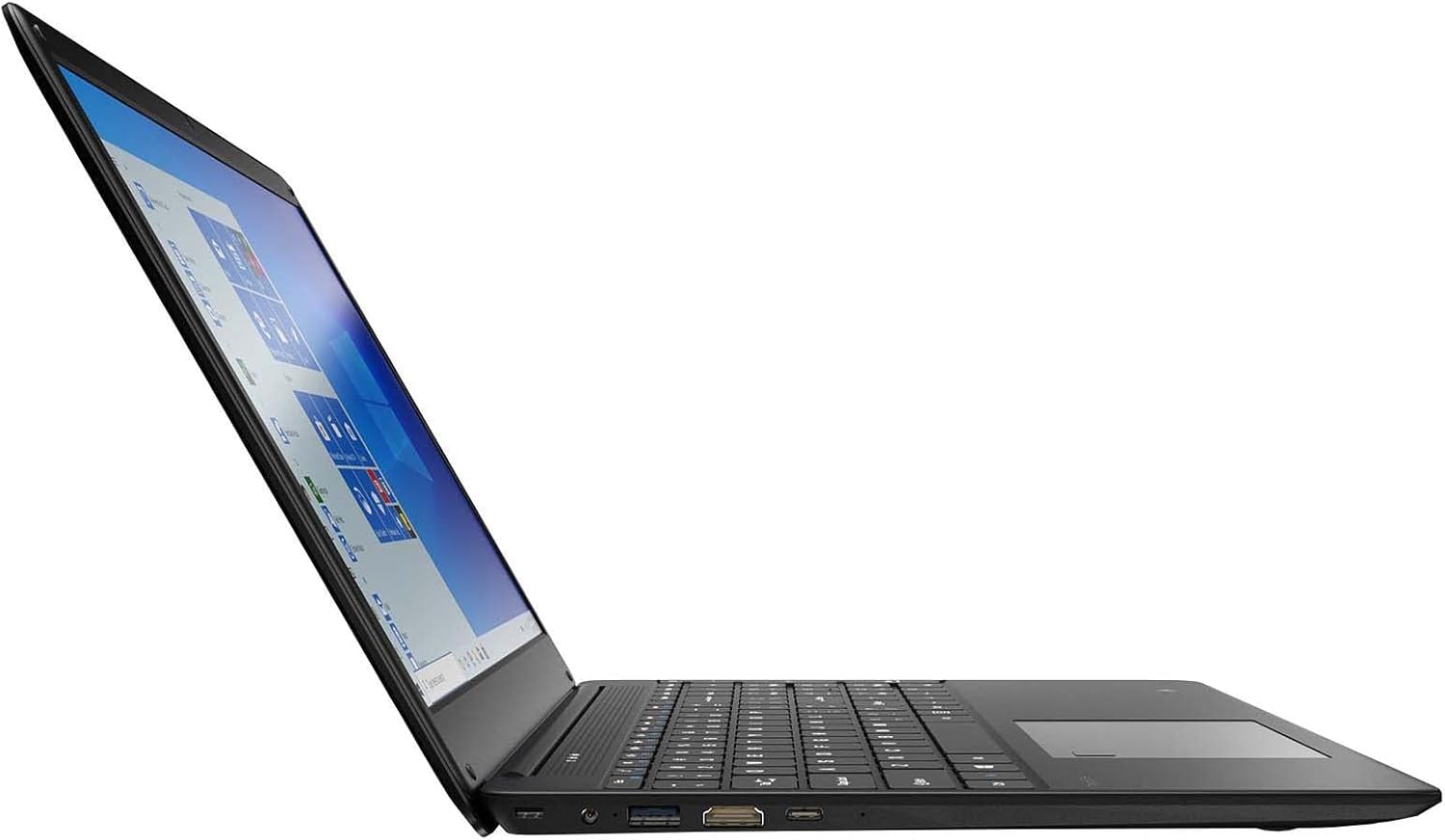
Figure 3.2: Left side ports (USB, HDMI, USB Type-C).
3.4 Simsiz ulanish
The laptop supports Wi-Fi and Bluetooth 5.1 for wireless connections. Access network settings via the Windows taskbar or Sozlamalar> Tarmoq va Internet to connect to Wi-Fi networks or pair Bluetooth devices.
3.5 Audio xususiyatlari
The built-in stereo speakers are tuned by THX Audio, providing enhanced sound quality. Adjust volume using the function keys on the keyboard or through Windows sound settings.
4. Xizmat ko'rsatish
4.1 Noutbukni tozalash
- Ekran: Bir oz yumshoq, tuklarsiz matodan foydalaning dampsuv yoki ekran tozalagich bilan yakunlanadi. Suyuqlikni to'g'ridan-to'g'ri ekranga sepmang.
- Shassi va klaviatura: Yumshoq, quruq matodan foydalaning. O'jar axloqsizlik uchun, bir oz damp matodan foydalanish mumkin. Qattiq kimyoviy moddalardan saqlaning.
- Teshiklar: Sovutishga ta'sir qilishi mumkin bo'lgan chang to'planishining oldini olish uchun shamollatish teshiklarini vaqti-vaqti bilan siqilgan havo bilan tozalang.
4.2 Batareyani parvarish qilish
Batareyaning ishlash muddati va uzoq umr ko'rish uchun:
- Tez-tez batareyani to'liq zaryadsizlantirishdan saqlaning.
- Noutbukni haddan tashqari haroratga qo'ymang.
- Agar noutbukni uzoq vaqt saqlasangiz, batareyaning taxminan 50-70% zaryadlanganligiga ishonch hosil qiling.
- Optimize power settings in Windows to conserve battery power.
4.3 Dasturiy ta'minotni yangilash
Regularly check for and install Windows updates to ensure your system has the latest security patches and performance improvements. Navigate to Sozlamalar > Yangilash va xavfsizlik > Windows yangilash.
4.4 Ma'lumotlarni zaxiralash
Ma'lumotlar yo'qolishining oldini olish uchun muhim ma'lumotlaringizni tashqi disk yoki bulutli xotiraga muntazam ravishda zaxiralang.
5. Muammolarni bartaraf qilish; nosozliklarni TUZATISH
Ushbu bo'limda tizza kompyuteringizda duch kelishi mumkin bo'lgan umumiy muammolar ko'rib chiqiladi.
5.1 Noutbuk yoqilmaydi
- Quvvat adapteri ham noutbukga, ham ishlaydigan rozetkaga mahkam ulanganligiga ishonch hosil qiling.
- Elektr rozetkasining ishlashini boshqa qurilmaga ulash orqali tekshiring.
- Allow the laptop to charge for some time before attempting to power it on again.
5.2 Wi-Fi ulanish muammolari
- Windows sozlamalarida Wi-Fi yoqilganligini tekshiring.
- Router va modemni qayta ishga tushiring.
- Ensure you are within range of the Wi-Fi network and have entered the correct password.
- Windows Tarmoq Muammolarini bartaraf etish vositasini ishga tushiring (Settings > Network & Internet > Status > Network troubleshooter).
5.3 Sekin ishlash
- Orqa fonda ishlaydigan keraksiz ilovalarni yoping.
- Har qanday kutilayotgan Windows yangilanishlarini tekshiring va o'rnating.
- SSD-da etarli bo'sh joy mavjudligiga ishonch hosil qiling.
- Zararli dasturlar yoki viruslarni skanerlang.
5.4 Haddan tashqari qizib ketish
If the laptop feels excessively warm, ensure that the ventilation vents are not blocked. Operate the laptop on a hard, flat surface to allow for proper airflow. Avoid using it on soft surfaces like beds or couches that can obstruct vents.
5.5 Boshqa masalalar
For issues not covered here, refer to the Windows help documentation or contact Gateway customer support.
6. Texnik shartlar
| Xususiyat | Spetsifikatsiya |
|---|---|
| Model nomi | Gateway GWTN156 (GTW15G) |
| Displey hajmi | 15.6 dyuym |
| Ekran ravshanligi | 1920 x 1080 piksel (FHD) |
| Protsessor | AMD Ryzen 5 3450U (2.1 GHz, Up to 3.50 GHz) |
| Ram | 8 GB DDR4 |
| Saqlash | 256 GB SSD |
| Grafik protsessor | AMD Radeon Vega 8 grafikasi |
| Operatsion tizim | Windows 10 (Free Upgrade to Windows 11) |
| Simsiz turi | Wi-Fi, Bluetooth 5.1 |
| Portlar | 1x HDMI, 1x USB Type-C (Charge + Data), 2x USB 3.0, 1x Micro SD Slot (Up to 512 GB) |
| Maxsus xususiyatlar | Built-in Fingerprint Scanner (Windows Hello), Stereo Speakers Tuned by THX Audio, HD Webkamera |
| Element og'irligi | 5.5 funt |
| Paket o'lchamlari | 16.65 x 11.73 x 2.8 dyuym |
7. Kafolat va qo'llab-quvvatlash
For warranty information and technical support, please refer to the official Gateway website or contact Gateway customer service directly. Keep your proof of purchase for warranty claims.
This product may be eligible for separate protection plans. Details regarding these plans are available from your retailer at the time of purchase.


