1. Kirish
The Logitech POP Mouse is a compact and portable wireless Bluetooth mouse designed for versatile use across multiple devices. It features programmable buttons, quiet clicks, and a Smartwheel for efficient scrolling. This manual provides essential information for setting up, operating, maintaining, and troubleshooting your POP Mouse.

Image: The Logitech POP Mouse in Rose color, showcasing its compact and contoured design.
2. Qutida nima bor
Upon unboxing your Logitech POP Mouse, ensure all the following items are present:
- Logitech POP Mouse
- 1 x AA batareya (oldindan o'rnatilgan)
- Foydalanuvchi hujjatlari
- Stiker

Image: The Logitech POP Mouse and a single AA battery, representing the contents of the product packaging.
3. Sozlash
3.1. Batareyani o'rnatish
The Logitech POP Mouse comes with one AA battery pre-installed. To access or replace the battery:
- Gently pull the top cover of the mouse upwards from the rear to detach it. The cover is held by magnets.
- Locate the AA battery compartment.
- Insert or replace the AA battery, ensuring correct polarity.
- Align the top cover and gently press it back into place until it snaps magnetically.

Image: A diagram illustrating the internal components of the Logitech POP Mouse, including the battery compartment and the USB receiver slot.
3.2. Initial Device Pairing (Bluetooth)
The POP Mouse connects wirelessly via Bluetooth. Follow these steps to pair it with your device:
- Sichqonchani pastki qismida joylashgan Yoqish/O'chirish tugmasi yordamida yoqing.
- Press and hold the Easy-Switch button (circular button on the bottom of the mouse) for 3 seconds until the indicator light starts blinking rapidly. This indicates pairing mode.
- On your computer, tablet, or smartphone, open Bluetooth settings.
- Select "Logitech POP Mouse" from the list of available devices.
- Follow any on-screen prompts to complete the pairing process. The indicator light will turn solid for 5 seconds when connected.
Image: The underside of the Logitech POP Mouse, highlighting the Easy-Switch button and the three indicator lights for multi-device pairing.
4. Sichqoncha bilan ishlash
4.1. Asosiy funksiyalar
- Chap tugmasini bosing: Standard selection and interaction.
- O'ng tugmasini bosing: Kontekst menyulariga kirish.
- Aqlli g'ildirak: The scroll wheel offers two modes: precise, line-by-line scrolling for accuracy, and a faster, free-spinning mode for quickly navigating long documents or web sahifalar.
- Sokin bosishlar: The mouse features Silent Touch Technology, reducing click noise by over 90% compared to traditional mice, ideal for quiet environments.
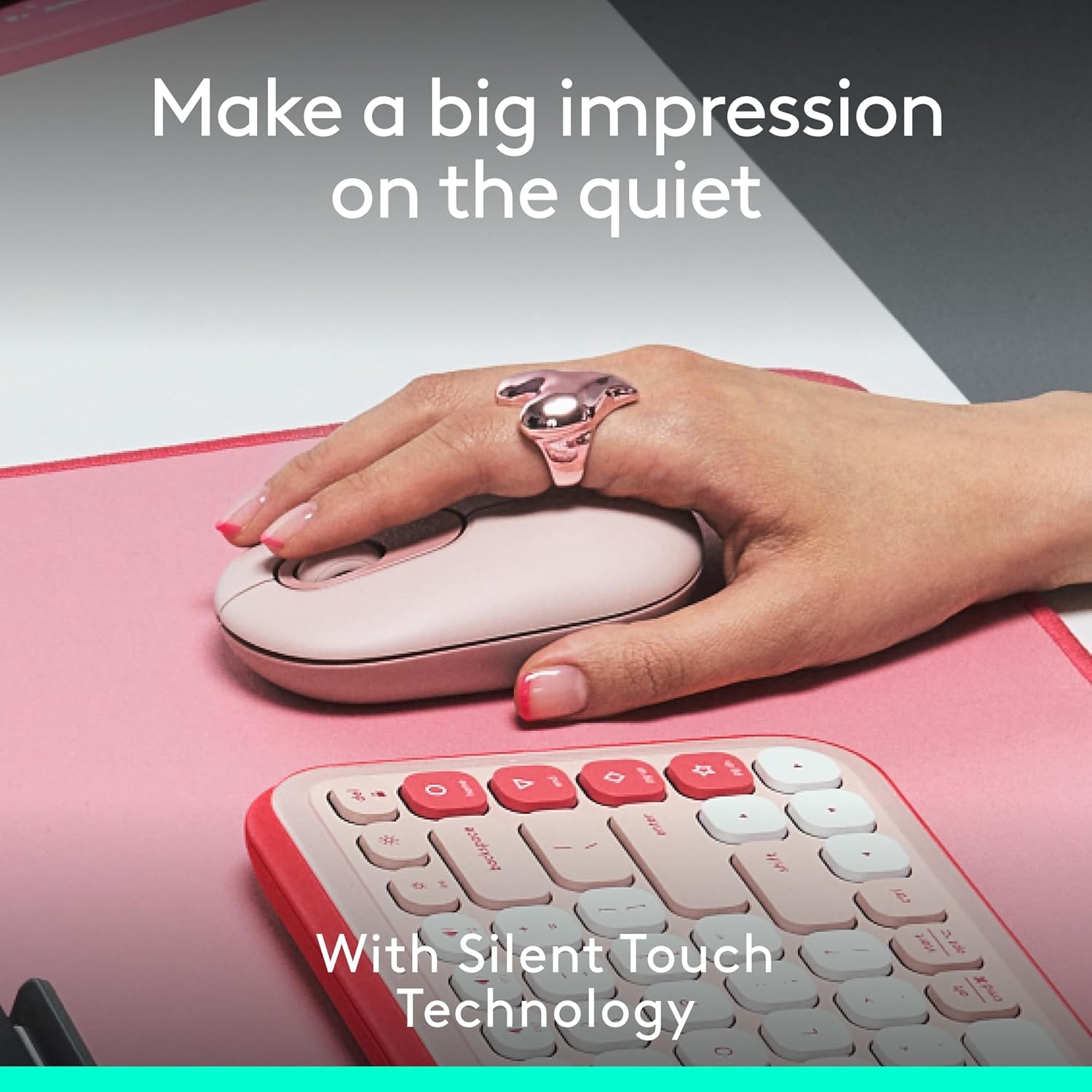
Image: A hand resting on the Logitech POP Mouse, demonstrating its comfortable grip and highlighting the quiet click feature.
4.2. Easy-Switch Between Devices
The POP Mouse can be paired with up to three different devices and allows for seamless switching between them:
- Ensure the mouse is paired with all desired devices (refer to Section 3.2).
- Press the Easy-Switch button on the bottom of the mouse to cycle through the connected devices. The indicator light will show which channel (1, 2, or 3) is currently active.
Image: The underside of the Logitech POP Mouse, illustrating the Easy-Switch button and its corresponding indicator lights for managing multiple device connections.
5. Customization with Logi Options+ App
Unlock the full potential of your POP Mouse by customizing its top button and other settings using the Logi Options+ App. This application is available for recent versions of Windows and macOS.
5.1. Customizable Top Button
The top button, by default, can be set to open an emoji menu. However, it can be reprogrammed to perform various actions:
- Launch applications (e.g., Spotify, Netflix)
- Access AI tools
- Perform system shortcuts (e.g., copy, paste, show desktop)
- Adjust brightness or volume
Sozlash uchun:
- Download and install the Logi Options+ App from the official Logitech websayt.
- Open the app and select your POP Mouse.
- Navigate to the 'Buttons' section and select the top button.
- Choose your desired action from the available options.
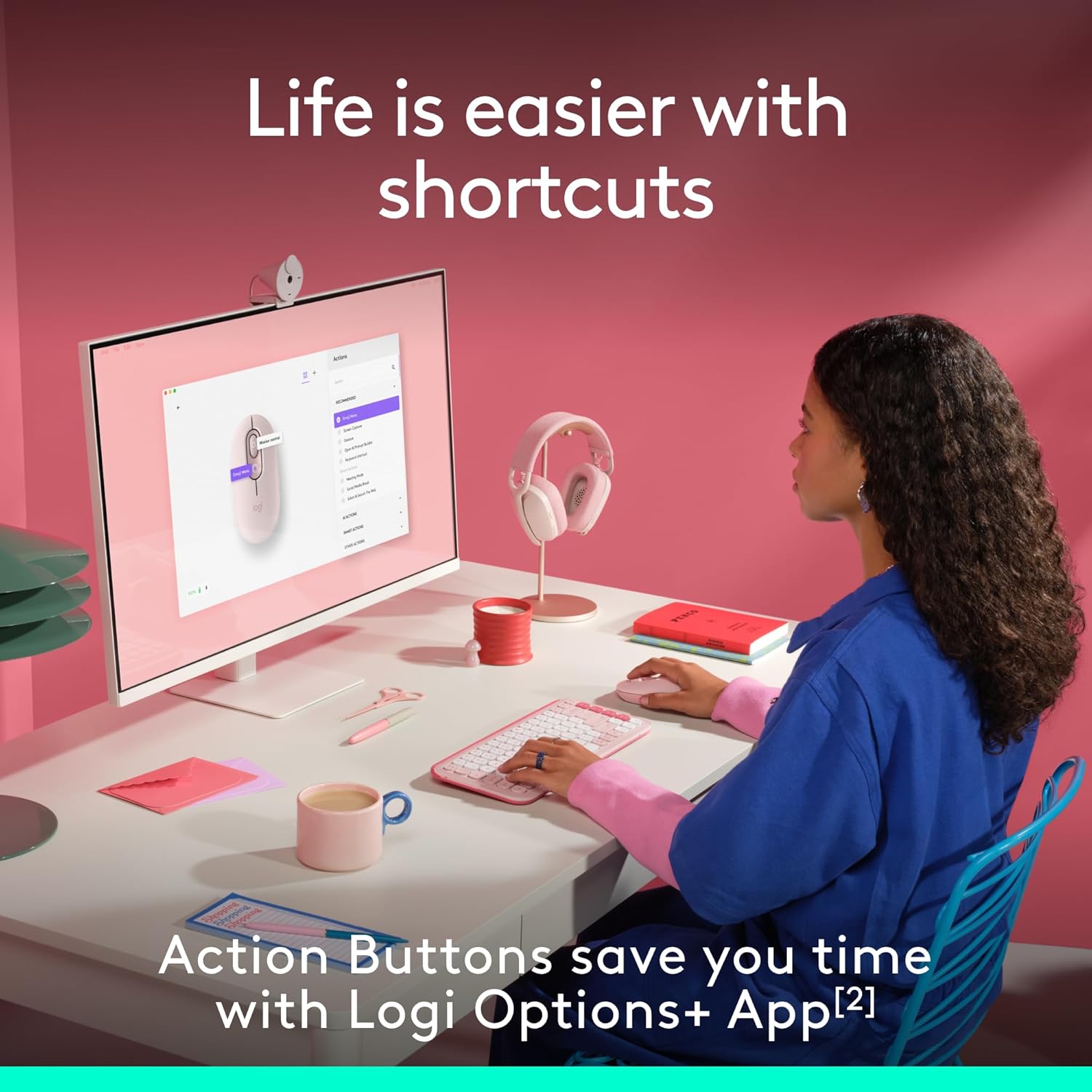
Image: A user interacting with a computer, demonstrating the customizable action buttons of the Logitech POP Mouse via the Logi Options+ App.
6. Xizmat ko'rsatish
6.1. Batareyani almashtirish
The Logitech POP Mouse is powered by a single AA battery, offering up to 2 years of battery life depending on usage. To replace the battery, follow the steps outlined in Section 3.1.
6.2. Tozalash
Optimal ishlash va tashqi ko'rinishni saqlab qolish uchun sichqonchangizni muntazam ravishda tozalab turing:
- Bir oz yumshoq, tuklarsiz matodan foydalaning dampsuv yoki izopropil spirti bilan yakunlanadi.
- Qattiq kimyoviy yoki abraziv materiallardan saqlaning.
- Sichqoncha teshiklariga suyuqlik tushmasligiga ishonch hosil qiling.
7. Muammolarni bartaraf qilish; nosozliklarni TUZATISH
7.1. Ulanish muammolari
- Sichqoncha ulanmayapti: Ensure the mouse is turned on and the battery has sufficient charge. Re-enter pairing mode by holding the Easy-Switch button for 3 seconds. Check your device's Bluetooth settings to ensure it's discoverable and try re-pairing.
- Vaqti-vaqti bilan ulanish: Move the mouse closer to your device. Ensure there are no large metal objects or other wireless devices causing interference.
7.2. Cursor Movement Issues
- Erratic cursor: Clean the optical sensor on the bottom of the mouse with a soft, dry cloth. Ensure you are using the mouse on a suitable surface; highly reflective or transparent surfaces may affect tracking.
- No cursor movement: Check battery level. Ensure the mouse is connected to the correct device channel via the Easy-Switch button.
8. Texnik shartlar
| Xususiyat | Tafsilot |
|---|---|
| Model raqami | 910-007409 |
| Ulanish | Bluetooth |
| Ko'p qurilmalarni qo'llab-quvvatlash | Up to 3 devices (Easy-Switch) |
| Harakatni aniqlash texnologiyasi | Optik |
| DPI diapazoni | 1000 dan 4000 gacha |
| Batareya turi | 1 x AA (shu jumladan) |
| Batareya muddati | Up to 2 years (may vary) |
| Element og'irligi | 4.6 untsiya |
| Paket o'lchamlari | 4.88 x 3.5 x 1.77 dyuym |
| Mos keladigan operatsion tizimlar | Chrome OS, Windows, iPadOS, macOS, Linux |
| Maxsus xususiyatlar | Lightweight, Portable, Soundless (Silent Touch Technology), Customizable Button |
| Material | Plastic (37% to 68% recycled plastic, depending on color) |

Image: A diagram illustrating the physical dimensions of the Logitech POP Mouse.
9. Kafolat va qo'llab-quvvatlash
Kafolat haqida ma'lumot, texnik yordam va qo'shimcha resurslar uchun rasmiy Logitech qo'llab-quvvatlash xizmatiga tashrif buyuring website. The user documentation included in the box also contains specific warranty details for your region.
You can find further assistance and product information at the Logitech do'koni.


