1. Kirish
Thank you for choosing the AWOW Mini PC W-11 Pro Core i5-13500HX. This compact and powerful mini PC is designed for a wide range of applications, from everyday office tasks and web browsing to software development and graphic design. This manual provides essential information for setting up, operating, maintaining, and troubleshooting your device to ensure optimal performance and longevity.
2. Mahsulot xususiyatlari
- Kuchli protsessor: Equipped with an Intel Core i5-13500HX processor (14 cores, 20 threads, up to 4.7GHz turbo clock speed) for efficient multitasking and demanding applications.
- AmpXotira va saqlash: Features 16GB DDR4 RAM (expandable) and a 512GB M.2 PCIe 3.0 SSD for fast boot-up and application loading. An additional M.2 SATA slot is available for storage expansion.
- Ko'p qirrali ulanish: Includes Wi-Fi 6 (AX201) and Bluetooth 5.2 for high-speed wireless connections. Multiple ports such as USB 3.2, USB 2.0, Full-Function USB-C, Data USB-C, HDMI 2.1, DisplayPort 1.4, and a 2.5G Gigabit LAN port.
- Uchta displeyni qo'llab-quvvatlash: Connect up to three displays simultaneously via HDMI 2.1, DisplayPort 1.4, and the Full-Function USB-C port, all supporting 4K@60Hz resolution.
- Yilni dizayn: A sleek silver metal body with a compact footprint, ideal for saving desk space. VESA mount compatibility allows for discreet mounting behind a monitor.
- Oldindan o'rnatilgan OS: Comes with Windows 11 Pro pre-installed for immediate use.

Image: The Intel Core i5-13500HX processor, highlighting its 14 cores, 20 threads, 4.7GHz turbo frequency, 55W TDP, Intel 7 process technology, and 24MB Intel Smart Cache.
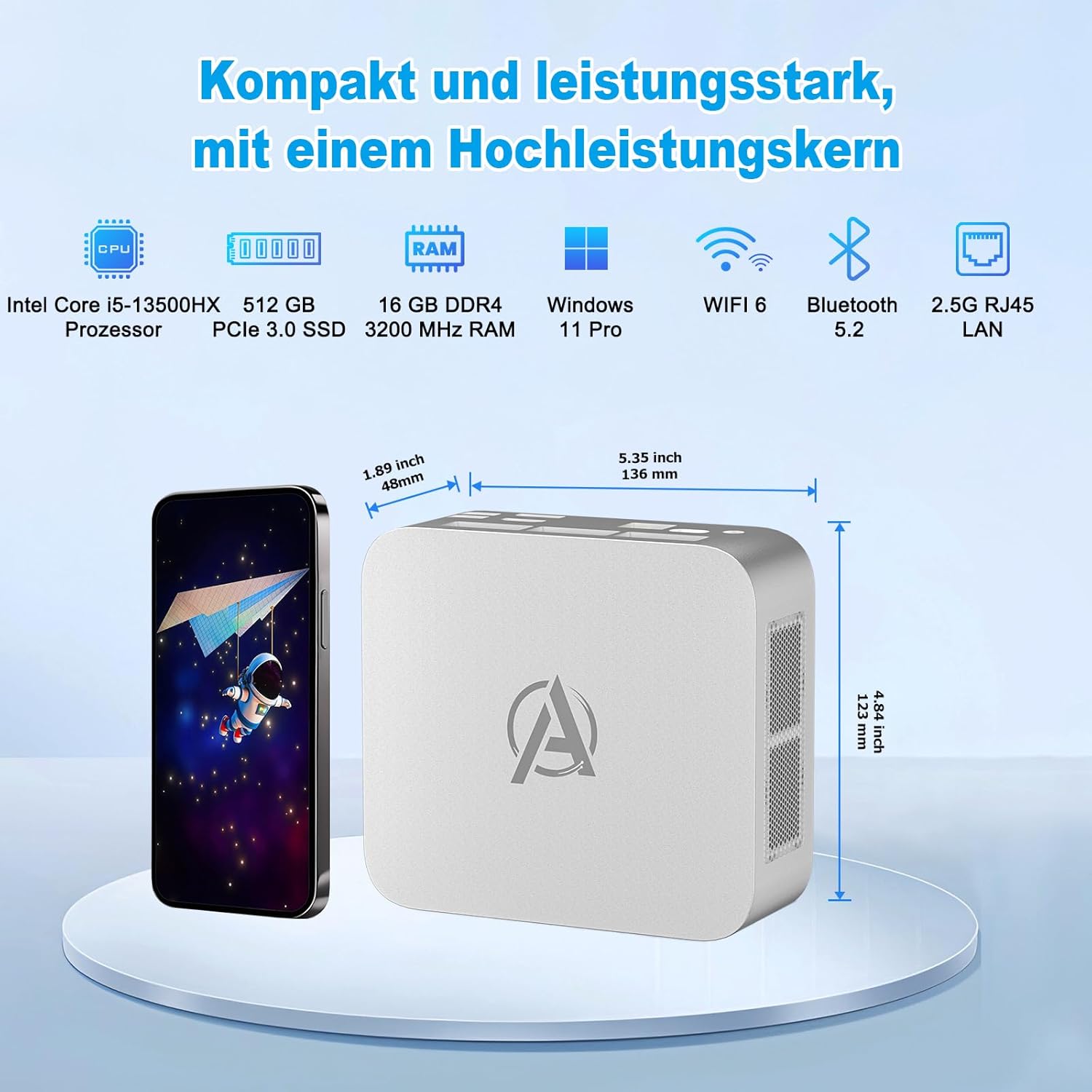
Tasvir: Bittaview of the AWOW Mini PC's compact design and key specifications including Intel Core i5-13500HX processor, 512GB PCIe 3.0 SSD, 16GB DDR4 RAM, Windows 11 Pro, Wi-Fi 6, Bluetooth 5.2, and 2.5G RJ45 LAN. Dimensions are shown as 1.89 inches (48mm) width, 5.35 inches (136mm) length, and 4.84 inches (123mm) height.

Image: Detailed diagram of the AWOW Mini PC's front and rear ports. Front ports include 2x USB 3.2, Power Button, 3.5mm Audio+Mic Combo Jack, Type-C (Data Transfer), and CMOS reset. Rear ports include DC IN, Full-Function Type-C, RJ45-LAN (2.5 Gbit/s), HDMI 2.1 (4K@60Hz), DisplayPort 1.4 (4K@60Hz), and 2x USB 2.0.
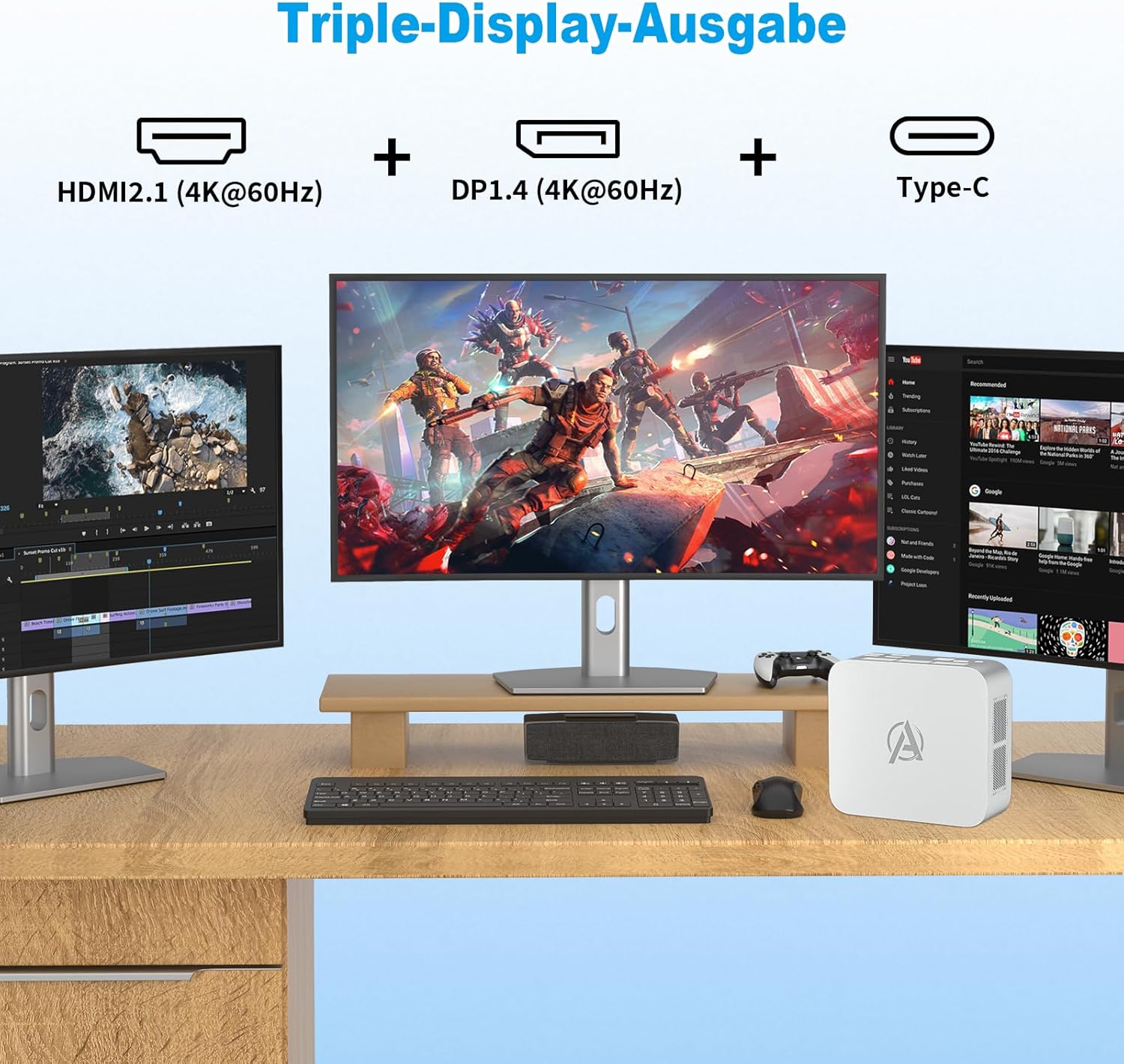
Image: Illustration of the AWOW Mini PC connected to three monitors, demonstrating its triple display output capability via HDMI 2.1, DisplayPort 1.4, and Type-C, all supporting 4K@60Hz.

Image: Graphic illustrating the advanced wireless connectivity of the AWOW Mini PC, featuring Wi-Fi 6 (up to 9.6Gbps, 270% faster than Wi-Fi 5) and Bluetooth 5.2 (2Mbps, 100% faster than BT4.2).
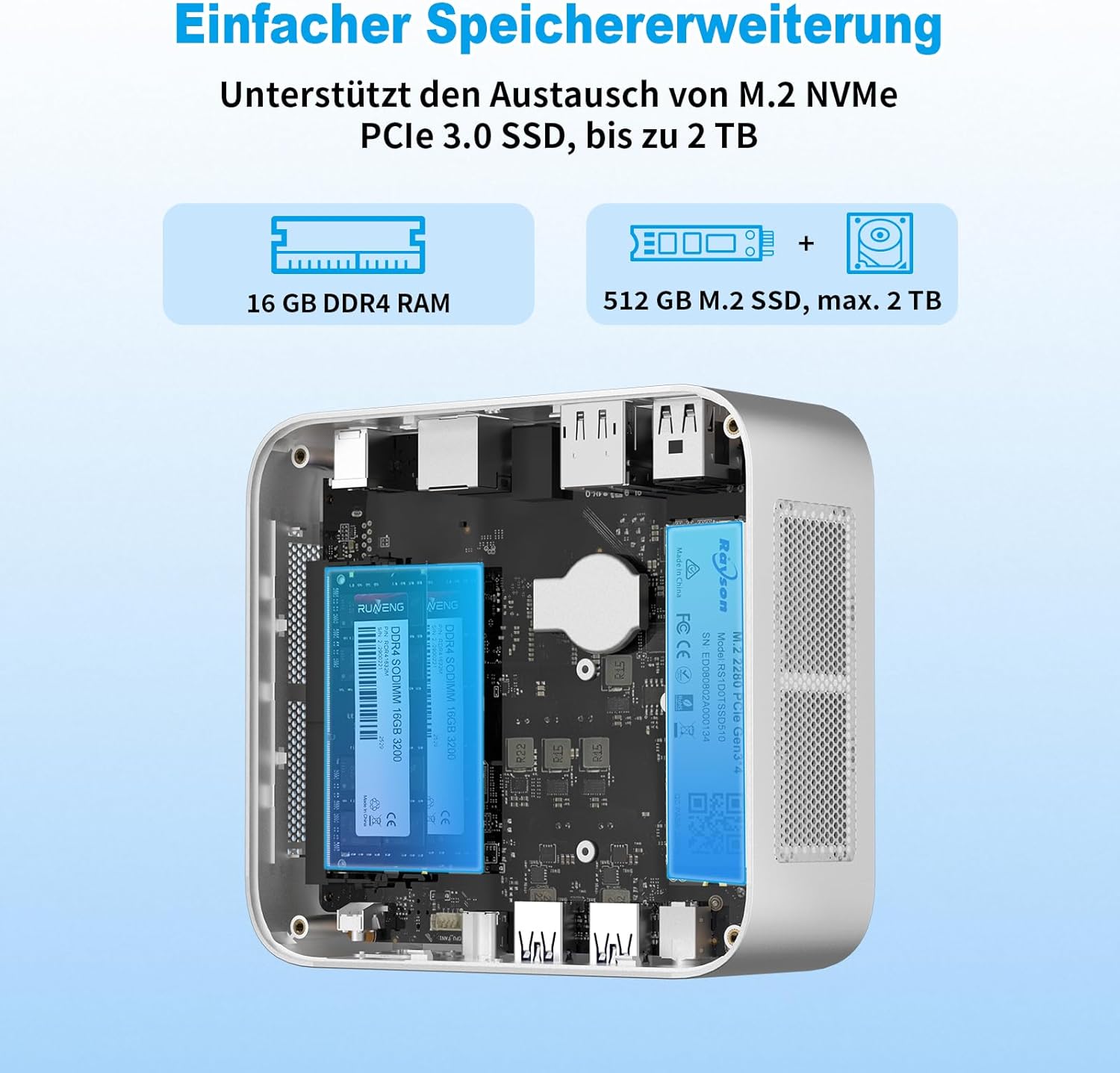
Rasm: ichki view of the AWOW Mini PC showing the 16GB DDR4 RAM and the 512GB M.2 SSD, with an indication that storage can be expanded up to 2TB via an M.2 NVMe PCIe 3.0 SSD.

Image: Four panels demonstrating the compact size and versatility of the AWOW Mini PC. It shows desktop use, VESA mounting behind a monitor, portability (fitting in a bag), and a size comparison next to a smartphone, reiterating its dimensions.
3. Paket tarkibi
Paketni ochgandan so'ng, quyidagi elementlarning barchasi kiritilganligini tekshiring:
- AWOW Mini PC W-11 Pro Core i5-13500HX
- Quvvat adapter(lar)i
- HDMI kabeli
- Foydalanuvchi uchun qo'llanma (ushbu hujjat)
- VESA Mount (for monitor attachment)
4. O'rnatish bo'yicha qo'llanma
4.1 Periferik qurilmalarni ulash
- Displeyni ulash: Use the provided HDMI cable to connect your monitor to the HDMI 2.1 port on the Mini PC. Alternatively, use a DisplayPort cable for the DP 1.4 port or a compatible USB-C to DisplayPort/HDMI cable for the Full-Function USB-C port.
- Klaviatura va sichqonchani ulang: Plug your USB keyboard and mouse into any available USB 2.0 or USB 3.2 ports.
- Tarmoqqa ulanish (ixtiyoriy): For a wired internet connection, connect an Ethernet cable from your router to the 2.5G Gigabit LAN port. For wireless, Wi-Fi 6 is available and will be configured during initial setup.
- Quvvatni ulash: Plug the power adapter into the DC IN port on the Mini PC, then plug the adapter into a power outlet.
4.2 Quvvatni yoqish
Press the power button located on the front of the Mini PC. The power indicator light will illuminate, and the system will begin to boot up.
4.3 Windows 11 Pro-ni dastlabki sozlash
Follow the on-screen instructions to complete the initial setup of Windows 11 Pro. This typically involves selecting your region, keyboard layout, connecting to a Wi-Fi network (if not using wired Ethernet), and creating a user account.
4.4 VESA o'rnatish moslamasini o'rnatish (ixtiyoriy)
If you wish to mount your Mini PC behind a monitor, attach the included VESA mount to the back of your monitor using the appropriate screws. Then, secure the Mini PC to the VESA mount.
5. Foydalanish bo'yicha ko'rsatmalar
5.1 Asosiy operatsiya
Once Windows 11 Pro is set up, you can use your Mini PC like any standard desktop computer. Navigate the operating system using your connected keyboard and mouse. Access applications, browse the web, and manage files.
5.2 Tarmoqqa ulanish
- Simli ulanish: Ensure an Ethernet cable is connected to the 2.5G Gigabit LAN port for a stable and high-speed internet connection.
- Simsiz ulanish: To connect to Wi-Fi, click the network icon in the Windows taskbar, select your desired Wi-Fi network, and enter the password. The Mini PC supports Wi-Fi 6 for enhanced performance.
5.3 Using Ports
- USB portlari: Use the USB 3.2 ports for high-speed data transfer with external drives and peripherals. USB 2.0 ports are suitable for keyboards, mice, and other less demanding devices.
- HDMI & DisplayPort: These ports are for connecting external displays. Ensure your cables and monitors support the desired resolution (up to 4K@60Hz).
- C-toifa portlari: The Full-Function USB-C port supports data transfer, video output, and power delivery. The other USB-C port is for data transfer only.
- Audio Jek: Connect headphones or external speakers to the 3.5mm audio+microphone combo jack.
5.4 Uchta displeyni sozlash
To utilize the triple display feature, connect your primary monitor to the HDMI port, a second monitor to the DisplayPort, and a third monitor to the Full-Function USB-C port (using a compatible adapter/cable if necessary). Windows will automatically detect the displays, and you can configure their arrangement and resolution in the Display Settings.
6. Xizmat ko'rsatish
6.1 Umumiy parvarish
- Keep the Mini PC in a well-ventilated area to prevent overheating.
- Qurilmani haddan tashqari harorat, namlik yoki to'g'ridan-to'g'ri quyosh nuriga ta'sir qilishdan saqlaning.
- Tashqi qismini yumshoq, quruq mato bilan tozalang. Suyuq tozalagichlardan foydalanmang.
- Barcha kabellar mahkam ulanganligiga ishonch hosil qiling.
6.2 Saqlash hajmini kengaytirish
The Mini PC includes a free M.2 SATA slot for additional storage. To install an M.2 SATA SSD:
- Mini kompyuterni o'chiring va barcha simlarni uzing.
- C ni ehtiyotkorlik bilan ochingasing of the Mini PC (refer to specific instructions if provided with the device for safe opening).
- Locate the M.2 SATA slot.
- Insert the M.2 SATA SSD into the slot and secure it with the provided screw.
- c ni yopingasing va barcha kabellarni qayta ulang.
- Upon booting, you may need to initialize and format the new SSD through Windows Disk Management before it can be used.
7. Muammolarni bartaraf qilish; nosozliklarni TUZATISH
If you encounter issues with your AWOW Mini PC, please refer to the following common troubleshooting steps:
- Quvvat yo'q: Quvvat adapteri Mini PC va ishlaydigan rozetkaga mahkam ulanganligiga ishonch hosil qiling. Agar kerak bo'lsa, boshqa rozetkani sinab ko'ring.
- Displey yo'q: Verify that the monitor is powered on and the display cable (HDMI, DP, or USB-C) is firmly connected to both the Mini PC and the monitor. Try a different display cable or monitor if available.
- System Overheating/Unexpected Shutdowns: Ensure the Mini PC is placed in a location with adequate airflow and that its ventilation vents are not obstructed. Avoid placing it on soft surfaces that can block airflow. If the issue persists, reduce heavy workload or contact support.
- Driver Issues After Reinstallation: If you perform a fresh installation of Windows, you may need to download specific drivers from the AWOW official website to ensure all hardware components function correctly. It is recommended to back up existing drivers before a fresh OS install.
- Periferik qurilma aniqlanmadi: Try connecting the peripheral to a different USB port. Ensure the peripheral's drivers are installed if required.
- Tarmoqqa ulanish muammolari: For wired connections, check the Ethernet cable and router status. For Wi-Fi, ensure you are connected to the correct network and have entered the password correctly. Restart your router and the Mini PC.
For more complex issues, please consult the AWOW support websayt yoki mijozlarga xizmat ko'rsatish bilan bog'laning.
8. Texnik shartlar
| Xususiyat | Spetsifikatsiya |
|---|---|
| Brend | AVOW |
| Model raqami | BI13 |
| Protsessor | Intel Core i5-13500HX (14 Cores, 20 Threads, 2.5GHz base, up to 4.7GHz turbo) |
| Ram | 16 GB DDR4 3200MHz (Expandable up to 64 GB) |
| Saqlash | 512 GB M.2 PCIe 3.0 SSD (with additional M.2 SATA slot for expansion up to 2TB) |
| Grafika | Integratsiyalashgan Intel Graphics |
| Operatsion tizim | Windows 11 Pro |
| Simsiz ulanish | Wi-Fi 6 (802.11ax), Bluetooth 5.2 |
| Simli ulanish | 2.5G Gigabit Ethernet (RJ45) |
| USB portlari | 2x USB 3.2, 2x USB 2.0, 1x Full-Function USB-C, 1x Data USB-C |
| Video chiqishi | 1x HDMI 2.1 (4K@60Hz), 1x DisplayPort 1.4 (4K@60Hz), 1x Full-Function USB-C (4K@60Hz) |
| Audio | 3.5mm Audio+Microphone Combo Jack |
| O'lchamlari | Taxminan 136 x 123 x 48 mm (5.35 x 4.84 x 1.89 dyuym) |
| Rang | Kumush |
9. Kafolat va qo'llab-quvvatlash
AWOW products are covered by a limited warranty. For detailed warranty information, terms, and conditions, please refer to the warranty card included in your package or visit the official AWOW support website. If you require technical assistance, driver downloads, or have questions not covered in this manual, please contact AWOW customer support through their official channels.


